
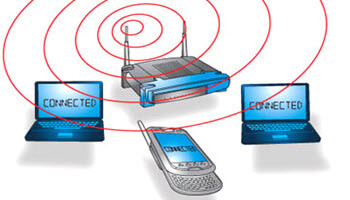
Accessing network shares through a Chromebook.
Windows networking has always been a nightmare. Hit or miss. It only works when it wants to. So I’m going to add to that nightmare by trying to access it through a Chromebook. 🙂
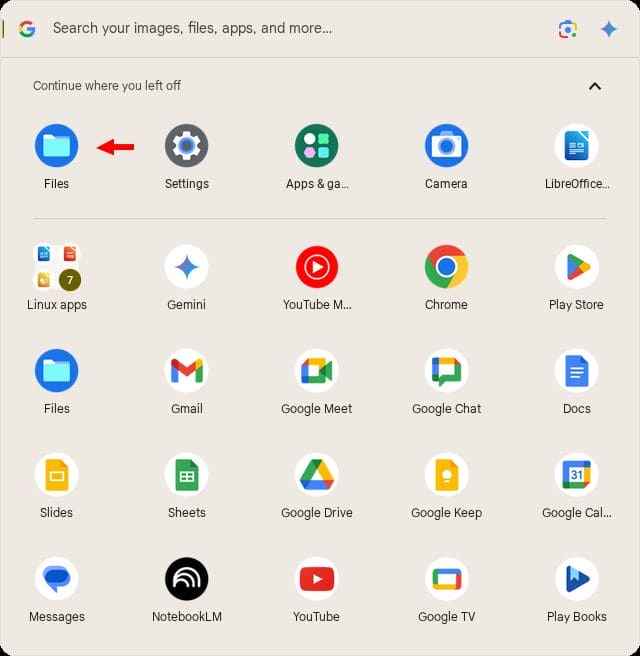
On your Chromebook, click the “Launcher”, then “Files”. This is your file explorer on a Chromebook.
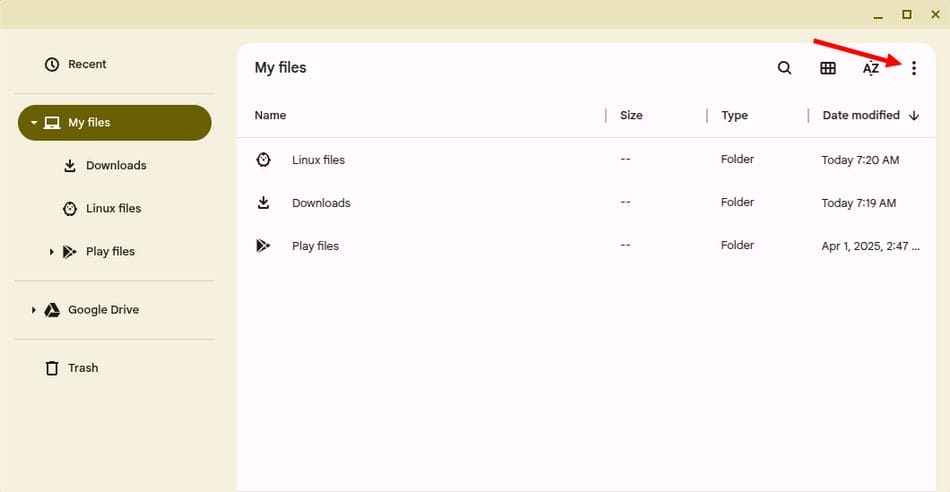
When it opens, click the three-dot menu in the top right-hand corner.
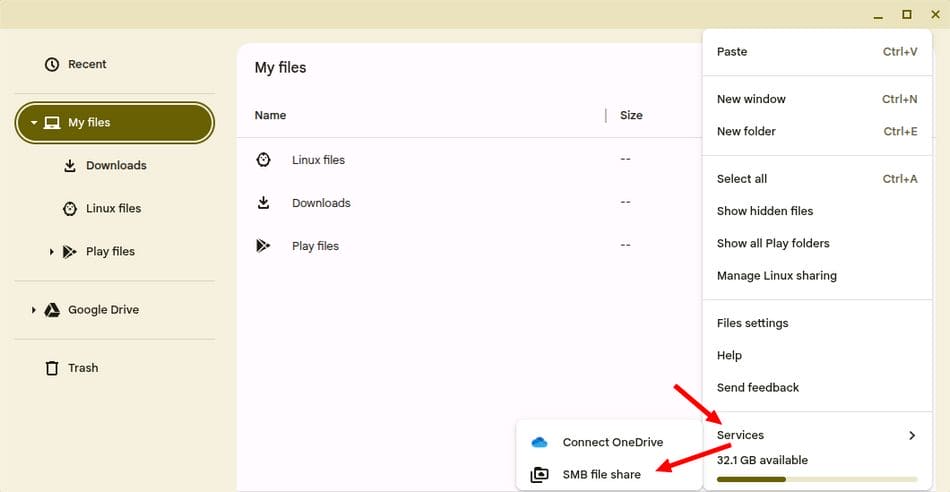
In the menu that opens, click “Services” and then “SMB file share”.
In the next window, type in the path to your Windows network share. Type your account “Username” on your Windows computer and the “Password“. I would also check the “Remember sign-in info” option. Then click “Add“.
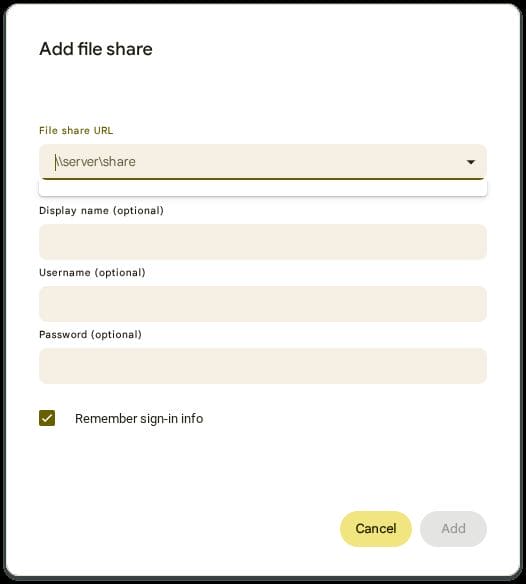
I’m going to try to access my “MoviesTV” folder on my “CyberPC”.
To find your Network path: Right-click on a folder in Windows and go to “Properties”. Then click on the “Sharing” tab to find your Network Path.
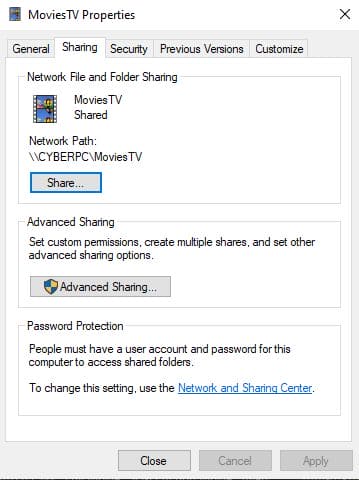
My “File share URL” would be \\CYBERPC\MoviesTV
I type in my username and password for my Windows account. Then I checked “Remember sign-in info” and clicked “Add”. Did it work? Not at first.
First attempt.
Turns out the Chromebook can’t find my shares any better than Windows. 🙂 I get this error message.
Error mounting share. The specified share was not found on the network.
Second attempt.
I tried accessing folders on my second computer, my ASUS, with the same results.
Third attempt.
I changed to using the IP address of the share I was trying to connect to. I opened Command Prompt in Windows. I typed “ipconfig”. I’m looking for the IPv4 address. It was “192.168.x.xx”.
So my new “File share URL” would be \\192.168.x.xx\MoviesTV
And that worked.
Right now it seems like I have to add each share folder manually if I want to share more than one.
Anyway, those are the basics of sharing folders on a Chromebook. I might dig into it a bit further later on. But for now, I consider my first test a success.
Have you ever used a Chromebook on your network? Let us know in the comments.
For more Chromebook articles, click here.
—
