

Thunderbird has changed its email program so that clicking the X no longer closes the program but minimizes it to the system tray (down by the clock). Here’s how to change that.
Previously, when I clicked the minimize button in Thunderbird, it minimized to the System Tray by the clock. Clicking the X in the top right-hand corner would close the program.
The latest update seems to have changed that behaviour. Now, minimizing the program minimizes it, like any other program, to the Taskbar. It also continues showing in the System Tray.
To get it to close to the System Tray and not show on the Taskbar, I have to click the X.
To close the program, you now have to go to the File menu. Click on File and then Exit (Ctrl+Shift+Q for keyboard warriors).
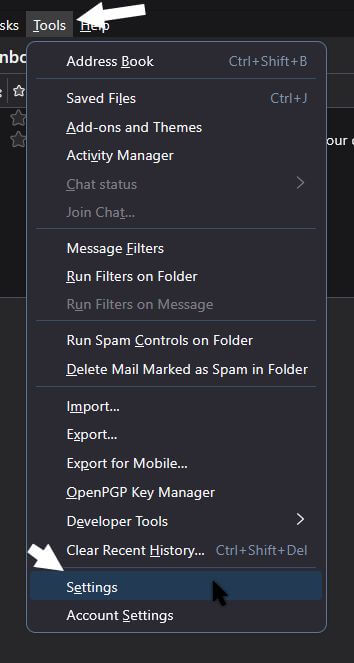
The sad thing about this is that it’s not a bug. It’s just how it is now. The only control you have is to go to “Tools” then “Settings”.
Click “General”. Scroll down to the “System integration” settings, and you’ll see “When Thunderbird is closed, move it to the tray”.
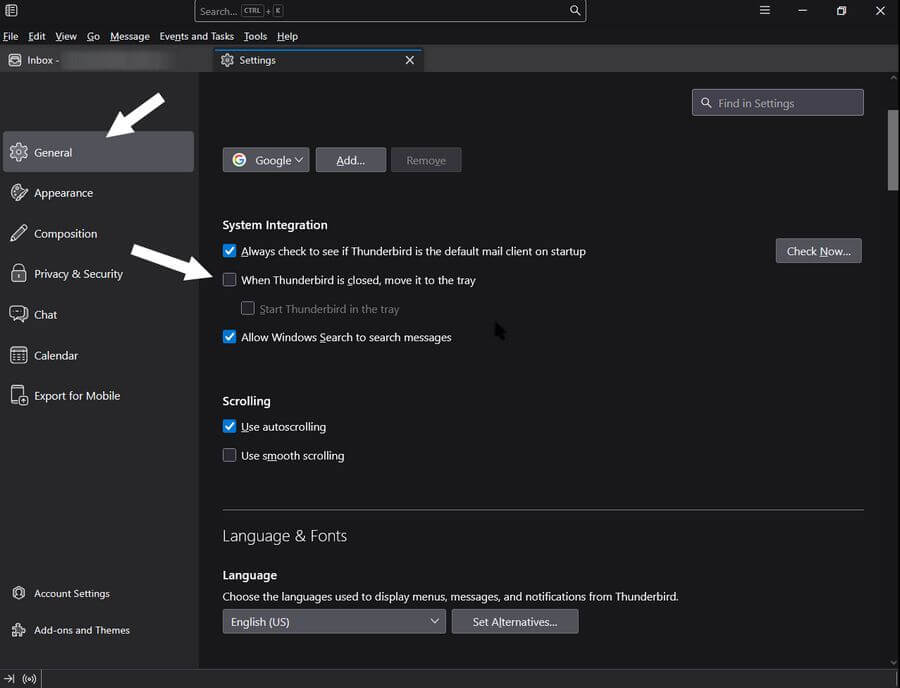
Note: You cannot use “Start Thunderbird in the tray” if the main entry is not selected.
If you check that, the behaviour described above is what you are stuck with. Remove the check mark, and when you click on the X, it will shut down Thunderbird, but the minimize button still minimizes to the Taskbar.
Personally, I preferred the old way. So, what’s your opinion?
For more Thunderbird articles, click here.
—
