

A friend recently brought his laptop running Windows 11 (25H2) to me, hoping I could fix a couple of issues for him:
- Windows Security’s icon was overlaid with a red X, signifying that something was wrong
- He was being pestered by a constant pop-up with the message that Firefox had run into a problem and needed to close, even though Firefox wasn’t actually running
I looked into the security issue first, but when I checked Windows Security components, everything was fine, green ticks all through. Checking Defender’s settings also failed to uncover any issues.
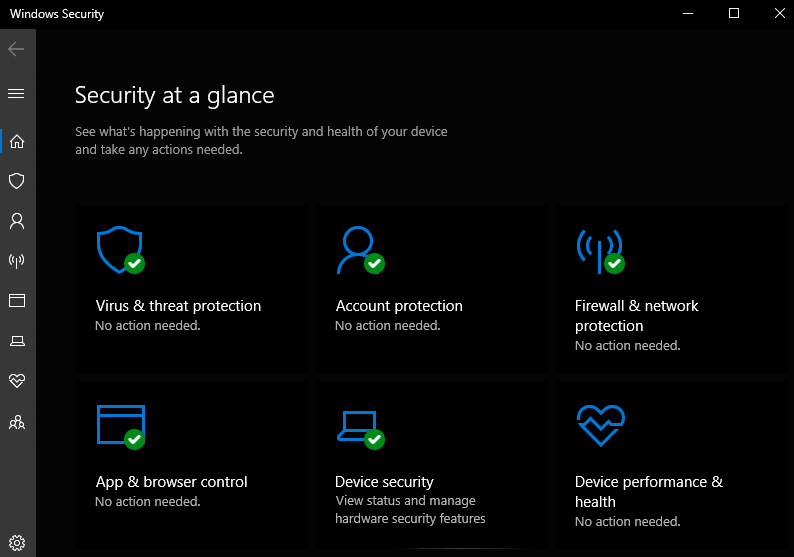
My next thought was that maybe a quick scan was overdue. So I started a quick scan with Defender, but it reached about two-thirds of completion and then stopped. I waited for what seemed an age, but it refused to complete.
I was temporarily stumped on that one, so I looked into the Firefox issue and discovered that my friend had somehow ended up with two versions of Firefox installed. That was an easy fix. I uninstalled the oldest Firefox version, and that solved the problem, no more pop-ups.
Back to the security issue – I’d never come across this before, so I was unsure of where to go next, but a check to see if there were any system file corruptions seemed to be as good a place to start as any. However, running the sfc /scannow command returned zero issues.
Defender Offline Scan
In the face of no obvious security issues, I remained pretty much convinced that the failure of the quick scan to complete was probably causing the red X. So, I initiated an offline Defender scan:
- In the Windows Security overview, click Virus & threat protection
- Now click Scan options
- Enable the Microsoft Defender Antivirus (offline scan) option and then click the Scan now button
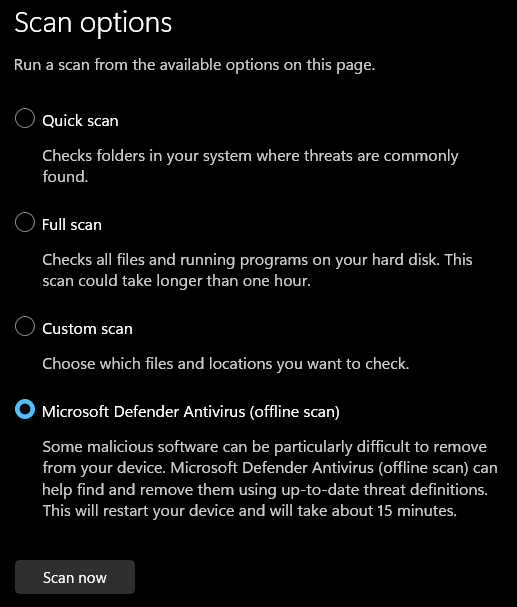
The offline scan typically takes about 10 minutes to complete. It automatically restarts the system and loads the Windows Recovery Environment (WinRE) to perform a quick scan before rebooting back into Windows.
That fixed the problem; the red X is now replaced with a lovely green tick, and the quick scan option is now completing without any issues. This is what worked for me; however, your mileage may vary.
- You also might like: SFC / Scannow & DISM Commands Explained
BOTTOM LINE:
I really enjoy this type of problem-solving, exercising the old grey matter. How about you? Do you enjoy sinking your teeth into problem-solving?
—

Good troubleshooting, Jim. Way to go.