

I recently suffered a major disaster when a severe storm fried my main machine, forcing me to replace it. Once I got the new machine set up with all my preferences, I tried to create an image backup using Aomei Backupper, but no go.
After much pondering and research, I finally discovered that the system drive had been BitLocker encrypted. Turning BitLocker off and decrypting the drive fixed the problem for me, but I kept receiving messages that BitLocker was attempting to encrypt the drive again, even with BitLocker disabled.
To Encrypt Or Not To Encrypt
Here are two important considerations when deciding whether to encrypt a drive or not:
- Encrypting a drive is only necessary if/when there is sensitive information contained on the drive, especially in a shared environment
- BitLocker encryption has most likely blocked legitimate access more often than it has blocked malicious access
Bottom line is: in most cases, for the average home user, encryption is, in my opinion, not necessary and apt to be more of a nuisance than a help.
- You also might like: BitLocker Device Encryption – Do You Need It?
How To Turn BitLocker Off & Decrypt Drive
The problem comes about through Microsoft’s insistence on automatically encrypting a drive during a fresh/new installation under the following circumstances:
If the hardware supports TPM + Secure Boot, and the user signs in with a Microsoft account, Windows enables encryption automatically — regardless of edition.
You can easily tell if a drive is encrypted by going to This PC and, if the drive is associated with a padlock, it is encrypted.
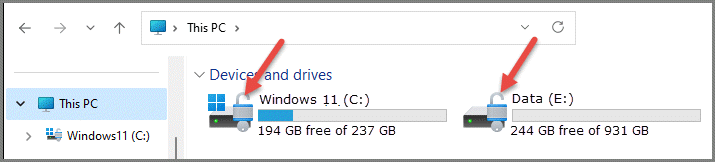
There is a simple method in Windows 11 Pro to turn off BitLocker, which isn’t available in the Home edition. So, I’m showing you a method that is common to both editions:
- Navigate to Settings > Privacy & security > Device encryption
- Now turn the Device encryption switch to Off
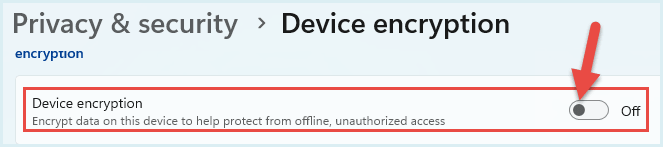
Switching Device encryption to Off will automatically start the decryption process, which might take hours depending on the amount of used space and overall hardware specs.
Of course, if you want to encrypt an unencrypted drive, simply follow the same steps to turn Device encryption On.
Why Is BitLocker Still Trying to Encrypt?
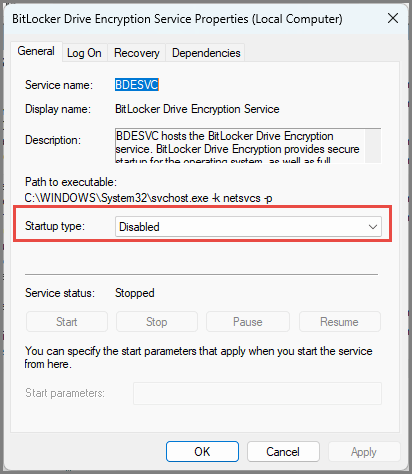
Honestly, with BitLocker turned Off, I have absolutely no idea. However, to make sure that BitLocker can never decrypt my drive unless I want it to, as an additional precaution, I also disabled the BitLocker service:
- Open the Start menu and type services
- Now click Services (System) in the results
- Locate the BitLocker Drive Encryption Service and double-click it
- Expand the dropdown menu under Startup type and select Disabled
- Click Apply, then OK
BOTTOM LINE:
Don’t get me wrong, even though I don’t need BitLocker encryption myself and am not a fan, it can definitely be useful where sensitive data is concerned in a shared environment.
Do you use BitLocker to encrypt your drives?
—
