
Last week, we covered How to Create a Shortcut on your Android phone from Google Chrome. If you missed that, you can find it here:
How To Create Shortcut On Android
This week, I wanted to jump off this subject and talk about ChatGPT. ChatGPT has been taking over the world in the last few years. Many people use it for their jobs or personal projects. I know many companies even use it for writing email and other projects. We might not like it, but ChatGPT is here to stay. So what are you going to teach us about it? Great question! I’m going to teach you how to disable it from using the questions that you ask it to teach its AI systems. You heard me right, the chat system takes your questions and uses them to teach AI. ChatGPT is sharing all your data with the network for training. I, personally, do not want this done since it takes my data to do it. In this article, I will show you how you can disable that setting. Before we jump into this important lesson, make sure to check out these other articles I have written for you:
- How To Customize Google Search Widget
- How To Stop Gemini From Reading Screen
- How To Adjust Facebook Display Settings
- How To Create Collage In Google Photos
- How To Create Cinematic Photos On Google
Time to start our lesson on ChatGPT.
How To Stop ChatGPT Using My Data
I will show you how to do this on my Windows laptop, going to the website.
Step 1: Hop onto your computer and head over to chatgpt.com.
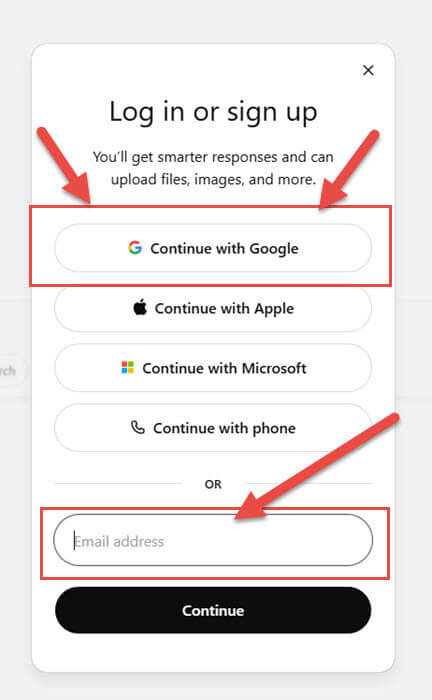
Step 2: Click the log in at the top right. I use my Google account to log in, so I will click that. They give you a few ways to log in. Choose the one you use.
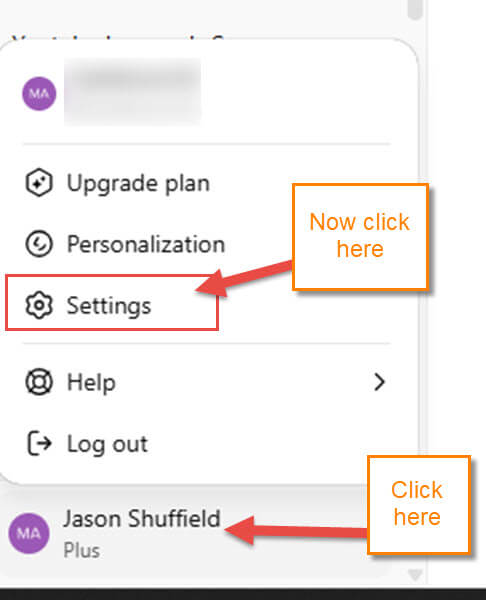
Step 3: After you log in, look to the bottom left. Click on your Name. Now you will get a menu and will need to click on Settings.
Step 4: A menu will appear in the middle of the screen. Look to the left menu and find the Data controls option. Click it.
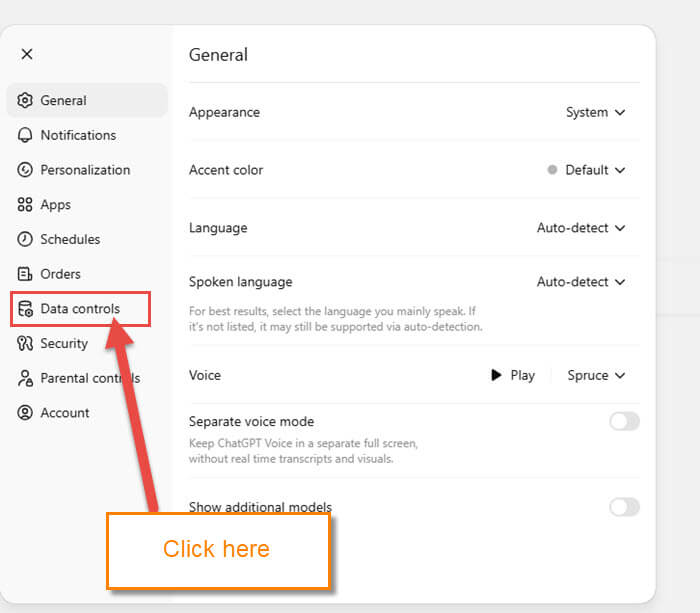
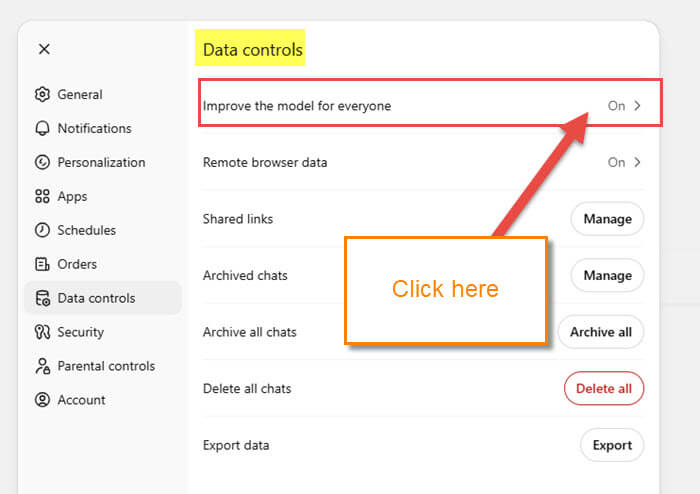
Step 5: Under Data controls, they have some choices you can choose from:
- Improve the model for everyone
- Remote browser data
- Shared links
- Archived chats
- Archive all chats
- Delete all chats
- Export data
For this article, we will need to click on the top option ” Improve the model for everyone“. Click it.
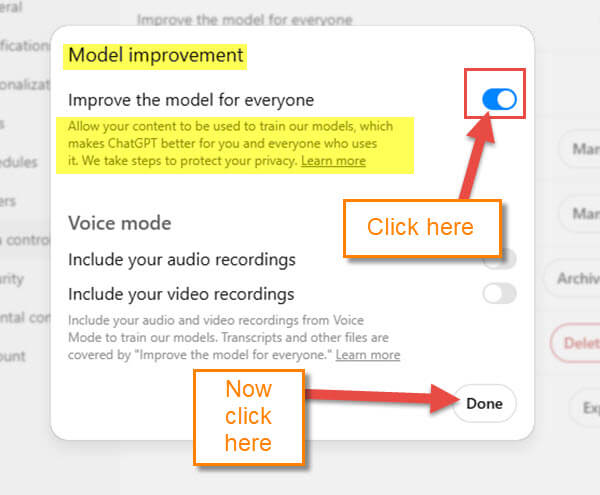
Step 6: The window that pops up is called Model Improvement.
Improve the model for everyone: Allow your content to be used to train our models, which makes ChatGPT better for you and everyone who uses it. WE take steps to protect your privacy
There are some other choices here, but the top one is the one we need. To turn this off, click the switch on the right. Then click the Done button at the bottom. DONE!
You have learned how to stop ChatGPT from using your information to teach it. Time to share this knowledge with the world.
—

Thank you, Jason, for that info. Appreciated muchly!
You are very welcome Nicke.