

Both Terry Hollett and Jim Hillier have written about emulators on DCT in How To Use Android On PC With BlueStacks and Asus: delivering Android apps on PC, so let me recount my recent experience with Android emulation on PC.
In How To Bypass Your ISP’s Limited Customer Portal, I wrote about my recent purchase of TP-Link/Tapo security cameras, but what I didn’t mention was how to view the live feed outside the mobile app. Since there is no native Tapo PC app, there are three choices: use an emulator, stream through VLC, or use a network video recorder (ONVIF compatible software), so I chose the simplest option of using an emulator, in this case, BlueStacks.
BlueStacks Works Right Out Of The Box
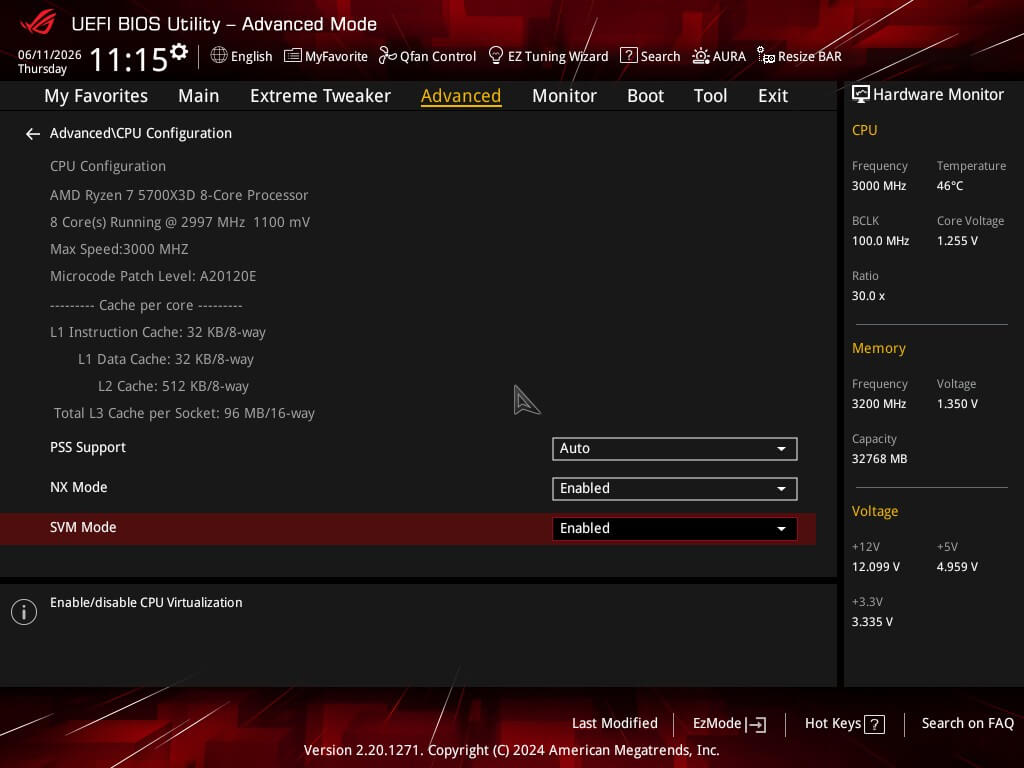
BlueStacks is an Android emulator that allows you to run mobile apps and games on your PC. The program creates a virtual Android environment, which is why virtualisation (VM) is highly recommended. I simply went into the UEFI/BIOS of my PC and laptop, looked under advanced, and enabled SVM, although it may be called something different in your PC.
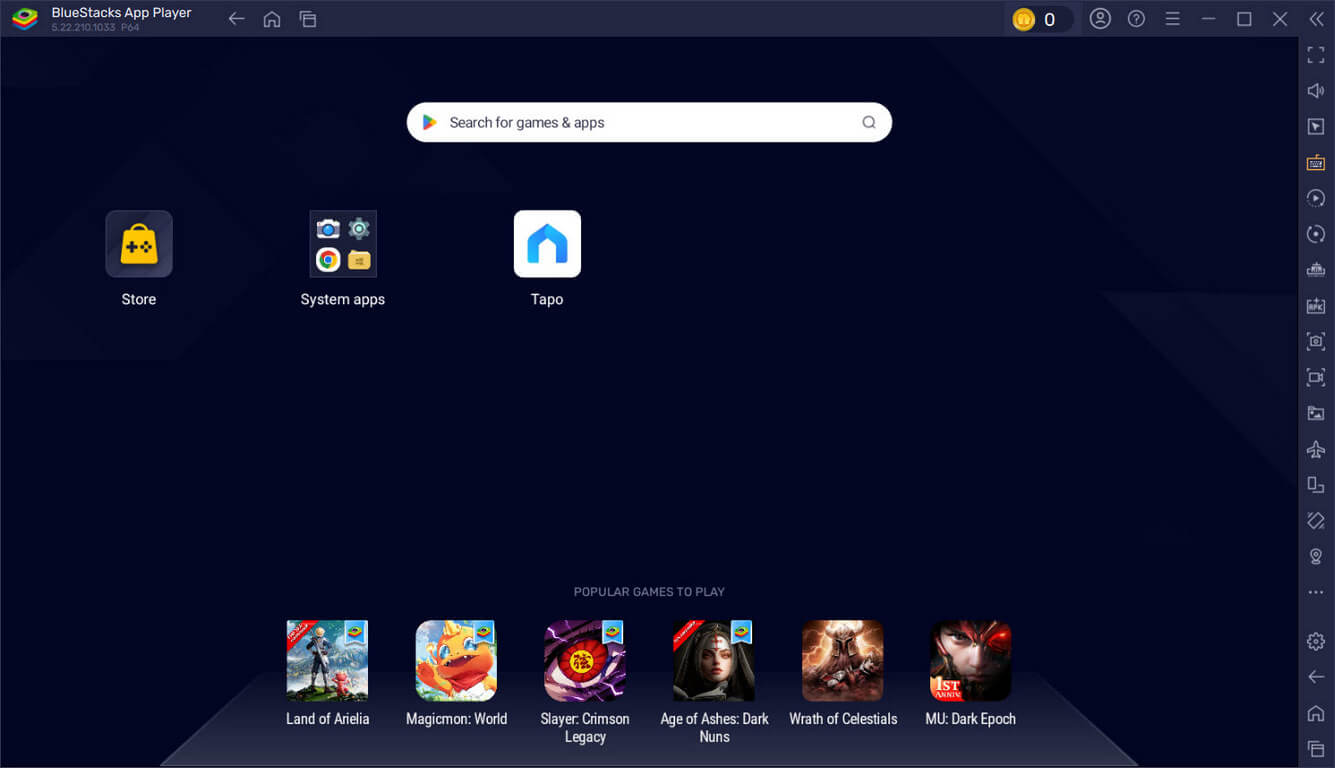
Terry’s article, which I have linked to above, explains how to install BlueStacks, and once that’s done, open the program. You don’t even need to be logged in to Bluestacks to run it, but you will have to log in to Google to access Google Play. Bear in mind that most people use BlueStacks to play mobile games, so there’s a heavy emphasis on gaming in the program.
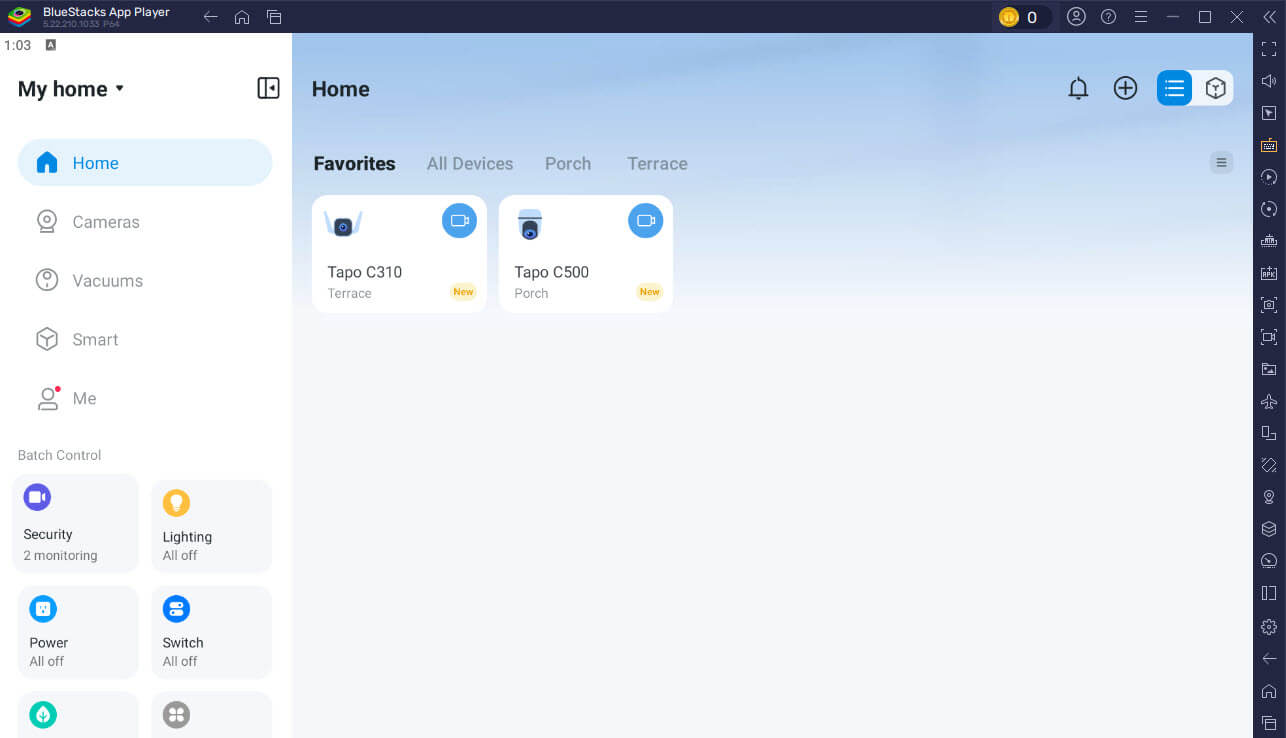
I went straight for the TP-Link Tapo app, logged in as normal, and the program runs just as it does on my phone with no lag whatsoever. For me, the main advantage is being able to check the cameras with a larger viewport and being able to view from other devices.
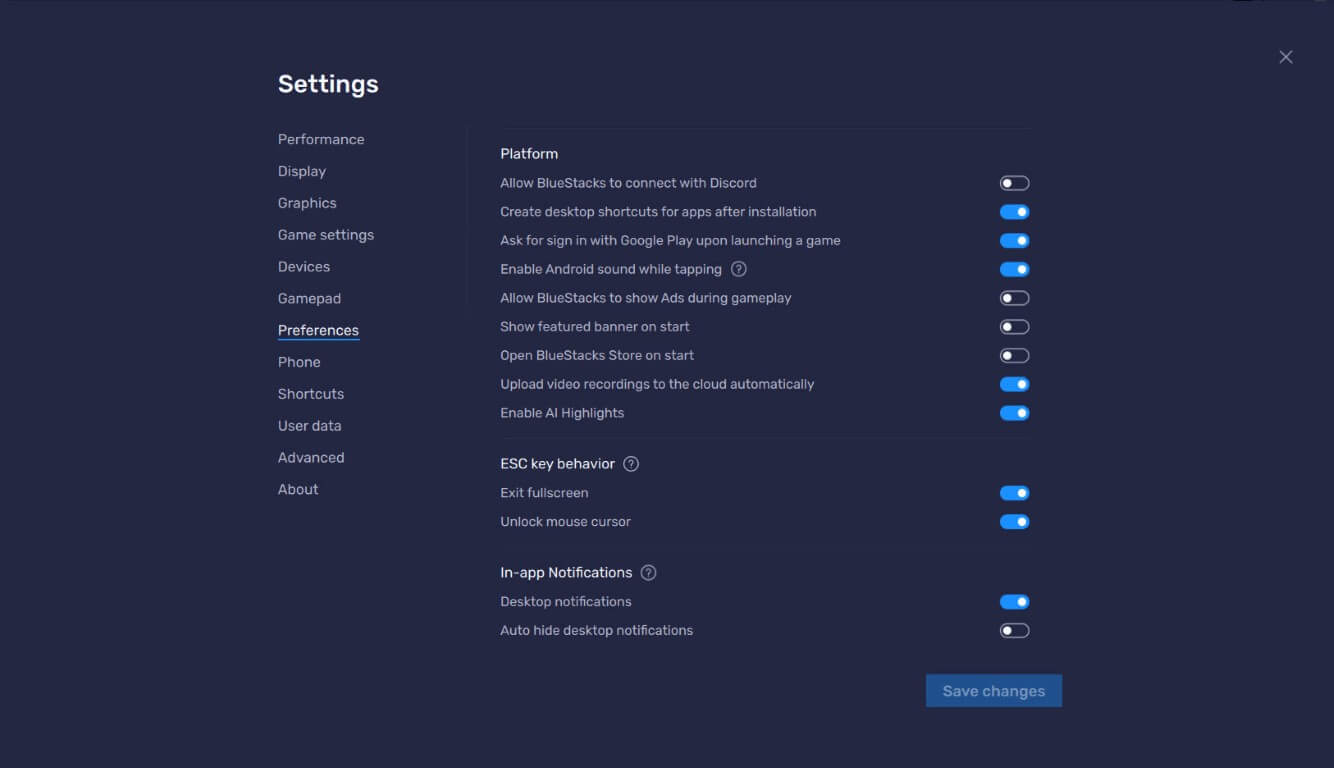
There is advertising in the BlueStacks program, but that can be disabled in Settings>Preferences.
As for other Android apps that I’d like to run on my PC, there are very few, except the odd game, but I can highly recommend BlueStacks – now at version 5 – as a highly polished program for running Android apps on PC or Mac.
—
