

Print on both sides of a page using LibreOffice and a Canon TR4720 printer.
I wrote about this before: How To Print On Both Sides Of A Page
So I went to print a 4-page document only to discover the necessary settings were missing from the print menu. Originally, I printed using a “Canon MG2525”, but then I purchased a “Canon TR4720”.
Why?
The MG2525 doesn’t allow you to print a full-page (8×11) borderless picture on glossy photo paper.
The best you could do was to enlarge the picture to the page in your photo-viewing and/or editing software. When printing, select plain paper and pump up the print resolution.
This usually still leaves borders on the picture, which wouldn’t be so bad if all the borders were equal size. One border was always like 3x the size of the others.
The TR4720 is also wireless. The ink cost will still bankrupt you. 🙂
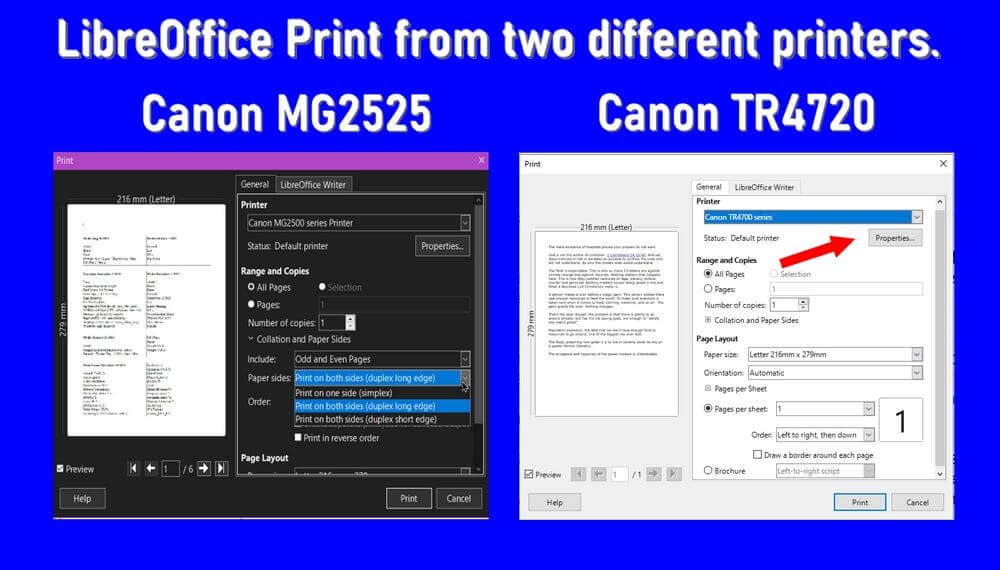
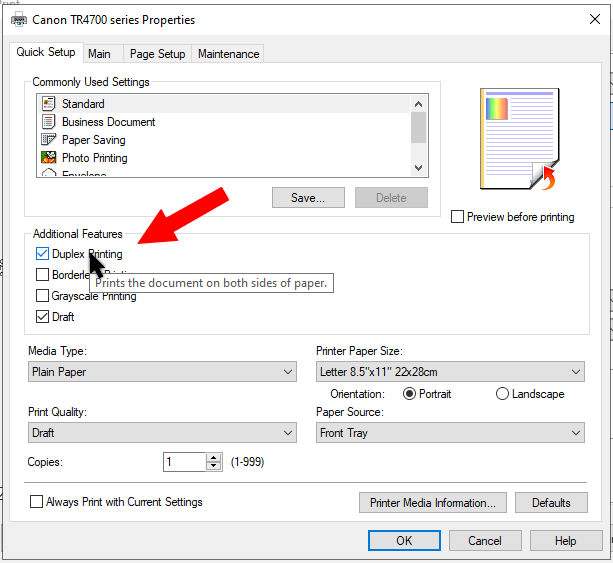
Anyway, to print on both sides of a page with my TR4720, I had to go into the Printer Properties by clicking on the “Properties” button just under the printer name.
In the properties area, I selected “Duplex Printing”.
With my old printer, it printed on one side, and then I had to remove the pages. I had to flip them over and put them back in.
My MG2525 loads the paper from the back; my TR4720 loads paper from the bottom.
I figured I would have to experiment a bit to get the pages to print out properly. I loaded in two pages of paper. Hit print. It printed one side and then drew the page back into the printer and printed the other side automatically. OK, I was very impressed.
Not counting the cost of ink, what are your printer grudges? Let us know in the comments.
For more articles on printing, click here.
—
