

In a previous article, I explained how to pin shortcuts to websites on the Taskbar. Now I’m going to show you how you can pin shortcuts to files/folders on the Taskbar.
There is no option in Windows 11 for pinning frequently accessed files and/or folders to the Taskbar, but with a little creativity, it’s not all that difficult to do.
In the following example, I’ll be working with a folder that I access frequently, where I save all my images and screenshots for articles, appropriately named “DCT”.
How To Pin Files/Folders To Taskbar
First off, you need to create a desktop shortcut:
- Right-click the file/folder you want to pin and select Show more options > Send to > Desktop (create shortcut)
- Right-click the desktop shortcut, click Show more options, and then select Properties
- In the Target field, you need to add “explorer” (minus the quotes) followed by a single space in front of the existing path
- So, in this case, it would look like this:
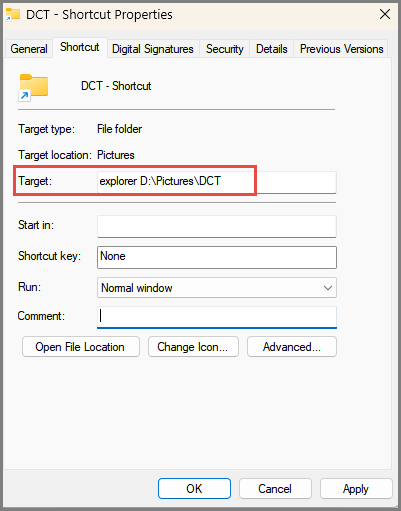
- Click Apply, Ok
- Right-click the desktop shortcut, click Show more options, and then select Pin to taskbar
- You can now delete the desktop shortcut, if you want
Bonus Tip
To help distinguish between the new shortcut and the existing File Explorer shortcut, you can choose a different icon:
- In the properties window, and before clicking Apply, OK, click the Change Icon button
- Highlight (click on) your preferred icon and now click Apply, OK

BOTTOM LINE:
I am not a fan of Windows 11’s Start menu, but with a combination of Taskbar shortcuts for frequently accessed files, folders, websites, etc., plus desktop shortcuts for less frequently accessed items, I don’t even need to bother with the Start menu.
- You also might like: How To Pin Websites To The Taskbar – Any Browser
—

OK, pin a shortcut to the taskbar, that is a current operation on Windows.
You have nevertheless to notice something: the “progress” brought by Windows 11 is that the taskbar is no more flexible. Once you have added a dozen shortcuts, except if you display them with very little icons, you get the rest in the overlap menu, and each time you want to click on one of the new shortcuts you must first develop the overlap menu.
This is why the application TaskbarGroups was created.
And also why I cloned it, to add support for tooltips (as I was not very satisfied with a collection of 20 identical shortcuts in a rectangle), and for shortcuts to folders.
I think I am going to publish it next.