

I had two Android phones brought to me within the last couple of weeks with uncontrollable pop-up ads that made them practically unusable.
Any app promising to free up space, repair your system, or speed up your phone is lying to you. You believed them, so now you are infected. Constant pop-ups and notifications.
If you have any control, go into “Settings” and then “Apps & notifications”.
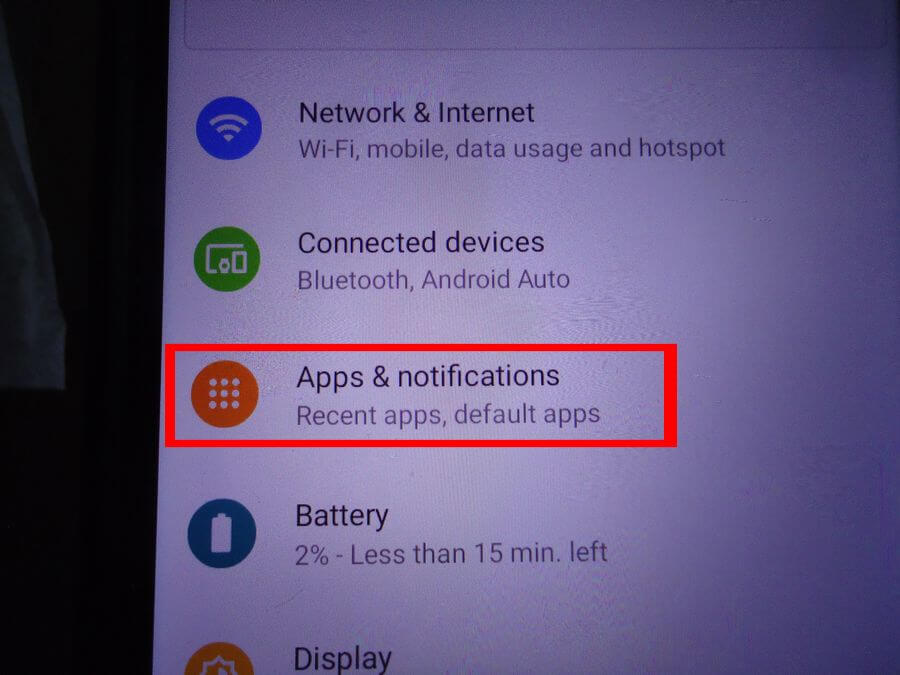
You should see “Recently opened apps”. You can use that to identify what apps are causing the problems. My picture shows the phone after cleaning.
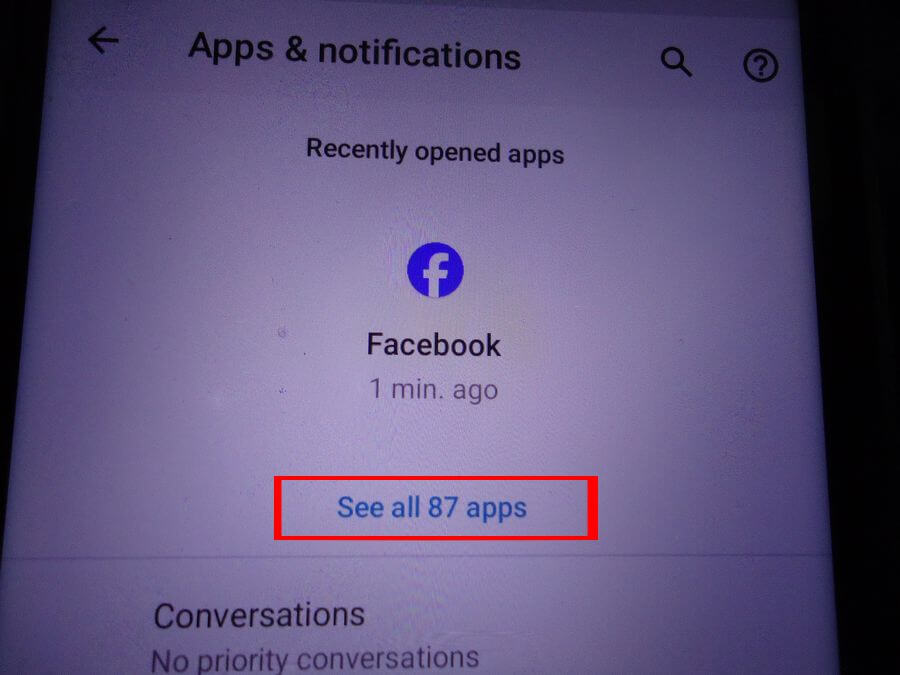
Tap on “See all 87 apps”. Your number will reflect the number of apps you have installed. Scroll down through the list and try to identify the culprits: cleaners, optimizers, and even recovery. Don’t worry, you can’t remove anything that Android doesn’t want you to.
Tap an app listing to see the app information page. Look at the number of “Notifications”. If I remember correctly, one of the installed cleaners was showing “35 a day”. These are your pop-up ads or unwanted notifications.
I blurred the name and logo in my example. This app wasn’t a troublemaker, only here for reference.
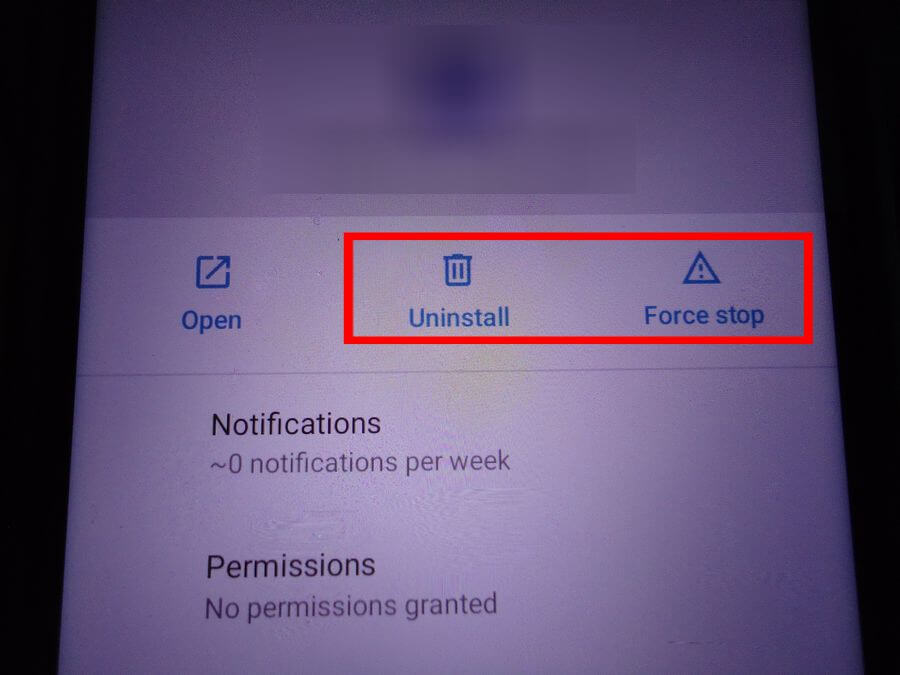
Tap “Force stop”, accept any prompts. Then tap “Uninstall”, accept any prompts.
Go back to the app list and repeat. Any app with a high number of notifications is a good candidate for a culprit. This time I was successful.
Don’t forget to check your games and other apps.
Unfortunately, the first guy who brought me his phone was not so fortunate. I could not get control of the phone to do what needed to be done.
I tried starting up the device in “Safe Mode”.
There are two ways to do it. Try one way, if it doesn’t work, try the other.
Press and hold the power button until the power menu appears. Touch and hold the Power off option. (My old Galaxy J3 shows a green check mark with a Safe mode confirmation message – I tap that). When prompted with Reboot to safe mode, tap OK to confirm.
or
Completely power off your device. Turn on the device, and when the logo appears, press and hold the Volume down button. If done correctly, you will see Safe mode displayed in the bottom left corner of the screen. (This one also works on my Galaxy J3)
Unfortunately, I still didn’t have an Uninstall option for the listed apps.
Last resort, “Reset”. The owner said a reset was OK. They didn’t have anything on it and only used it for Facebook. Backup first. Reset erases everything. I was able to get into the settings to reset the phone.
Settings -> System (or General Management) -> Reset or Reset Options -> Factory Data Reset. (Galaxy J3 -> About -> Reset) Review what will be erased, then tap Reset Phone (or Erase All Data). Enter your PIN/password when prompted, then confirm.
It will restart and then run through the original setup routine.
Let us know your experiences in the comments.
For more Android articles, click here.
—

Advertising money has gotten so stupid ppl think they can just bombard you for that all mighty dollar. I never thought I’d see the day when a person had to pay to not see ads. Being a Boomer and growing up and seeing how things have changed over the yrs is mind boggling. I stopped watching regular broadcast TV yrs ago. Example: last night a friend called up and said a MLB team we liked was on NBC; so I ended up going to the local channel and advertising was so bad that when they took a station break, the pitcher was changed (top of the 7th)after giving up a 1 out double in a 2 to 2 game, when it came back to the game(now bottom of the 7th) the team that was pitching was now at bat with 1 out. That is ridiculous.
I remember a few years ago, my mother was wondering how a talking cat ad was displaying from the phone to the TV. Turns out my nieces and nephews were installing games on the phone. The ads just kept coming, restarting the phone didn’t help. I just decided to go through the phone list and find any app that seemed suspicious until I got the right one and that was it, the ads stopped. Even tried a virus scan but that didn’t help, found nothing.