
Last week, I covered how you can blur your home on Google Maps. If you missed that one, you can find it here:
How To Blur House On Google Maps
I want to stick with the subject of privacy and security. This time, we will give you a safety tip for your Samsung Android phone. You might know that apps might try to look at your clipboard without your permission. No one wants anyone accessing parts of their phone without them knowing. I’m going to show you how you can set up a notification that will appear if an app tries to access it. Before we get our class lesson started, make sure to check out these other articles I created for you:
- How To Disconnect App From ChatGPT
- How To Change Appearance Of ChatGPT
- How To Change ChatGPT Personality
- How To Stop ChatGPT Notifications
- How To Stop ChatGPT Using My Data
Time to start our safety class and teach you how to protect that clipboard.
How To Enable Clipboard Alerts on Samsung
I will be showing how to do this using my wife’s Samsung Galaxy Android phone.
Why should I turn this feature on?
Turning the Clipboard notifications on is a smart move in protecting your privacy and security. You might not know that your clipboard could have some information you don’t want someone to access.
Your clipboard could contain:
- Passwords
- Messages
- credit card numbers
- personal messages
- Addresses and more
Some apps actually check the clipboard when they open. Enabling this feature will prompt you to receive a notification if an app tries to access it. This will let you know what apps are checking your clipboard, which in turn gives you more control over what apps access your clipboard. Now that you know why this is a good idea, let us move along with the steps.
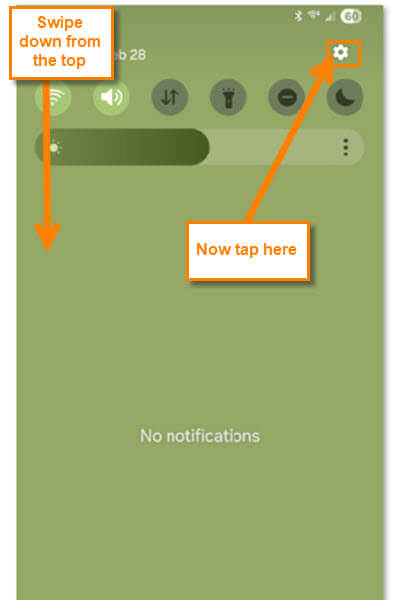
Step 1: Turn on your Samsung and swipe down from the top once. You should now see the Settings (gear icon) at the top right. Tap it.
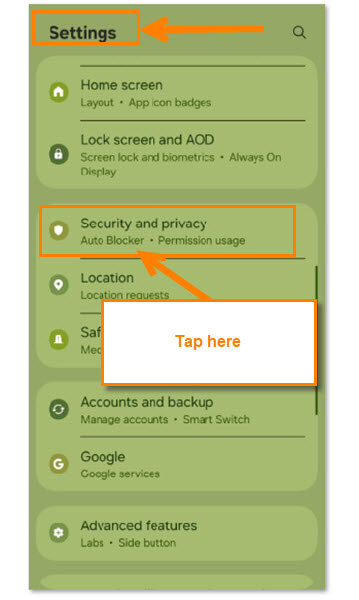
Step 2: Once on the Settings menu, find the Security and Privacy option. Tap it.
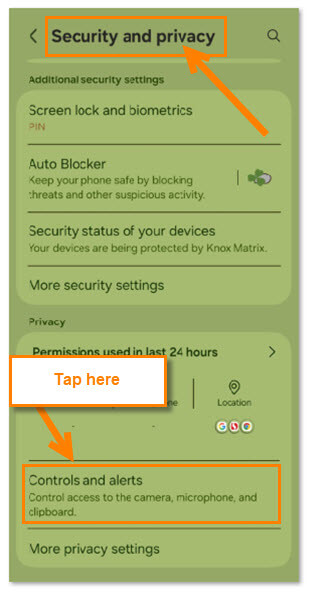
Step 3: Under the Security and Privacy screen, scroll down and find Controls and alerts.
Control access to the camera, microphone, and clipboard.
You will want to tap this option.
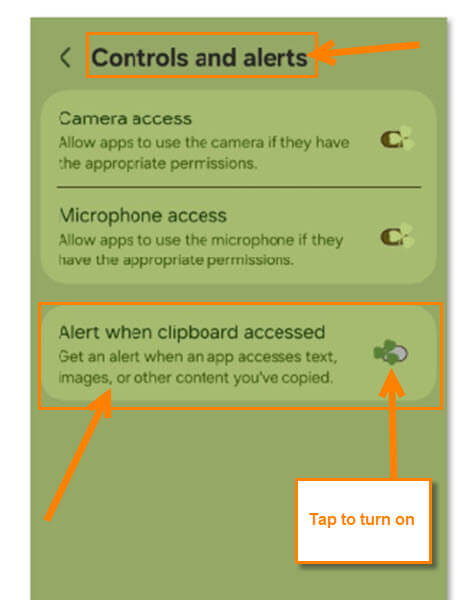
Step 4: Now that we are on the Controls and Alerts, we will be able to find the feature that will help protect your privacy. Look to the bottom option called Alert when clipboard accessed.
Get an alert when an app accesses text, images, or other content you’ve copied.
Look to the right of this option to find the switch. Tap it, and it will enable the alerts for you. All done!
Now you know how to turn this helpful feature on your Samsung device. Time to take your new knowledge and share it with the world.
—

Thank you for that info Jason. Do you know if there is a simple way to clear data from the clipboard entirely on the Samsung Galaxy? I use the equivalent of such in windows with the “echo off | clip” command.