

Another week, another how-to article for all of you! Last week, we covered how to customize the Google Search Widget on your mobile device. If you missed that one, you can find it here:
How To Customize Google Search Widget
This week, we are sticking with the Google subject. That is correct, I’m going to teach another fun feature that your mobile device offers. Have you ever wanted to add a link to the Home Screen of a website? I know I have, and so have many other people that I have talked to (yes, even my wife). When searching on my mobile Google Browser, I often use websites that I want to go back to repeatedly. Being able to add a shortcut to my home screen makes it really nice. That is what I’m going to teach you how to do today. Before we start this lesson, make sure to check out all these articles I have written:
- How To Stop Gemini From Reading Screen
- How To Adjust Facebook Display Settings
- How To Create Collage In Google Photos
- How To Create Cinematic Photos On Google
- How To Create Highlight On Google Photos
Time to pull out those mobile devices and start class.
How To Create Shortcut On Android
This will be shown on my Motorola Edge Android phone using the Chrome app. I have also tested this on my wife’s Samsung Galaxy S22 Android Phone.
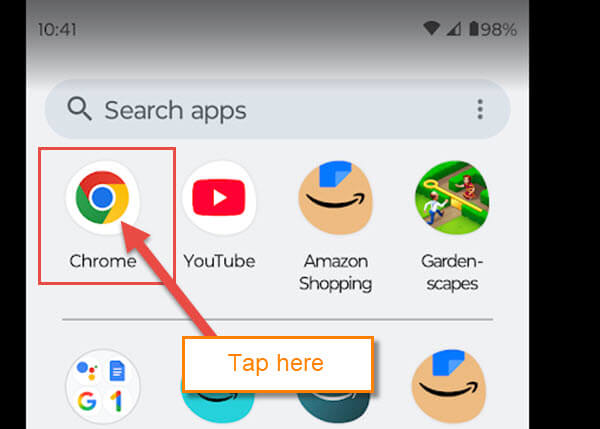
Step 1: You will want to find the Chrome app on your mobile device. Tap it.
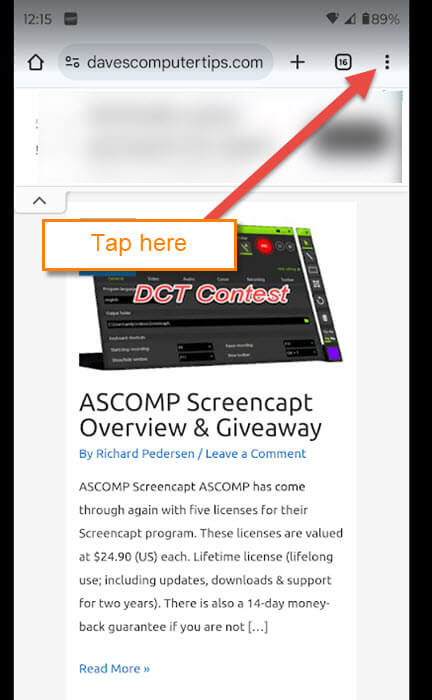
Step 2: Now, head over to the website you want a Shortcut for. Once on the website, look to the top right. You will see 3 dots. Tap it.
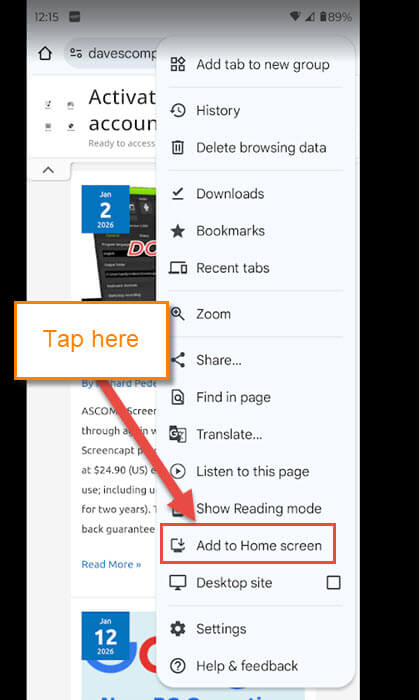
Step 3: A menu will appear, and you need to find the option called “Add to Home Screen.” Tap on that.
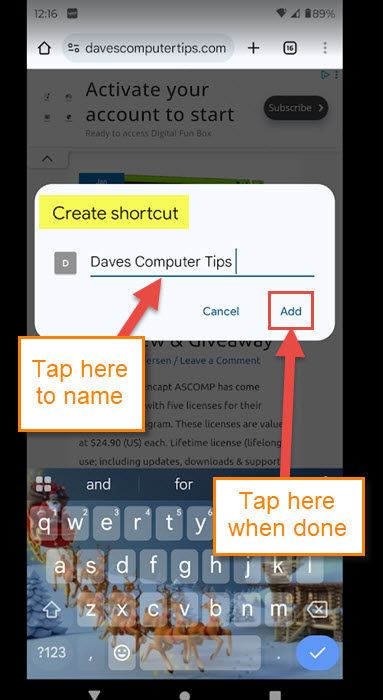
Step 4: You will now see the Create Shortcut window. Here, you can Name the Shortcut so you can recognize it on your device. Tap your finger on the line and type the name you want. After that, tap the Add link.
Side Note: Some websites, after tapping “Add to Home Screen“, will ask if you want to install their app. This is the same as a shortcut, but it will bypass asking to name it. Then add it to your home screen with an image automatically.
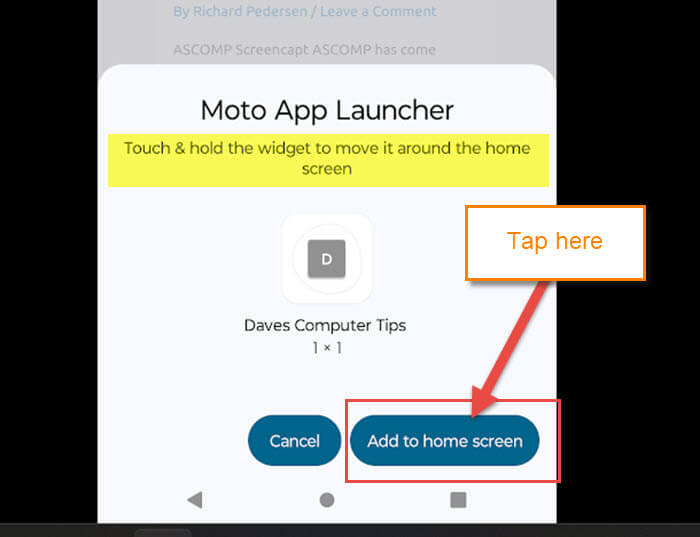
Step 5: On my Motorola, a pop-up will appear called App Launcher. You might see something similar on your device. This will show you the Shortcut that you will be adding to your home screen, along with how-to directions at the top.
Touch & hold the widget to move it around the home screen
Tap the Add to home screen button at the bottom right.
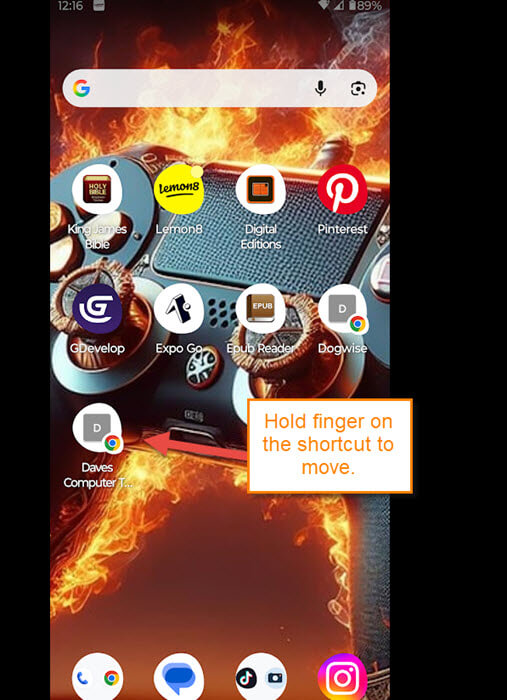
Step 6: Head back to the home screen, and you will find the new Shortcut that you have added. Hold your finger on the shortcut to drag it to where you want it placed. DONE!
You now know how to create a shortcut to your favorite website. Time to share your new knowledge with your friends and family.
—
