
Last week, we talked about how you can manage your Google Profile Visibility. If you missed that one, you can find it here:
How To Manage Your Google Profile Visibility
This week, I want to change the subject to something I do not usually cover. What could that be? You might be asking. I’m going to teach you how to create a QR code in Microsoft Word. That is right, there is a way to create one without having to find a website to do it for you. Before I get into our new lesson, make sure you check out these other articles I have written recently:
- How To Remove Third-Party Apps from Google
- How To Enable Clipboard Alerts on Samsung
- How To Blur House On Google Maps
- How To Disconnect App From ChatGPT
- How To Change Appearance Of ChatGPT
Time to pull out that Microsoft software and get the class started.
How To Create QR Code In Word
This is being shown on the Microsoft Word Desktop app using my Windows computer.
Step 1: Open up your Microsoft Word app, either the online version or your offline one.

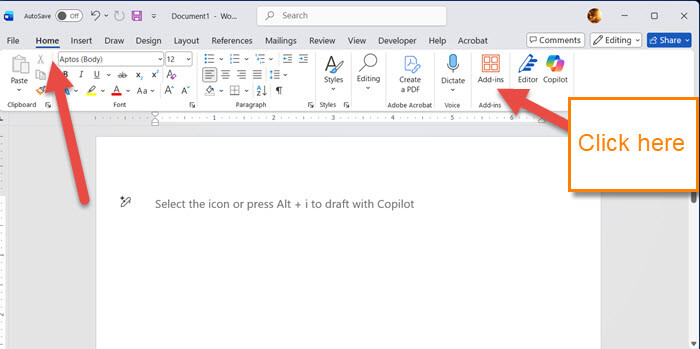
Step 2: Next, open the document you want to add the QR to. Once there, look on the Home tab and see if you have something called Add-ins. If you do not, move on to Step 3. If you already have it, jump to Step 5.
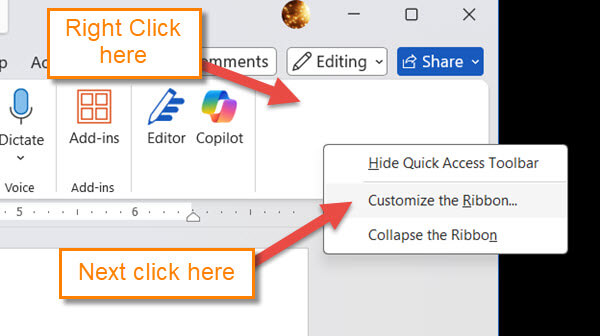
Step 3: You will need to right-click on the word Ribbon in a blank space. A menu will appear with some choices on it:
- Hide Quick Access Toolbar
- Customize the Ribbon
- Collapse the Ribbon.
For this one, we want to click on the Customize Ribbon.
Side Note: If you are not using the Desktop app, then this will be a little different. I will show where to find this after Step 5.
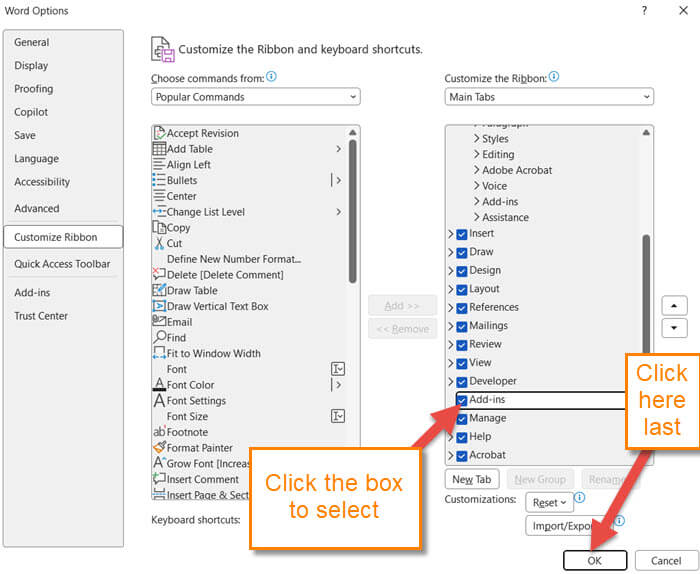
Step 4: The Word Options screen will appear, and you will be on the Customize Ribbon tab. Look on the right menu for Add-ins and click on the box to the left of it. Now click OK at the bottom. Back to the steps.
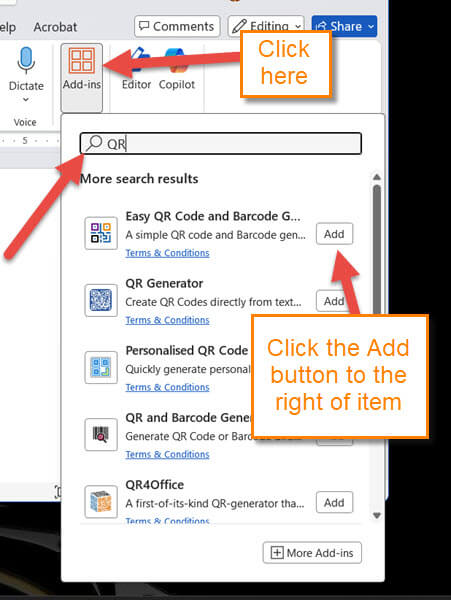
Step 5: Click on the Add-ins option, which is on the Home tab for me. A search menu will drop down. In the search box at the top, type in QR. A list of add-ins will show for creating QR codes. Click the Add button to the right of the one you want.
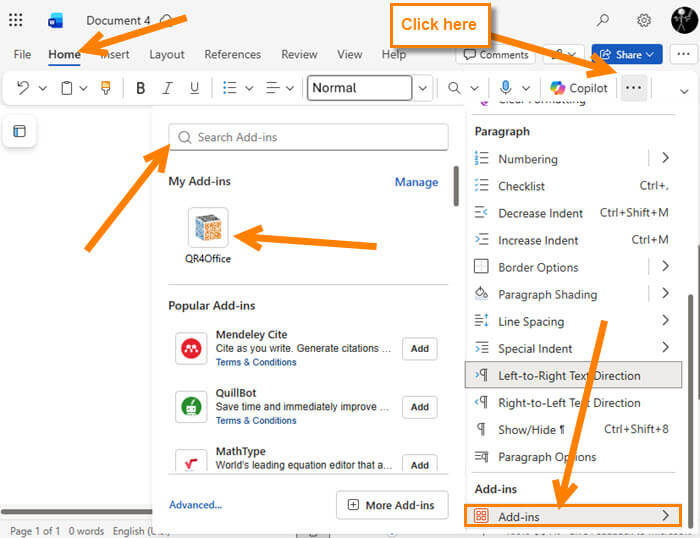
How to find it on the Online Word App:
Open the document and on the Home Tab, look to the far right. You will see 3 horizontal dots, click on it. Then, at the very bottom of that menu, you will see the Add-ins option. Click that to find what you are seeing here in Step 5.
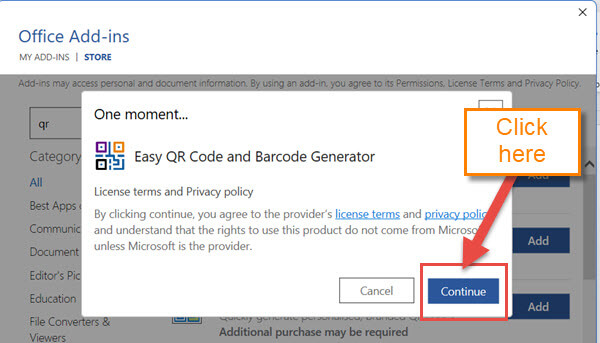
Step 6: A license agreement will appear, and you will need to click Continue at the bottom.
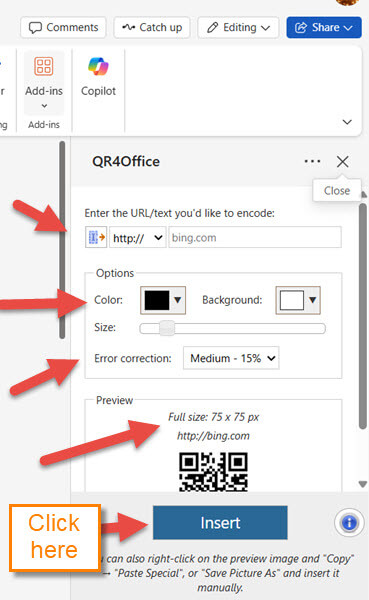
Step 7: Now you have added a QR creator to your Word. You are given some options to work with here:
- Enter URL/text you’d like to encode (This is the most important)
- Color and size
- Preview of your QR window.
Add your URL or Text and the Color you want. If you like what you see, click on the Insert button at the bottom. DONE!
Now you know how to insert a QR code to your Microsoft 365 Word document. Time to show off your new knowledge to the world.
—
