
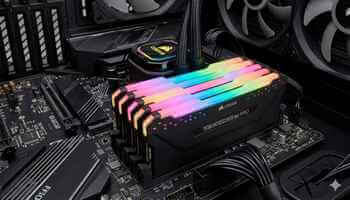
RAM stands for random access memory, and to you and me, it’s the memory modules we have in our computers.
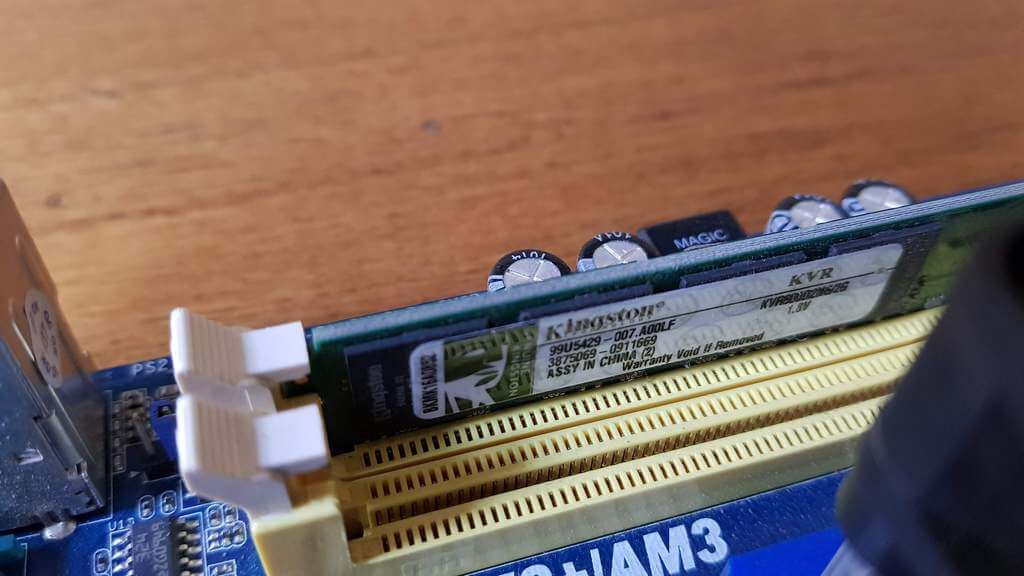
Unfortunately, most laymen who are not familiar with RAM confuse PC memory with hard disk space, and I could write a book about the number of times I’ve heard my customers say “My PC is running out of memory”, when what they really mean is that they are running out of disk space.
My Recent PC Memory Error
The other day, I was writing an article for this esteemed publication, saved my work, left the PC running, and went downstairs to make a coffee. On my return a few minutes later, I was faced with a black screen, a beeping PC (one long and two short), and a Q-LED error E3 showing on my Asus Crosshair Hero VII motherboard. This was a tad alarming, and my first thought was that the GPU had gone belly up, so I hit the reset button, but ended up with the same error, so I powered it down and disconnected the power cable. I then disconnected all unnecessary peripherals except the mouse and keyboard, but the error persisted.
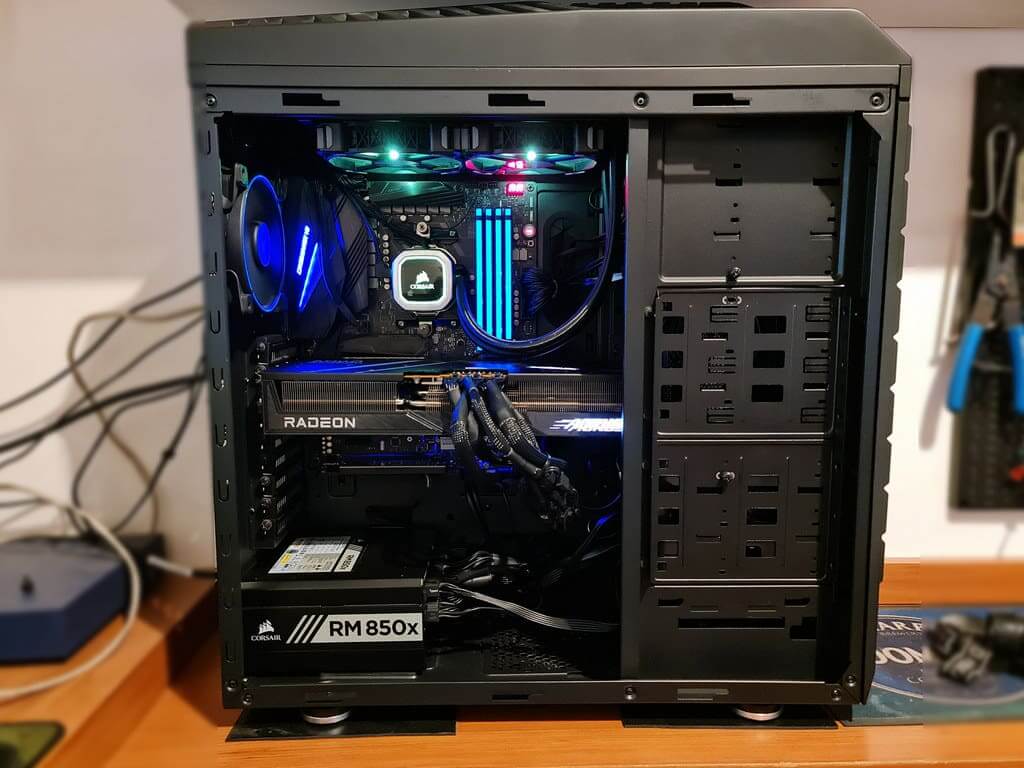
I then donned my scientist’s white lab coat, fired up my other PC, and searched for Asus Q-LED and beep errors, which I should have done in the first place. The first error was E3 and later, E5, both of which indicate memory initialisation. This was a bit scary at first because RAM prices are through the roof, and I had visions of having to replace one or more memory modules. On the other hand, it probably discounted a GPU error, but I would only know for sure once I had gotten something on the screen.
Physician Heal Thyself!
I’ve been doing this kind of trial-and-error diagnosis for long enough to know that this is not difficult to pin down, so with the PC off and disconnected from the power source, I removed all four sticks of Corsair Vengeance Pro RGB 3200 DDR4 RAM and proceeded to check the modules one by one in each of the four slots.
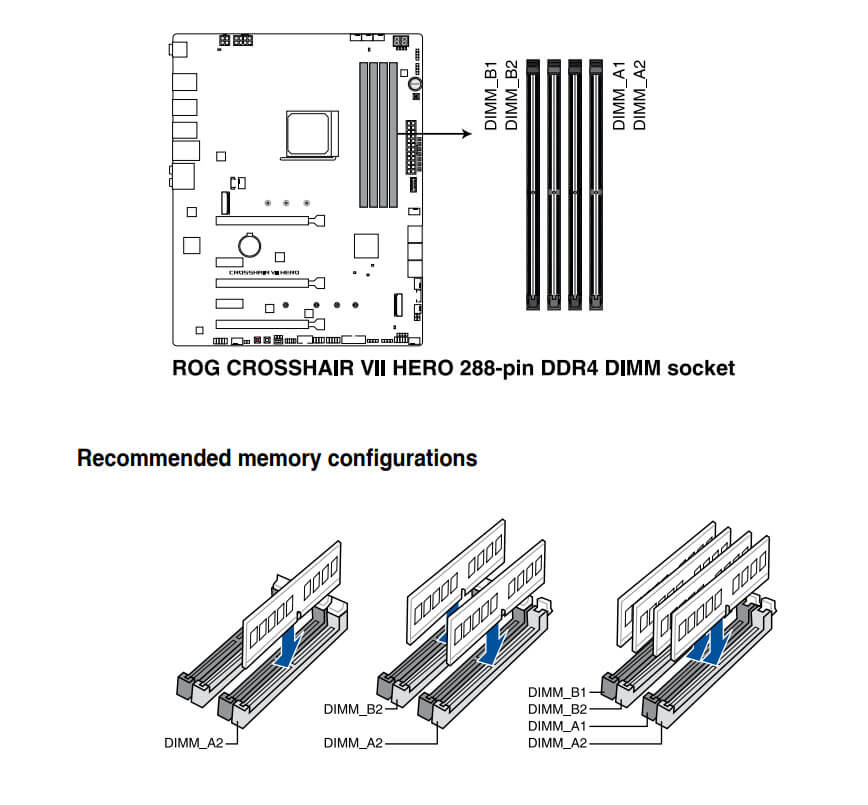
To my relief, the PC booted immediately with one 8GB module in slot B1, so I then tested the same module in each of the three remaining slots with no errors being thrown up. This meant that I could discount one memory module and all the memory slots.
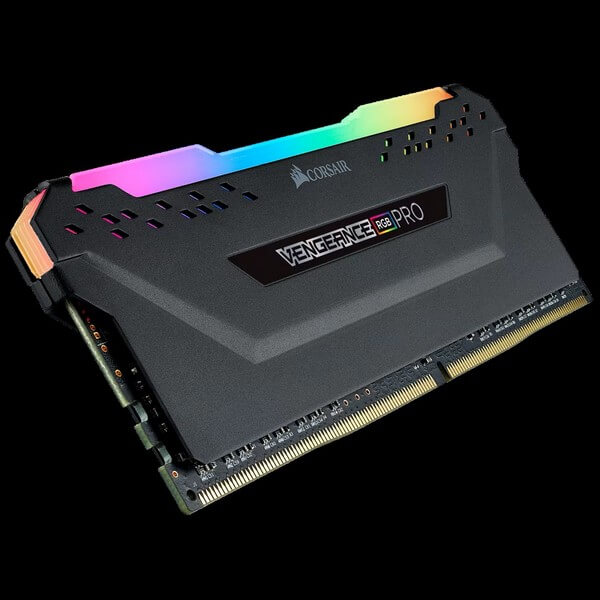
It was probably unnecessary, but I then tested the other three memory modules in each slot, finally slotted all four back in their DIMM slots, and booted up with no errors. I then ran a few games with no problems, but did not run Windows Memory Diagnostic, which can be found at Start>search and requires a PC restart for the process to begin, but I may run it in the future because it’s a very lengthy process, as I know from experience. Additionally, I had stripped the computer down to the metal and rebuilt it back in October last year and had not touched the memory modules since, so I can only put this down to a glitch, but I will be vigilant for any future errors.
—

Thanks Marc
Given the error codes in the absence of anything else, the fact that presumably everything was working fine for some lengthy time previously and the PC wasn’t dropped or jolted recently (you would have mentioned it) and you state you managed to get all the modules working with nothing more than a remove and re-insert (no BIOS reset to defaults) I’d suggest it was either a poor contact module pin or a transient glitch (power surge, static, etc.) Only other issue could be an EXPO setting (you don’t mention if timings set or at default) that may have once worked fine on a new board and ram but as it stuff has aged the hardware may not be what it once was (aren’t we all ?) and the BIOS may benefit from a small tune down if EXPO was set.
However E3/E5 on that board suggests a DRAM detection and training initialisation issue. How hot and sticky is it there in Argentina ? I see at around this time of year can be 70-78% which is high enough to cause issues on pins so is the PC in an air-conditioned room or do you use a dehumidifier ? Anyway I suspect some slight oxidisation corrosion build-up on a module somewhere which eventually could have caused the issue with the heating and cooling when switching the PC on and off. By removing and reinserting them one at a time you likely scraped any minor corrosion away.
If me I would have probably just cleaned with isopropyl alcohol and inspected the pins closely and then run Memtest for a couple of hours or even overnight to give the modules a damn good thrashing but maybe it’s all good without the extra effort. I’d recommend backing up data often in the meantime until you are sure ! Can’t have you losing the next week’s DCT article !