

Unlike HDDs, SSDs give little to no warning that they are about to fail, so it’s important to periodically check your SSD’s health status. Some manufacturers provide a dedicated tool that supports their own brand – e.g., Samsung Magician – but if you don’t have such a tool, there are alternatives.
Check Your SSD Using CrystalDiskInfo
CrystalDiskInfo is portable freeware that provides a comprehensive report of your drive’s health status, including total reads, total writes, error rates, temperature, and an overall health score. In my opinion, it is the best choice:
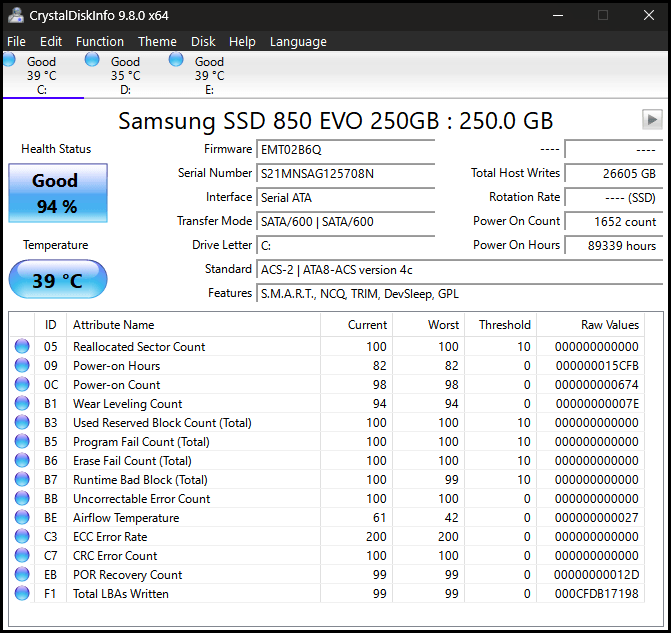
- For more information, plus a direct download link, visit: CrystalDiskInfo – Crystal Dew World
Quick SSD Health Check
Not that CrystalDiskInfo is slow, results come up almost instantly after running the software. However, if you want to run a quick and simple check, you can do so via a couple of commands.
- Open a Command Prompt, type in WMIC, and hit Enter
- Now type in diskdrive get status and hit Enter
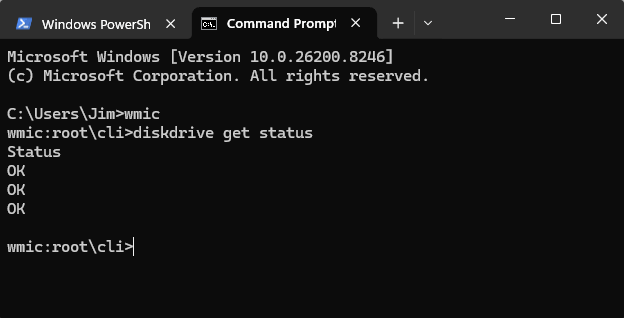
If the result is OK, your drive has passed. The three OKs in the above screenshot are because I have three internal drives connected. Apparently, all are OK.
- You also might like: How To Restore Windows To A New SSD
BOTTOM LINE:
Neither of the above methods involves writing to the drive, so both are safe to use without the concern of shortening your SSD’s lifespan. Any tests/checks that involve writing to the SSD, however, should be avoided, or at least used sparingly.
—

Hi Jim;
CrystalDiskInfo is a great way to check your SSD health, but a lot of that information is in hexadecimal form. You can change that into the more readable decimal view by clicking on the Function tab, then Advanced Features and scroll down to the Raw Values and change it to the DEC setting. Then all your numbers in all those rows will become somewhat more comprehensible and useful.
Hope that helps someone.
Hey Ken,
True, but all most users need to know is that the color blue means attributes are good:
Blue = Good
Yellow = Caution
Red = Bad
Gray = Unknown
Hmmmm, I only have 1 SSD and I also got 3 OKs when using the WMIC command?
Sorry Jim, I do have 3 drives on my PC. I loaded the APP and it shows all drives attached to my PC. So, I guess the WMIC also checks all drives. Should have known that since I didn’t specify which drive to check. Best to you friend.
The point about SSDs giving almost no warning before failure is what most people find out the hard way. Unlike HDDs that click and groan before dying, an SSD can go from healthy to gone overnight, so running CrystalDiskInfo periodically is the kind of five-minute habit that saves a lot of grief.
I saw some platforms that cover SSDs and storage upgrades worth checking if a health scan has you worried, https://www.newegg.com and https://www.amazon.com carry solid options across brands.
Hi Brevis. There are other programs which can assist in monitoring the life of an SSD. PC Internals (which was recently on DCT’s Giveaways & Contests) also shows the Operating Hours and Remaining Lifespan (hopefully it is accurate). The Pro version allows you set-up monitoring, Mindblower!
Totally forgot this program for checking and correcting HDDs and SDDs (sorry it is not free) is called SpinRite from Steve Gibson, Mindblower!