

Video formats can be confusing because compatibility with devices and software comes into play. For the purposes of this article, let’s stick to HEVC (High Efficiency Video Coding) and H.264, the most common video format/codecs used today. When you record a video on your phone, its output is usually an mp4 file, where mp4 is a container and HEVC (H.265) or H.264 is the codec. You can select the format (codec) on an Android phone very easily through the camera settings, but why would you want to do that? The most important reason is compatibility because many devices and software programs still don’t recognise HEVC, as I discovered earlier today. My new Galaxy S25 Ultra defaults to HEVC as the video format, and when I put a video clip into Vegas Movie Studio Platinum 17, an error message popped up, saying the file couldn’t be opened.
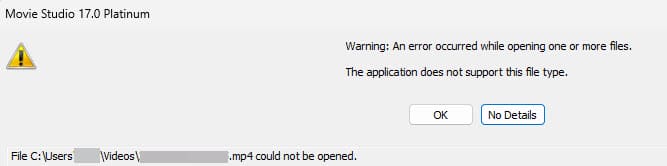
I’ve seen these extremely unhelpful messages before on Vegas, and what’s frustrating is the lack of information. Fortunately, I have the free MediaInfo installed, which, by right-clicking the video file, tells me the container, the codec, and a lot more.

As soon as I saw HEVC, I knew that was the problem, and one of the only ways to fix it was to convert the video to H.264, which I did using VideoProc. HEVC (H.265) is a newer codec than H.264, by the way.
How To Change Android Camera Video Format
It’s very simple: just open the camera app on the phone, touch the settings cog, and look for video format. I would imagine that a similar procedure applies to iPhones.
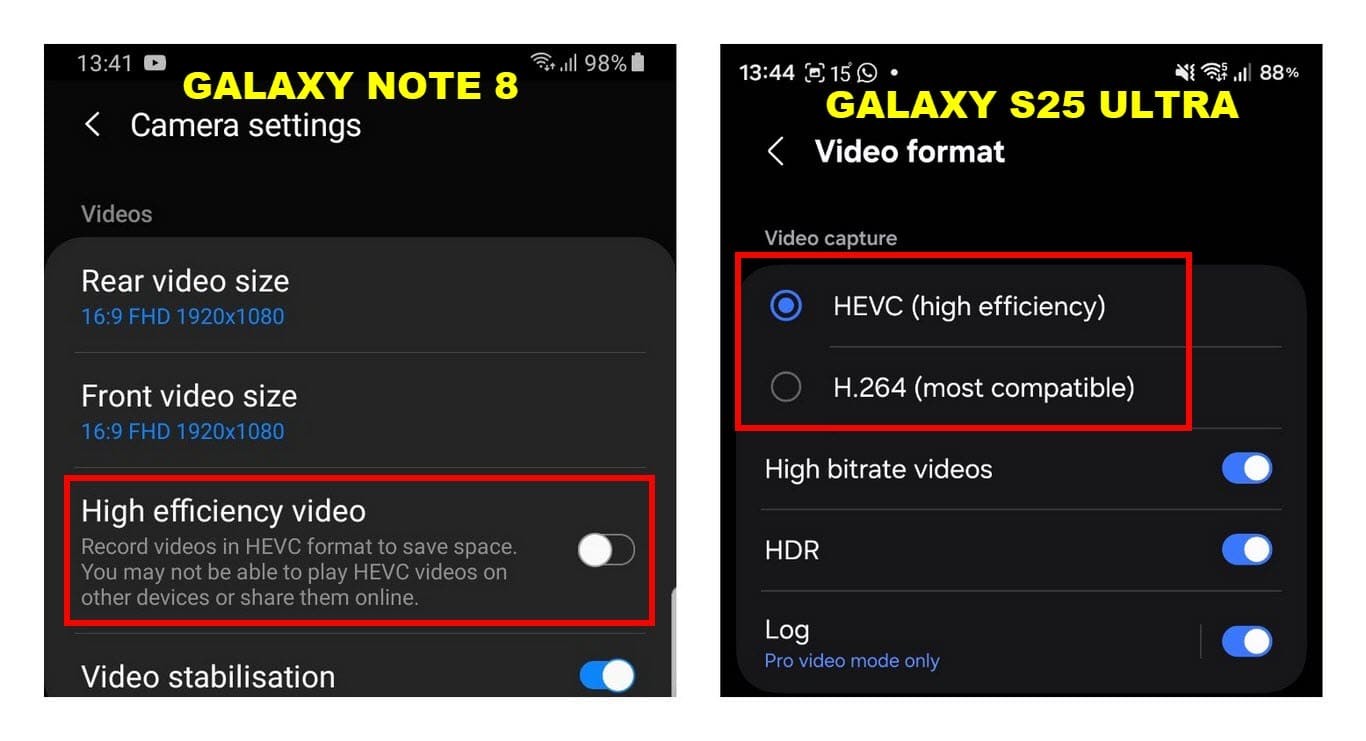
Why Choose H.264 Over HEVC (H.265)?
Because H.264 has universal compatibility and will run on almost any device or software program. On the other hand, H.265 on modern Android phones uses hardware acceleration for smoother playback, and the video files are usually 50% smaller. Clearly, compatibility is the main reason for choosing H.264, especially for those of us using older video editing software. But the odd thing is that, in Vegas Movie Studio Platinum 17, I can export/render a finished project as HEVC/H.265 by using hardware acceleration, but after no end of codec downloads and other dead-end fixes, VMSP 17 still won’t open videos with the HEVC codec.
—

Hey Marc,
I can confirm that iPhones do provide similar options to change the default video and image formats.
Under Settings > Camera > Formats there are two options
1) High Efficiency (default): saves videos in HEVC, photos in HEIF
2) Most Compatible: saves videos in H264, photos in JPEG
To change to the H264/JPEG formats users simply enable the “Most Compatible” setting.