

Microsoft’s habit of rolling out new Windows 11 features “gradually” means that new features can often sneak through unnoticed. One such new feature is the ability to make the Start menu smaller.
This new feature has now been activated on my Windows 11 systems, and I have no idea when or how. If you’re not a fan of Windows 11’s large Start menu, you can check to see if this resizing option is now available for your system and opt for the smaller Start menu. Here’s how:
How To Make The Start Menu Smaller
- Navigate to Settings > Personalization > Start
- Expand the dropdown menu under “Start menu size“
- Select your preferred option – Small or Large
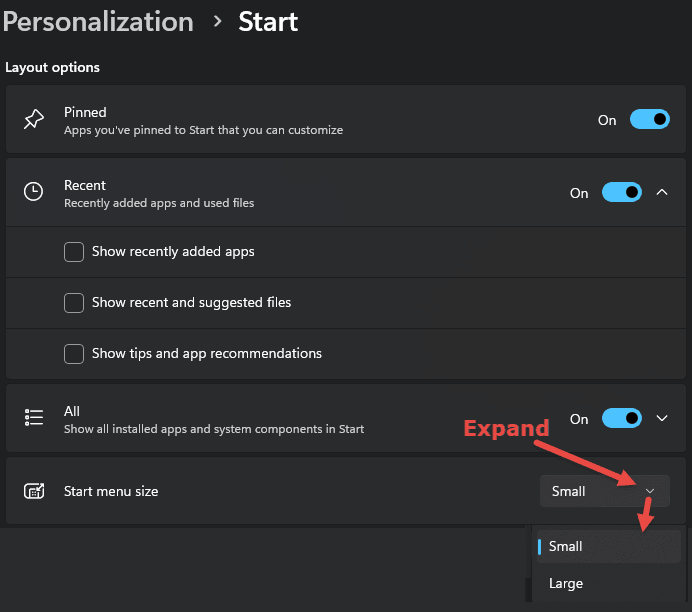
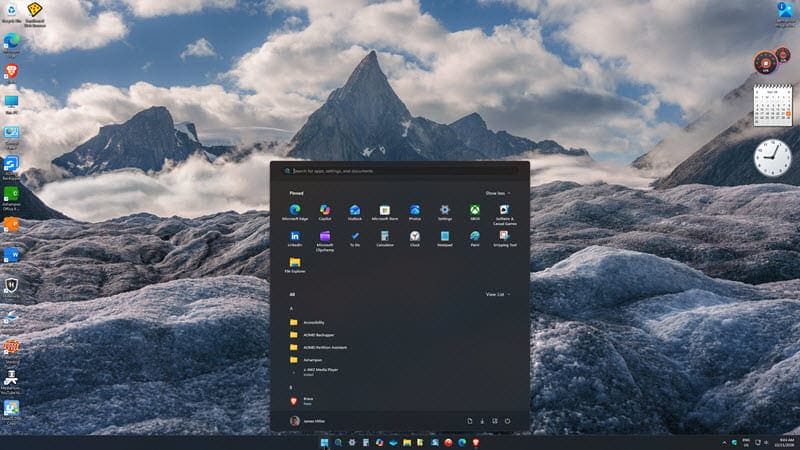
When you select the Small option, your Start menu will go from this:
(click images to enlarge)
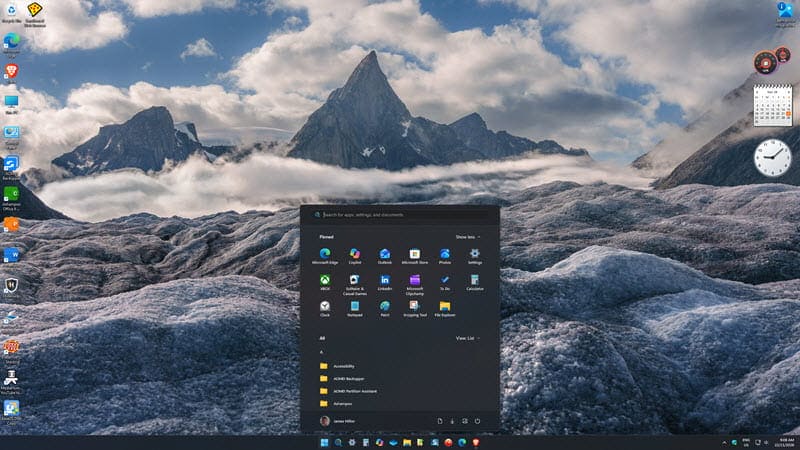
To this:
No Start Menu At All?
I’ve never been a fan of Windows 11’s Start menu, and I’ve set my system up so I rarely, if ever, need to access the Start menu. It takes a little work but, in my opinion, is worth the effort.
For programs and folders that I access frequently, I’ve pinned shortcuts to the Taskbar and, for those programs and folders that I access less frequently, I’ve created desktop shortcuts.
For guidance, please read:
- How To Pin Files/Folders To The Taskbar
- How To Pin Websites To The Taskbar – Any Browser
- How To Create Desktop Shortcuts (1)
- How To Create Desktop Shortcuts (2)
—
