

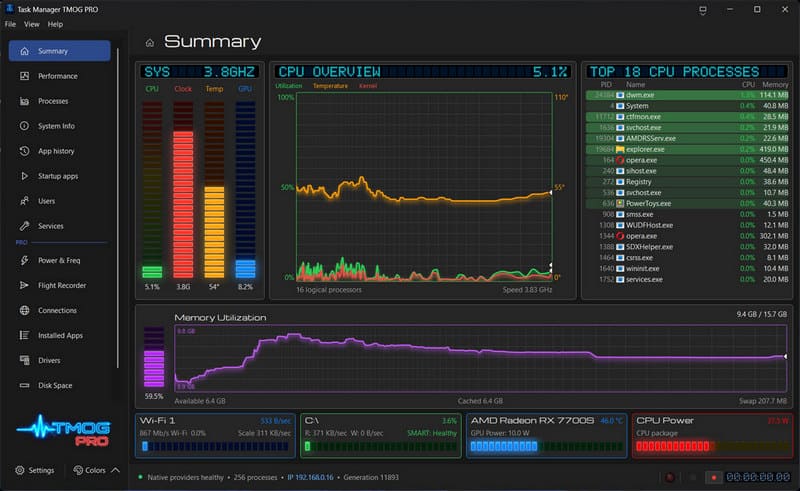
After reading John Durso’s article on the excellent TMOG (Task Manager TMOG), I installed it but couldn’t find an option in its settings to run at Windows 11 startup.
How To Add Programs To Windows Startup
Hit the Windows key plus R, then type shell:startup.
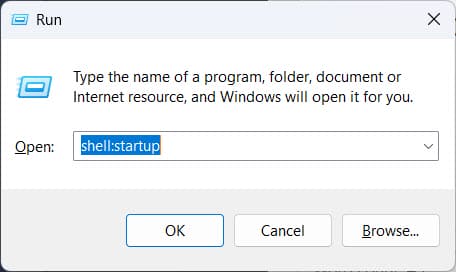
Hit Enter, which will open the startup folder:

If there’s a shortcut for the program on your desktop, drag it or copy/paste it to the startup folder. If you don’t see a shortcut, find the program in C:\Program Files or C:\Program Files (x86), right-click on the application (exe), and then select Send to, then Desktop. You can then drag the icon to the Startup folder as described above.
Alternatively, hit the Windows key plus I, which brings up Settings, then Apps on the left, select Startup in the right pane, and toggle it on/off.
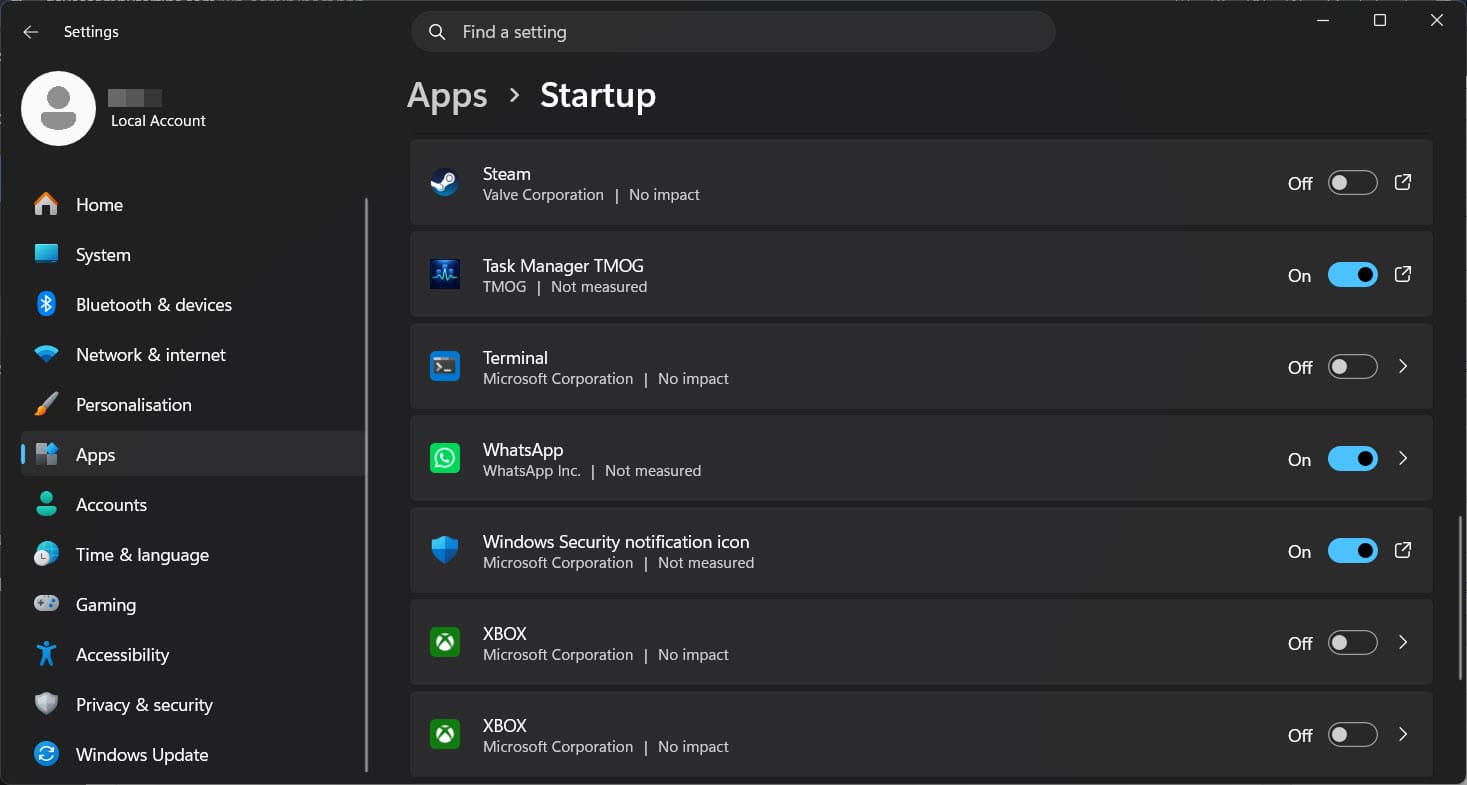
Your selected program should now run when Windows starts!
—
