

Fixing a Hard-to-Diagnose PC
A problem PC can be frustrating. When common causes do not explain a failure, the issue may involve the CPU, GPU, memory, chipset, or networking.
Most cases can be fixed, but replacing an expensive component may not be worth the cost or time. An exception is when valuable files—or, as below, a program—exist only on the broken PC.
The Problem
I was asked to fix an Acer Aspire All-In-One that rebooted randomly every 5 to 20 minutes. The client had installed a $3000+ CAD program years earlier, but the original disks were damaged. With no way to reinstall it, getting the PC running was his only option.
My usual troubleshooting did not help. I recovered the license keys, but the vendor would not transfer them to another PC. Stress tests did not affect the reboots, yet the machine stayed on in Safe Mode. I suspected a driver; AI proved me wrong.
AI to the Rescue
AI can be valuable for PC troubleshooting. Although I know of no free AI dedicated to computer repair, several can guide users through complex diagnostics step by step. AI helped me solve this case far faster than I could have alone.
Because general-purpose AI cannot inspect a PC directly, you must supply diagnostic information from specialized tools.
WinDbg
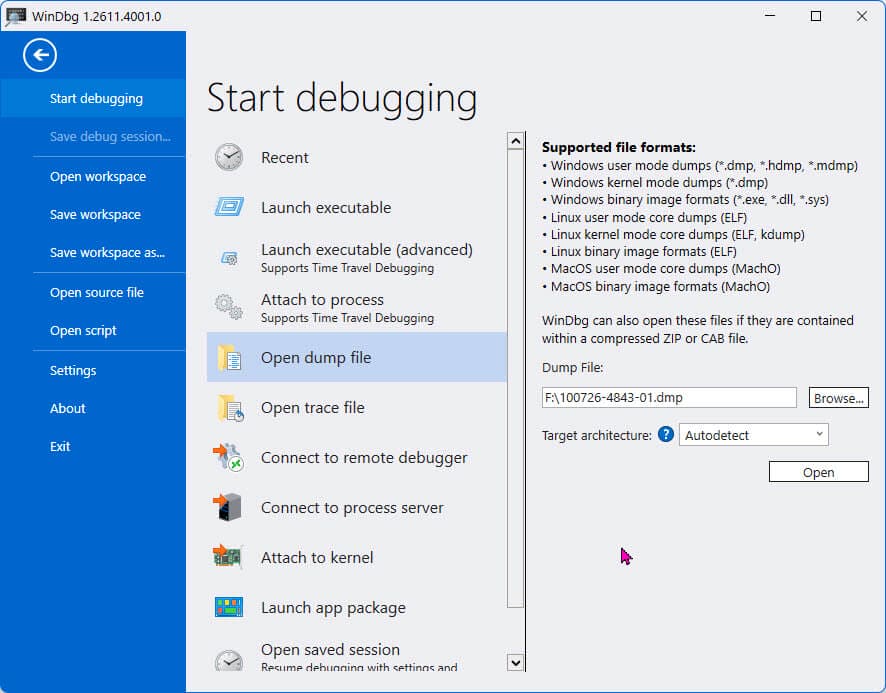
WinDbg is Microsoft’s flagship debugger for analyzing Windows system, application, and crash data. Its advanced features let experts inspect complex processes. After downloading the program, you only need to follow a few steps. If you know where the file is, select the Open-source file in the blue menu on the left. However, in most cases, a newly created .dmp file will already show up on the right side of the screen. Click on Open and let it do its thing. Note: If you are not interested in actually seeing all the information provided, there is a lot. Just feed the .dmp file to your A.I. and let it interpret for you. The only downside to this is that the A.I. does not have a copy of Microsoft’s symbol server, but in most cases can still give you the instructions you need to fix the issue.
This is a short part of an example of an analyzed .dmp. Let your A.I. do this work.
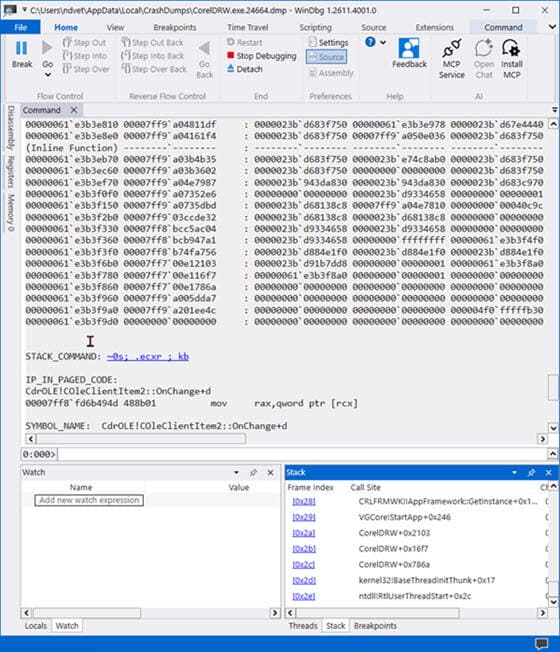
However, when paired with Microsoft’s public symbol servers, WinDbg retrieves the symbols needed for accurate analysis, and you can then send the results produced to your A.I. instead of the .dmp file.

Its output can be difficult to interpret, but AI can do that work. Provide WinDbg with the .dmp file Windows creates after a crash, then give the analysis to AI. Because the faulty PC kept rebooting, Claude suggested copying its .dmp files and running WinDbg on my PC.
Resolution
After exhausting the available driver swaps, I turned to Claude, a straightforward AI that gives detailed responses. Claude accepts a wider range of files for uploading. .dmp and .zip files won’t load in Copilot.
I gave Claude the problem details, BIOS version, PC model, CPU, and Windows version. It found similar reports suggesting the Sandy Bridge CPU’s kernel power code was dividing by a value reported as zero by the firmware or CPU setup. Claude recommended a BIOS update and located two sites with verified copies because the required version was no longer on the ASUS support pages. The update did not solve the problem, but it extended the reboot interval to about an hour.
A new .dmp analysis revealed that each transition from idle to active caused a reboot. Claude supplied command-prompt instructions to prevent the processor from requesting more power.
This change meant Windows would no longer manage CPU speed, so the processor might run at a fixed speed and use more power. I stress-tested it with OCCT for 20 to 30 minutes, monitored temperatures with Core Temp, played video, and left it on for 48 hours. It passed every test and has run flawlessly for two months.
Steps
- Install WinDbg, Microsoft’s Server Symbols, and your preferred AI
- Copy the .dmp file from C:\Windows\Minidump
- Open WinDbg
- Give the .dmp file—or WinDbg’s analysis—to your AI
- Select File > Locate .dmp file > Open-source file it will run and may ask you to perform an analysis. Do so and give the results to your AI
- Follow the AI’s troubleshooting steps
Summary,
Despite repairing PCs since 1977, I could not have traced this fault myself. Disabling the CPU’s turbo power seemed counterintuitive, but it saved a $3000 program and many files.
—
