
I was asked in a previous article how to “create a button to launch PhotoFiltre directly. It took me a while to figure it out. The hardest part was trying to find the path to the program. It’s not as simple as in Windows.
How To Run Windows Programs In Bottles linux Mint
Because the program is a Windows program that works through “Bottles”, the command to find the path in “Terminal” is:
bottles-cli programs -b BOTTLE_NAME
Where you would replace BOTTLE_NAME with the real bottle name, in my case, PhotoFiltre. It would not work for me. I kept getting the error “command was not found”.
The problem seems to be that these commands may change depending on how you installed the program. “Flatpak” installations, the path will be found here:
~/.var/app/com.usebottles.bottles/data/bottles/bottles/
Non-flatpaks:
~/.local/share/bottles
Note: The “Tilde or ~” can replace the home/name of the account part of the command.
For a more complete list of commands for finding file paths, click here.
After fooling around with the terminal a bit, I figured the best way to find the path was to hunt for it manually using the file explorer Nemo. To do this, I had to show hidden files and folders. In Nemo, go to “View” and check “Show Hidden Files” or use the keyboard option “Ctrl + H”.
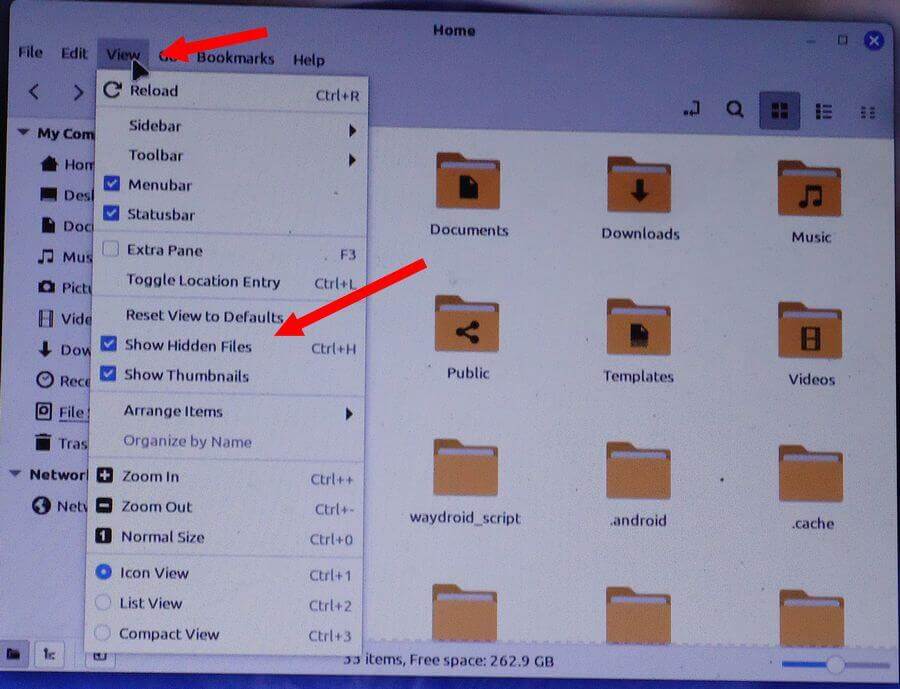
Then click “Home” and look for the “.var” folder.
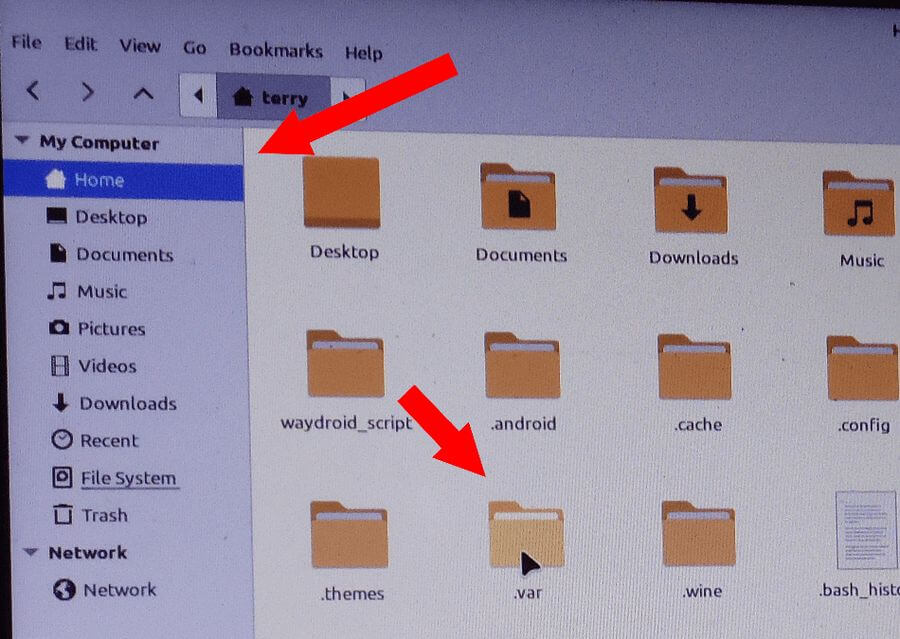
Double-click that and you’ll see the “app” folder. Double-click to open the app folder to see the “com.usebottles.bottles” folder. Continue through until you get to the “PhotoFiltre” folder.
.var -> app -> com.usebottles.bottles -> data -> bottles -> bottles -> PhotoFiltre -> drive_c -> Program Files (x86) -> PhotoFiltre 7 -> PhotoFiltre7.exe
Here’s my path:
~/.var/app/com.usebottles.bottles/data/bottles/bottles/PhotoFiltre/drive_c/Programs Files (x86)/PhotoFiltre 7/PhotoFilter7.exe
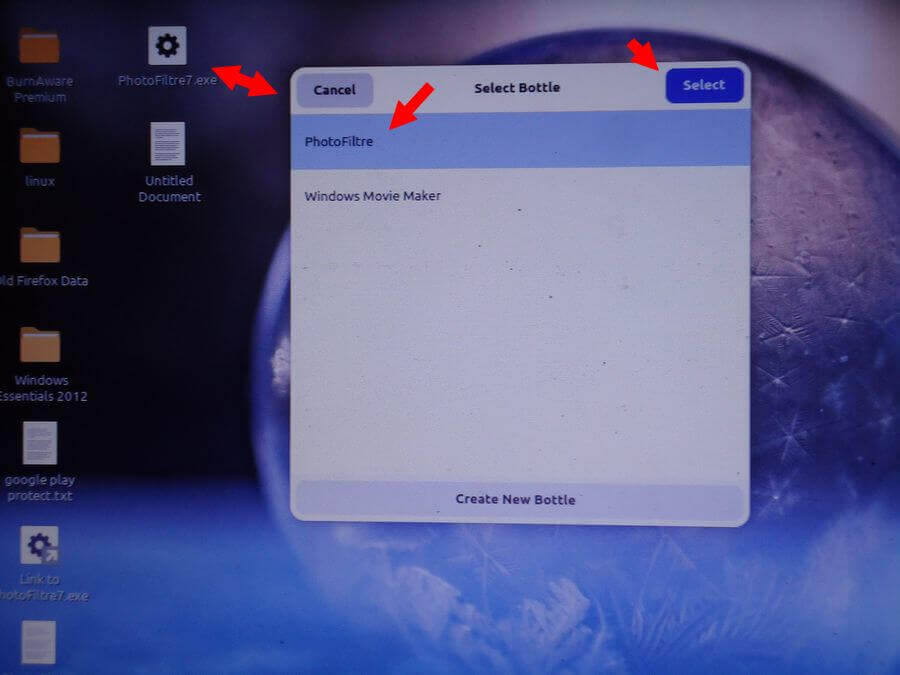
Now that you are in the PhotoFiltre folder, click on the program file to highlight it. Then, while holding down “Ctrl + Shift”, drag the file to your desktop. This will create a shortcut on your desktop. Double click to open.
You will be asked to select the bottle you want to use to open the program. I selected the appropriate one, PhotoFiltre, and it worked.
I originally was trying to get this to work.
Right-clicking on the desktop is another option. Right-click on your desktop and select “Create a new launcher here…”
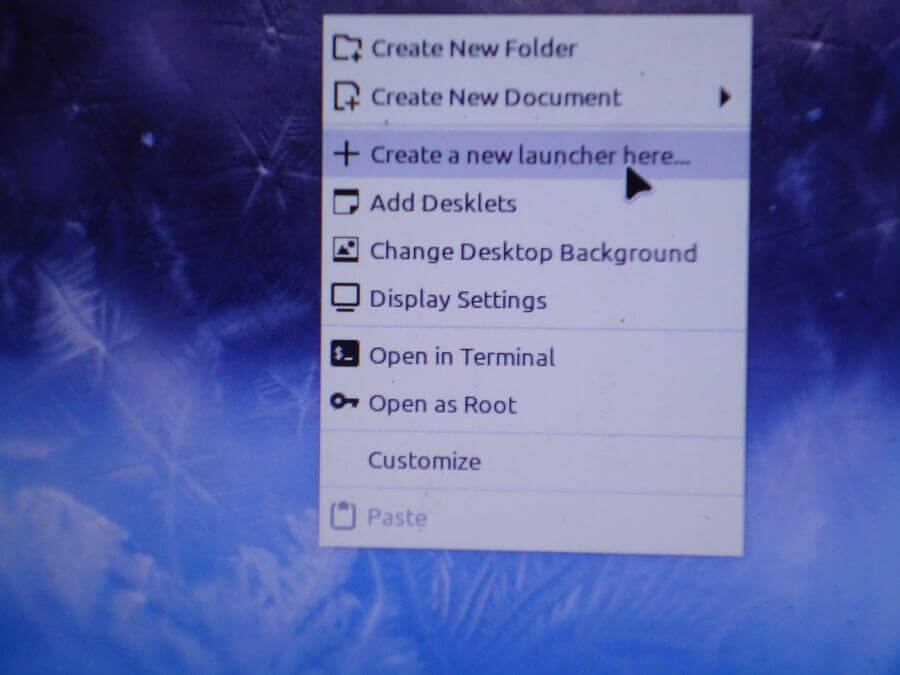
Then put in a “Name” and the “Command”, which is the path to your program, but I couldn’t get that to work. I couldn’t find the program using the browse button originally, and typing it in manually did not work.
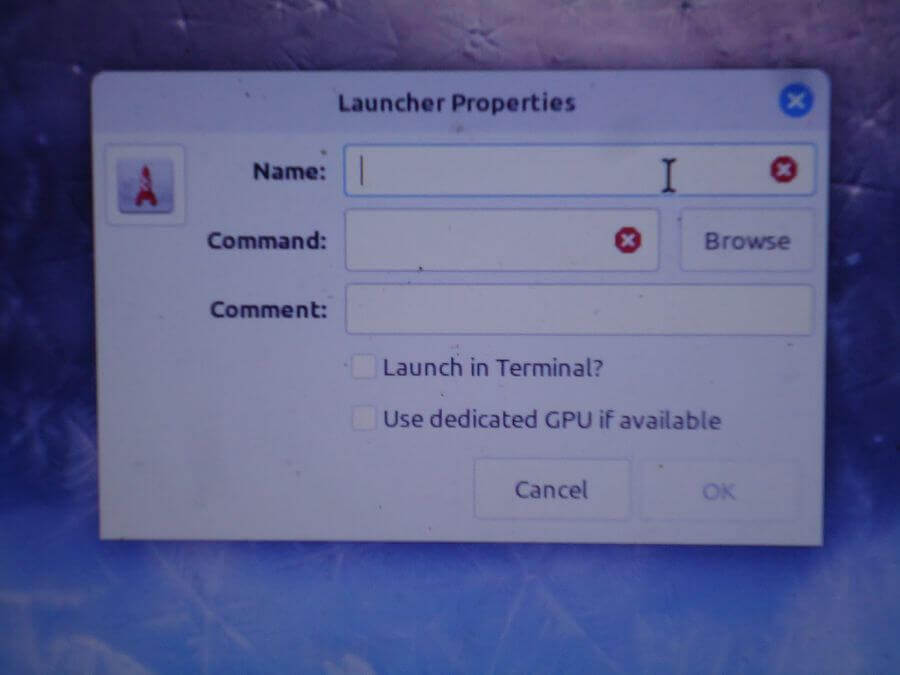
The browse button displayed a var folder, but it wasn’t the hidden one. There is no menu option to unhide these files here, so I used the “Ctrl + H“. I navigated to the same folder and file, and finally have my shortcut from this method. Except there is one problem. The shortcut doesn’t work.
This is why they say that Linux is for the geeky, and I’m not geeky enough. 🙂
Anyway, for more Linux articles, click here.
—

Many thanks for posting this. Trying out Llinux for first time while trying to get away from all Windows programs. This will make things a little easier I believe.
My oh my Terry. Reading this article I was reminded of “where there is a will, there is a way: When I finished the article you totally blew my mind. You changed that saying to “there are several ways”. Decided to check out “Hit Any Key…” and see how you began your journey. A very interesting look at what makes you, you, Mindblower!