

I’d imagine everyone knows about a mouse’s scroll wheel’s main function, but did you know the scroll wheel also acts as a third (middle) clickable mouse button?
You can perform a number of handy operations using the scroll wheel. Here then are six useful functions using the mouse’s scroll wheel:
Quickly Open a New Instance
With most open programs and folders, you can open a new instance by middle-clicking the icon in the Taskbar. Especially useful for browsers and File Explorer.
Close Windows From Taskbar
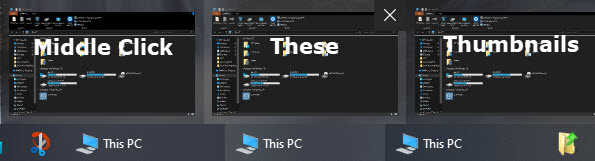
You can also use the middle-click button to close open windows. If you have multiple instances of the same app or folder open, move your mouse cursor to the Taskbar to display the thumbnails and then middle-click each thumbnail that you want to close.
Open Links In New Tab
Instead of right-clicking a link and selecting “Open in a new tab“, you can simply middle-click the link, and it will automatically open in a new tab. Also works with bookmarks and online images.
Open Previous/Next Page In A New Tab
Middle-click the browser’s back and forward buttons to open the previous or next page in a new tab. This is particularly useful if you want to navigate backwards and/or forwards without losing the current page.
Auto-Scroll In Browser
Instead of rolling the scroll wheel to scroll up and down webpages, click the scroll wheel and then slightly move the new mouse cursor up and down to scroll automatically. Movement is minimal, and the scrolling speed is quite easy to control.
Ctrl + Scroll To Change The Size Of Icons
The View settings when you right-click inside a folder provide a good range of icon sizes – from small through to extra large – but sometimes those default sizes just don’t quite cut it. Pressing the Ctrl button while scrolling will let you fine-tune icon sizes.
—

I learned something new here. Thanks.
Thank you for these useful ‘pointers’.
I have always used trackballs (or should I say I never used mice?) going all the way back to the days of Kensington ExpertMouse with real metal ABEC bearings and regulation-size pool balls that could be interchanged. My favorite used to be the “reverse 9-Ball”.
In 2016, I ran across a Japanese trackball manufacturer called Elecom who did not yet even have an English user manual. It was love at first sight!
I currently use the Elecom’s “Huge” trackball model which has 8 configurable buttons and the thumb operated wheel which also has ‘up’ and ‘down’ clicks in addition to ‘in’ click.
Having finally upgraded to a 49″ curved screen (32:9-DQHD), it is a pleasure to ‘slap’ the track ball for it to travel the whole length of the screen w/o trying to grasp a mouse.
Another one of my darlings is the RainbowCursorPack (if still available). this light-weight app turns the internals of the ‘mouse’ pointer-types (on the screen) to continually cycle thru the neon rainbow colors; so that the pointer never gets lost even in multi-monitor setups!
Interesting!
I’ve never tried a trackball myself but, following your comment, I checked out the Elecom range and I am suitably impressed. Another new gadget for me to try out… so, thank you.
My mate stopped her ‘carpal tunnel musings’ … once I converted her from using a .
IMO: The most important custom keys are:
*Button for FileManager/Explorer ==> Win+E
*Button for CloseTab/page ==> Ctrl+F4
*Button for CloseProgram/App ==> Alt+F4 (though non-restorable)
*Button for GoBackward ==> BackSpace (⌫)
Sorry but one more important trackball PSA:
Go for a trackball with a top-ball (finger-operated), not thumb-operated. Multiple fingers with independent joints working the ball together beats one thumb alone for precision.
Wired preferred.
No need to apologize Randio, your advice on this matter is welcome.
Thanks for these tips. Although I’d previously known about Auto Scroll, I’d completely forgotten and hadn’t been using it. Timely reminder.