

PrivaZer is a popular junk file cleaner that includes additional privacy measures, such as secure deletion of files and securely wiping free space on drives. PrivaZer is my junk file cleaner of choice.
However, if you’re running an SSD, there are a couple of PrivaZer settings you should be aware of.
PrivaZer Settings For SSDs
By way of explanation, I reckon you’d be aware by now that excessive writes to SSDs shorten the drive’s lifespan and should be avoided. So, you need to use PrivaZer for SSDs in a slightly different way than HDDs.
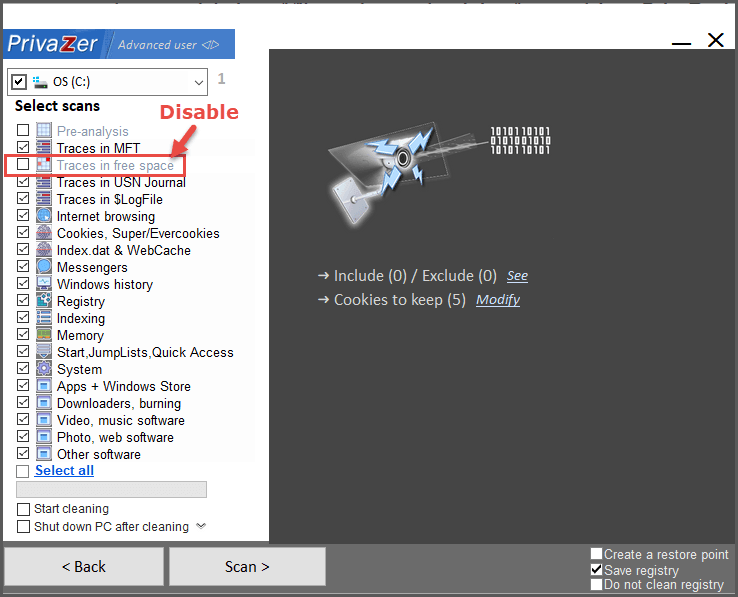
Wiping Free Space: Not only does wiping free space on SSDs involve writing to the drive, but it is also unnecessary. Free space on SSDs is handled by a combination of TRIM and ‘Garbage Collection’. So make sure the option to wipe traces in free space is disabled in the list of cleaning options:
Secure Deletion: There are three main reasons why secure deletion is not a good idea for SSDs:
- Secure deletion is achieved by overwriting data multiple times with random patterns; the more overwrites, the lower the chance of the data being recoverable. So, again, it involves lots of writing to the SSD
- Unlike HDDs, SSDs cannot overwrite data directly
- Because of the way in which TRIM and Garbage Collection handle free space on SSDs, recovering data is virtually impossible anyway. So, there is no need to securely delete data with PrivaZer
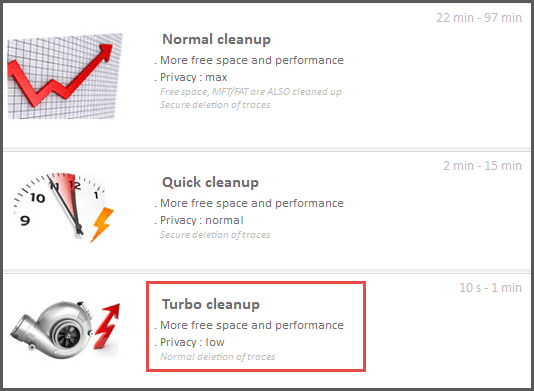
After PrivaZer has completed scanning, you are presented with three cleaning options. The top two options – Normal cleanup and Quick cleanup – involve levels of secure deletion, but the bottom option – Turbo cleanup – does not. So, you should always select the Turbo cleanup option:
- You also might like: Does Junk Slow Down A Windows PC?
BOTTOM LINE:
The end result remains the same: the data will still be deleted and is virtually unrecoverable, but with the added benefit that you’ll be helping to extend the life of your SSD.
—

Anything wrong with using normal cleanup as I prefer more privacy deletion?
It’s best not to use Normal Cleanup on SSDs, it’s all explained in the article.
Hello,
PrivaZer is completely safe and “okay” to use on an SSD because it changes automatically how it operates depending on your drive type.
Here is exactly why it won’t ruin your SSD:
PrivaZer doesn’t treat an SSD like a mechanical hard drive. It detects your hardware and adjusts its behavior.
The moment PrivaZer starts scanning, its algorithm identifies whether your drive is an HDD or an SSD.
If PrivaZer detects an SSD, it uses TRIM by default.
Check on “Advanced options” > “cleanup” tab, you will see that PrivaZer uses “normal deletion + TRIM” by default.
Jim, “Traces in the free space” can be checked, it will use TRIM by default.
This tells your SSD controller exactly which blocks are no longer needed, allowing the drive to wipe them naturally through its own background garbage collection.
That’s why PrivaZer is both secure and highly optimized for SSD health.
Fair enough.
However, because Windows is set to automatically optimize the drive (TRIM plus garbage collection) weekly, I stand by my statement that there is no need to clean free space on an SSD.
BTW: That setting (Advanced options > Cleanup tab) is set to “Secure + TRIM” by default in my copy.
Jim, I recently stopped using PrivaZer as a monthly cleaning routine in favour of Wise Care 365. It does a quicker job, removing junk thus less ware and tear on my ssd’s, Mindblower!