

It’s the winter for power outages around here, with possible rotating outages due to damage at the power plant. These outages can also wreak havoc on our tech. Some minor, some major.
One minor problem I had because of the last outage was that the time on one of my computers was out of sync.
I usually sync the clocks in my home with the computer or TV. But sometimes those times need to be synced, too.
Here is how to do it in Windows 10. In the search bar, type “date” or “time,” then click “Date & Time settings” when it shows in the menu.
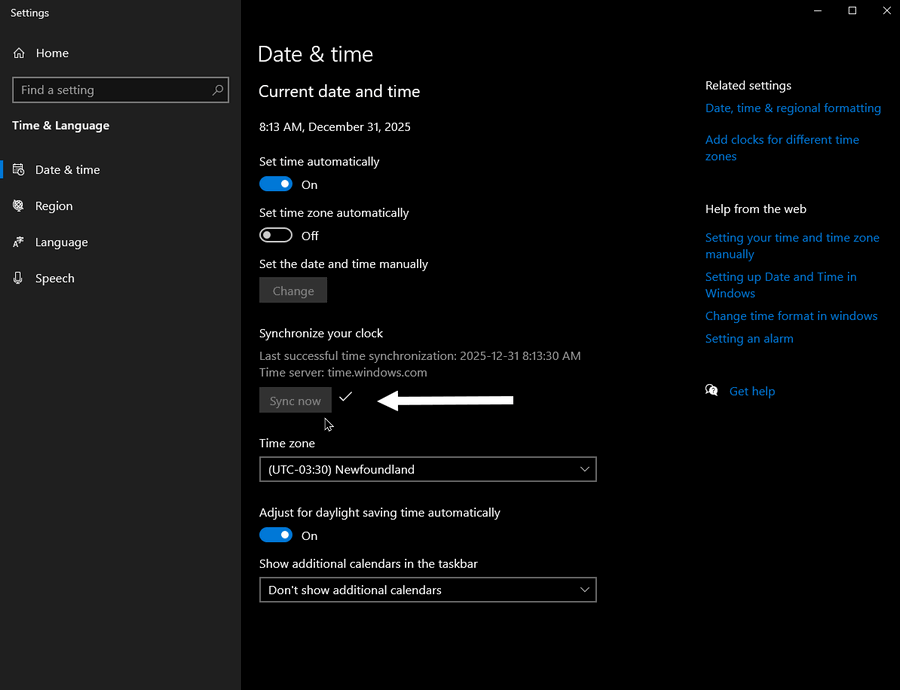
In the “Synchronize your clock” section, click the “Sync now” button. And that usually does it. If not, there are other options.
You can change the date and time manually, but first make sure the “Set time automatically” is turned off.
Then click the “Change” button. This pops up a box to manually change the date and time.
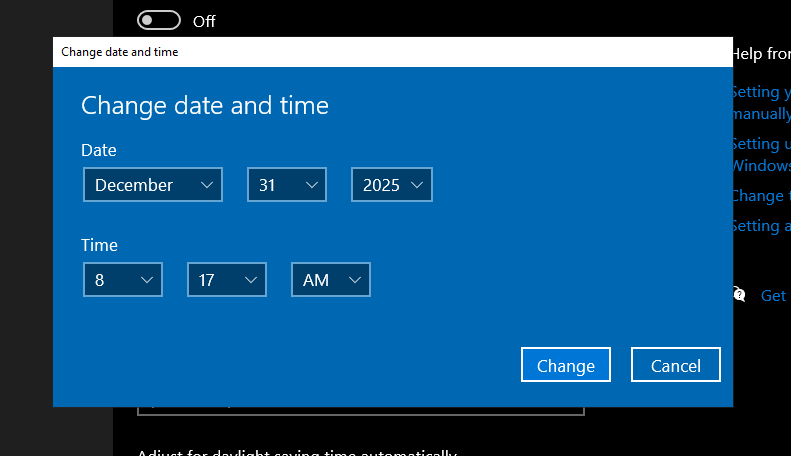
Also, make sure you are in the right time zone. Again, turn off the automatic option if you want to change it manually.
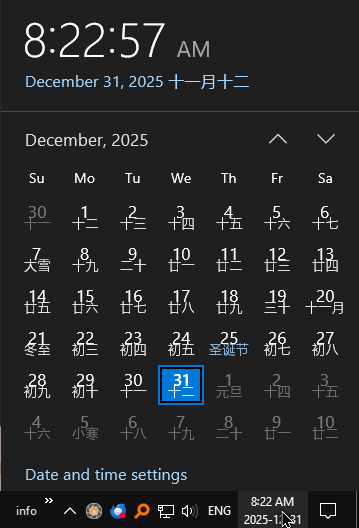
Nothing to do with syncing time, but there is the option to “Show additional calendars in the taskbar”. I have only two options there, not counting “Don’t show additional calendars”. “Simplified Chinese (Lunar)”, and “Traditional Chinese (Lunar)”.
Both just put Chinese characters in the calendar as pictured.
Anyway, stay warm, stay safe, and stay in sync.
—

Hi Terry,
My little laptop hasn’t been online for 2.5yrs and no way to get online cos my house doesn’t have internet. I just use my phone these days.
But recently the laptop which is on its last legs anyway, threw a fit and the time went stupid.
It’s no biggie except it throws the photos into caos. I’m only keeping the old girl going because of the photos.
I thought I could just set the time again manually but it hasn’t worked.
I did the “make sure to allow manual time set” thing but it’s still heywire.
Does that mean it’s gone for good?
I would buy a new laptop but there’s no internet.
Cheers
Laptops, like desktops, have a small CMOS battery in them that keeps the date and time in the BIOS. That battery might be dead. That would explain the time issue. That shouldn’t interfere with the pictures. So I’m not sure what’s going on there. I do recommend that you try to back up your pictures to an external hard drive or even a flash drive. If you have a CD/DVD burner. Any backup is better than none. Good luck.
Oh yes! I back up two folders religiously everytime I add to them. I used a Seagate 2Tb portable HDD.
When I say ‘backup’ that isn’t exactly what I do because I just copy the two folders.
So I copy them to this large external drive so that when I do get a new laptop I can just run the external hard drive and reload those folders onto the new machine.
I copy Documents and Photos. I think windows calls that file Pictures.
But the ‘date/time issue’ has also been copied across with the pics.
Whereas they all used to be in chronological order as all pics usually are, now the latest ones since about October last year have reverted to a date in 2017 I think. Obviously the date the laptop was made.
So it’s a bit of a bother because they are no longer in the right place. They are way back at the start of that folder with a date that is not right
And here’s a thing. I really don’t know whether I should call it a file or a folder. But I’m sure you know what I mean. It’s the place where Windows stores all the images on the laptop. I just press copy/paste and in no time flat everything is copied across to the external hard drive. I don’t need all the paraphilia of the actual laptop just those few folders.
I keep the last three copies and delete the forth which is the oldest. So there’s always three copies. I also copy everything to another drive as well.