

I had a movie that was two separate video files. I wanted to merge them into one video file. I’m going to use a program called “MKVToolNix”.
Open the program.
Right-click in the space for the “Source files”.
Click “Add files”.
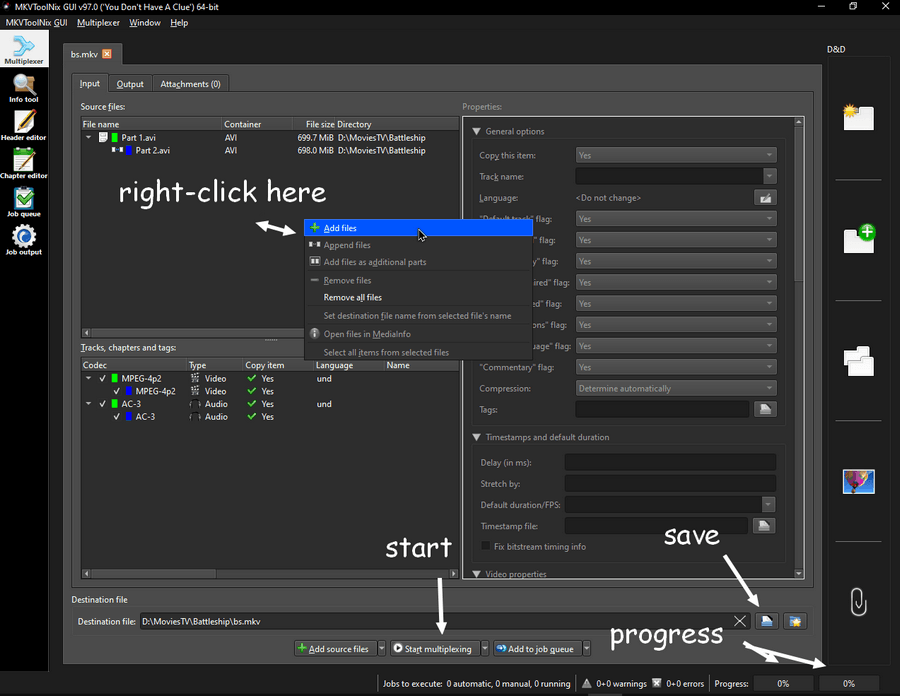
Select your files from your hard drive. I selected both parts at once. (Hint: hold down CTRL while selecting.)
Then came this “Adding multiple files via Add source files” box.
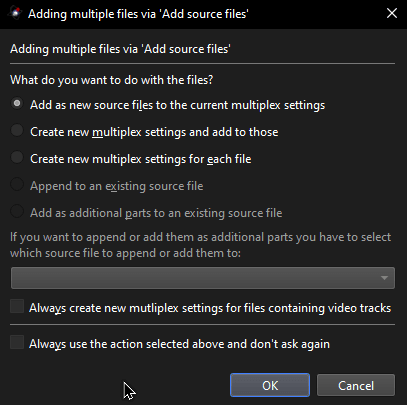
I left it on the option, “Add as new source files to the current multiplex settings”. Click OK.
At the bottom of the screen is the “Destination file”. Next to the X is a blue-and-white icon. Click it, and a box will open to name and save the file.
Now, right at the bottom. Click “Start multiplexing”.
The progress bar is shown in the lower right-hand corner. It doesn’t take very long. It’s quick, and it works.
If you have more experience with this, you’re free to play with the settings as you see fit. If you don’t have the experience, you’re still free to play with the settings.
This suits my needs for now.
Feel free to share your experiences in the comments.
—

You can easily merge two or more MP4 files into ONE MP4 file along with changing its frame width/height at the same time using VideoProcAI. I save a lot of video tutorials off of YouTube, a lot of which come in Part 1, Part 2, Part 2, etc., sequences and that are in large formats. I combine them into a single file at 640×360 resolution so that I’m not using tons of HDD space.