

Last week, we talked about how you could create a QR code in Microsoft Word. If you missed that one, you can find it here:
Now I want to jump over to another Microsoft subject that I think is important. ‘What are you teaching us this week?‘ Good question! Have you noticed that sometimes your internet lags for no reason? This could be because Windows is using your bandwidth to update other computers. That is right, there is a setting that allows them to use your Bandwidth to send updates to other computers around the world. That seems like something I don’t want them doing, and I think you might not either. Before I start our Windows lesson, make sure to check out these other articles I have created for all of you:
- How To Manage Your Google Profile Visibility
- How To Remove Third-Party Apps from Google
- How To Enable Clipboard Alerts on Samsung
- How To Blur House On Google Maps
- How To Disconnect App From ChatGPT
Time to pull out those Windows computers and stop Microsoft from using up our bandwidth.
How To Stop Windows From Stealing Bandwidth
I will be showing you how to do this on my Windows 11 laptop. This was also tested on Windows 10.
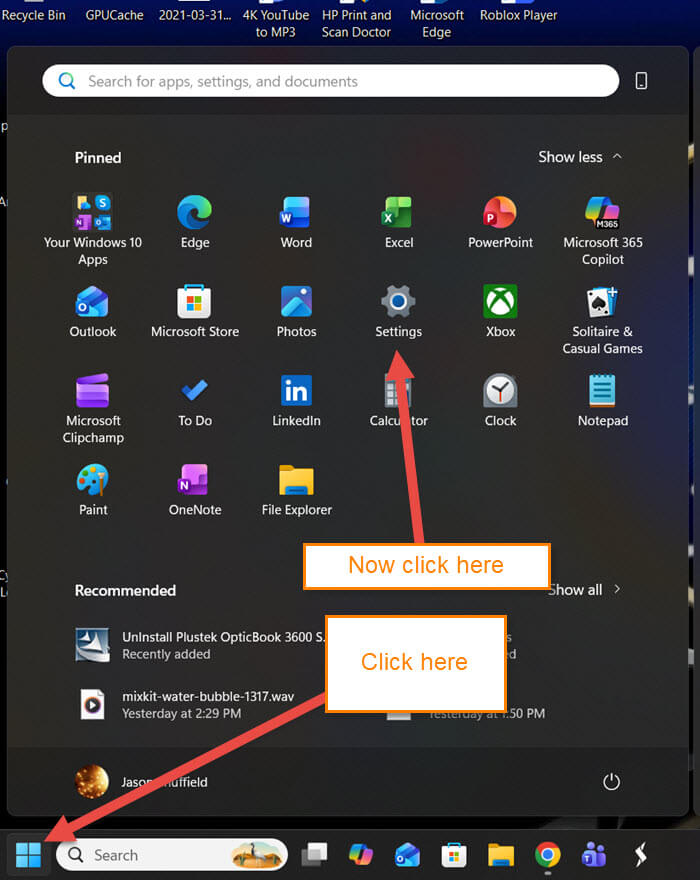
Step 1: Once on your computer, look to the bottom left. Click on the Windows icon, and a menu will pop up. From this menu, find the Settings link. Click it.
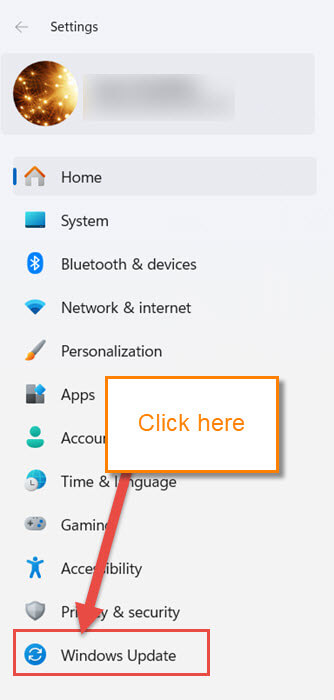
Step 2: On the next screen, look at the left menu. Find the Windows Update, which is at the bottom. Click it.
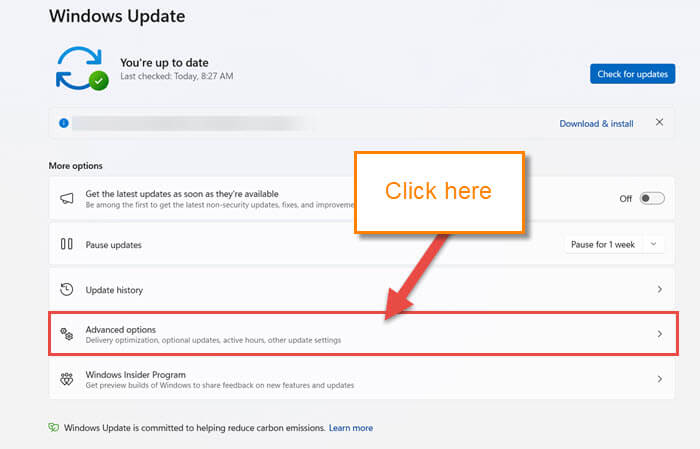
Step 3: Under the Windows Update screen, look in the middle for the option called Advanced Options. Click that.
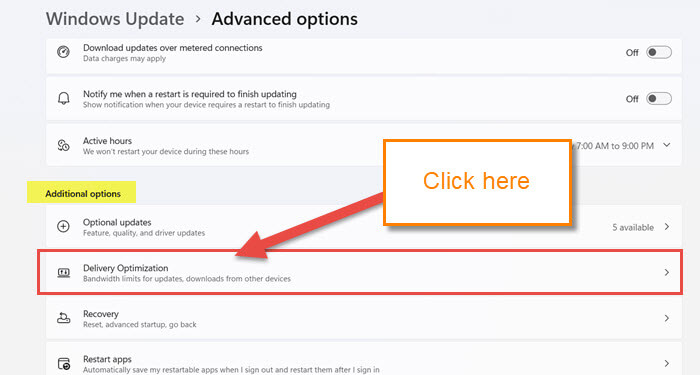
Step 4: Once on the Advanced Option screen, look for the section called Additional options and find Delivery Optimization under that. Click it.
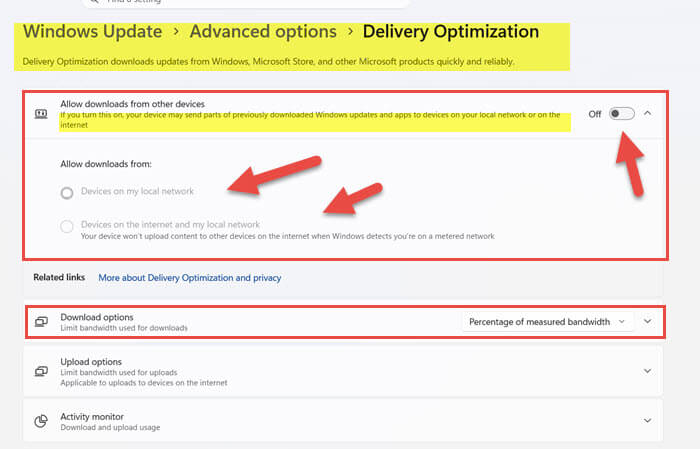
Step 5: Here is where all the magic happens. You are given a few options on this screen, but the ones I want to cover are the top two. We will start with the first one.
Delivery Optimization downloads updates from Windows, Microsoft store, and other products quickly and reliably.
- Allow downloads from other devices (If you turn this on, your device may send parts of previously downloaded Windows Updates and apps to devices on your local network or on the internet.)
This is the one that will stop Microsoft from using your bandwidth to update other people’s computers. Make sure you click the Off switch to the right of it. Now let’s move on to the last one I want to show you.
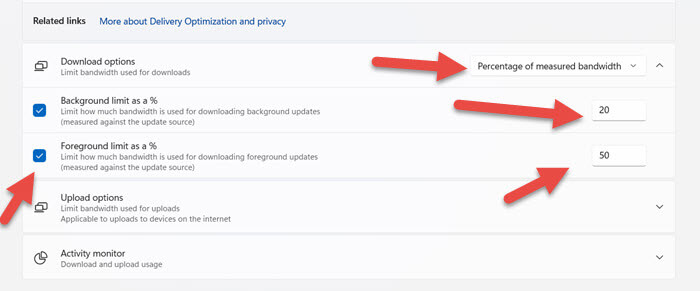
Step 6: If you look down a little further, you will see an option called Download Options. They offer two choices on the pull-down menu to the right. Click the down arrow.
- Absolute bandwidth limit
- Percentage of measurement bandwidth
For this article, we will choose the second option. Click on that one.

Step 7: Once you have clicked on that, you will be given two options:
- Background Limit as a % (Limit how much bandwidth is used downloading background updates)
- Foreground limit as a % (Limit how much bandwidth is used downloading foreground updates)
You can change the percentage here. Make sure to check the box to the left of both options so they are activated. All Done!
This will save you some bandwidth by keeping Microsoft from using it. Time to share your new knowledge with your friends.
—
