
Last week I started a lesson on the new subject of ChatGPT. We talked about how you could stop this AI from taking your information to teach all its AI systems. If you missed that, you can find it here:
How To Stop ChatGPT Using My Data
I would like to stick with this subject and teach you something else about AI. As with all programs and websites, they love to send you notifications. If you are like me, this can get annoying because it is unwanted. In today’s article, I’m going to show you how to stop those notifications from being sent to you from ChatGPT. Before I get this new lesson started, make sure to check out these other articles I have written recently:
- How To Create Shortcut On Android
- How To Customize Google Search Widget
- How To Stop Gemini From Reading Screen
- How To Adjust Facebook Display Settings
- How To Create Collage In Google Photos
Time to pull out those notepads (Yes, old school) and get ready to learn.
How To Stop ChatGPT Notifications
This will first be shown on the Website and then I will show you on the App.
How To On Website:
Step 1: Turn on your favorite browser and go to ChatGPT.com.

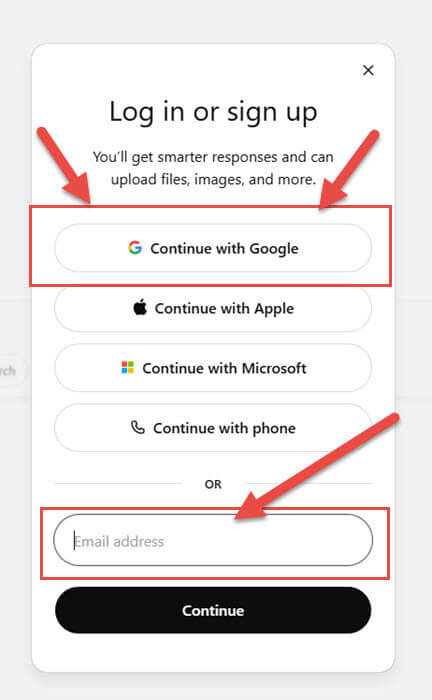
Step 2: Log in to your account by choosing one of the options they offer. I use Google, so that is the one I will choose.
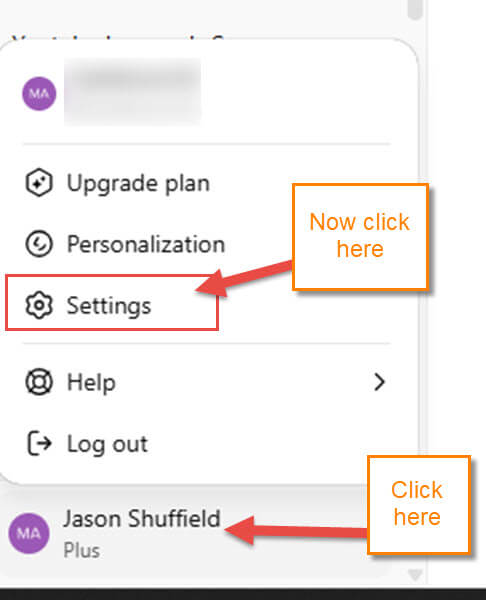
Step 3: After that, look to the bottom left and click on your name. A menu will now pop up, and you will need to click Settings.
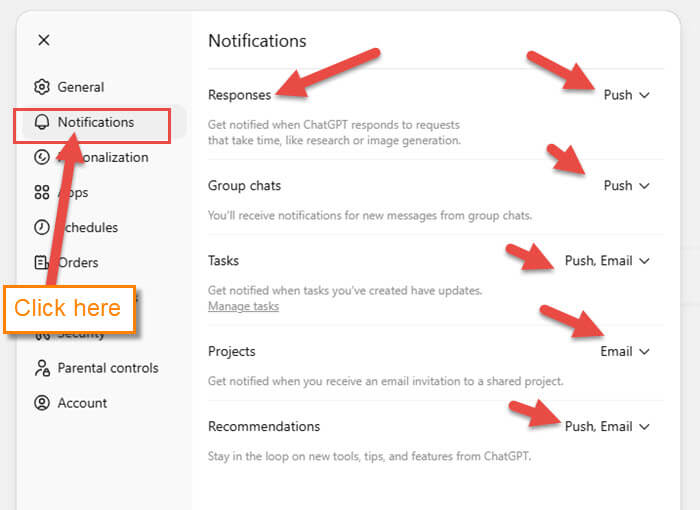
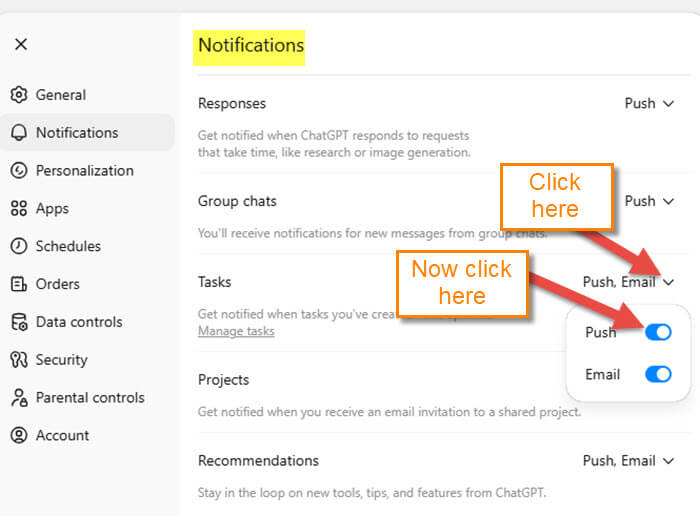
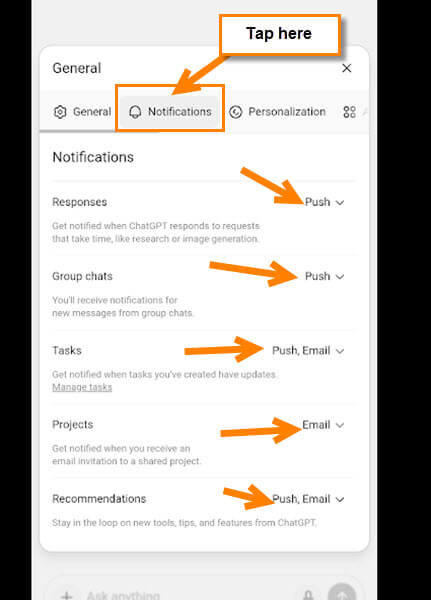
Step 4: On the left menu, click on Notifications to get to all the Settings. Here you are offered many options to manage your Notifications:
- Response: Get notified when ChatGPT responds to requests that take time, like research or image generation
- Group Chat: You’ll receive notifications for new messages from group chats
- Tasks: Get notified when tasks you’ve created have updates
- Projects: Get notified when you receive an email invitation to a shared project
- Recommendations: Stay in the loop on new tools, tips, and features from ChatGPT
To adjust these, you can click on the Down arrow to the right of each option.
Step 5: Once you click, you will be offered options. We will choose Tasks for our example today:
- Push
- Emails
To turn them off, all you need to do is click the switches. Turn off all the switches, and you will never get a Notification again. DONE!
Time to move over to our mobile device and show you how to do that there.
How To On App
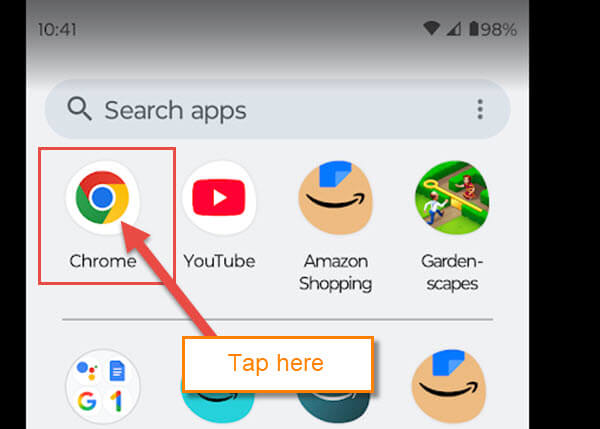
Step 1: Find your Google Chrome App on your phone. Tap it.
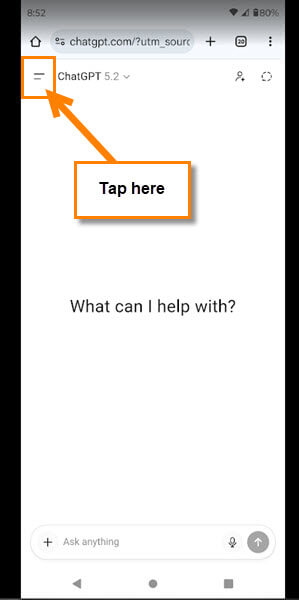
Step 2: Now head over to ChatGPT.com as we did before. Now make sure you are signed in. After you are there, tap on the two lines at the top left.
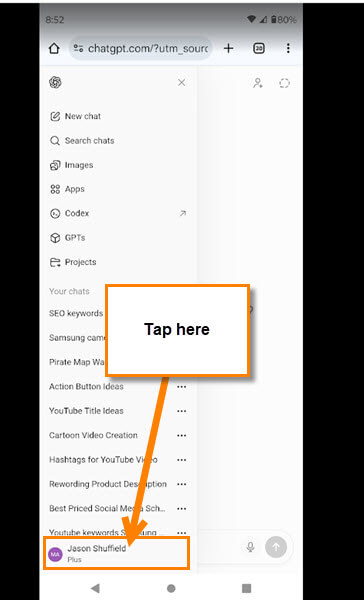
Step 3: This will bring up the menu, and like before, tap on your name at the bottom left.
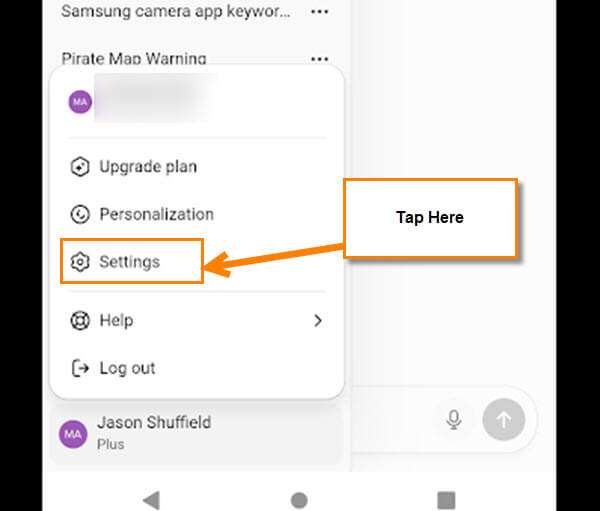
Step 4: That will bring up the smaller menu. Tap on the Settings link.
Step 5: Now tap the Notifications tab at the top. This will bring up the Notifications Settings. Tap the down arrow to the right of each option. Then tap the switch to off. DONE!
You now know how to do this on your computer and your mobile device. Time to share your new knowledge with the world.
—
