

Last week, we covered how you can stop Microsoft Windows from stealing bandwidth. If you missed that lesson, you can find it here:
How To Stop Windows From Stealing Bandwidth
This week, I wanted to cover a new feature that Gmail has started rolling out. ‘What is this new feature?’ Great question. They added a section in your menu that helps you manage your email subscriptions. Yes, those emails you get when you told a website that they could send you email. I’m going to show you how you can find this feature and use it to stop getting those unwanted emails you have been ignoring and want to deal with finally. Before we start this lesson, check out these other articles that I have written for you:
- How To Create QR Code In Word
- How To Manage Your Google Profile Visibility
- How To Remove Third-Party Apps from Google
- How To Enable Clipboard Alerts on Samsung
- How To Blur House On Google Maps
Time to start the lesson and learn something new.
How To Manage Email Subscriptions In Gmail
I will show you how to do this on my computer and in the app.
Step 1: Open your Gmail in your Google browser.

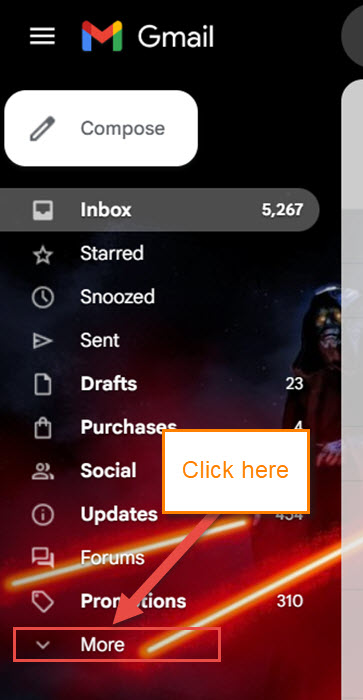
Step 2: Once on your Gmail account, look to the left menu. The option we are looking for is More at the bottom of that menu. Click it.
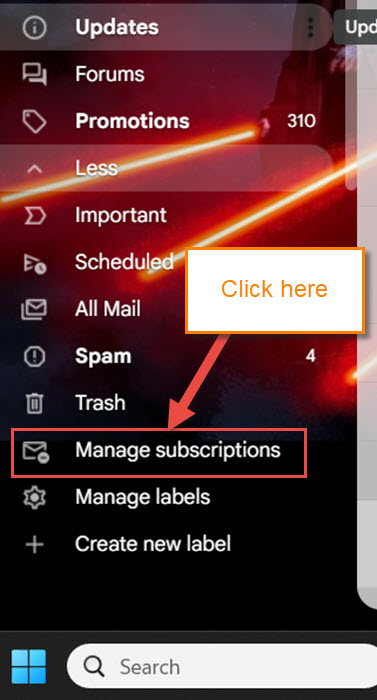
Step 3: This will expand the menu, and you are looking for Manage Subscriptions. Click that.
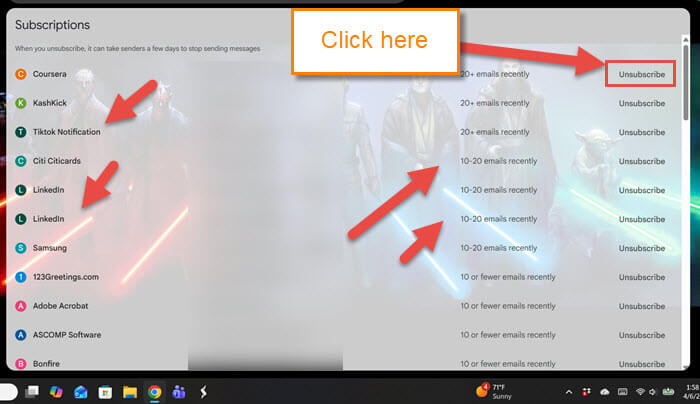
Step 4: Here is the screen that will show you all the email subscriptions you have connected to your Gmail account.
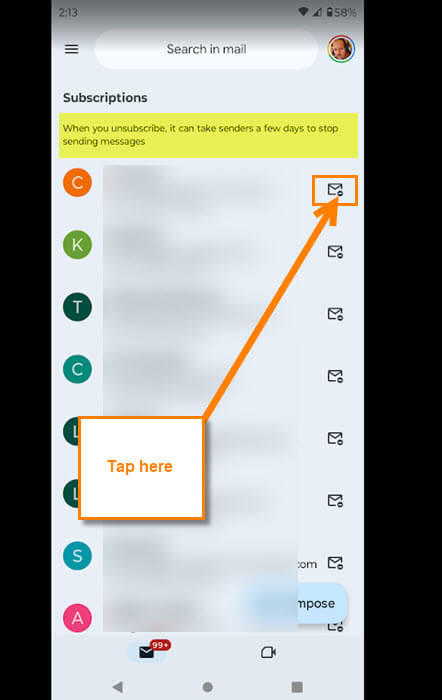
When you unsubscribe, it can take senders a few days to stop sending messages
To the right of each email subscription, there is an envelope or the wording Unsubscribe. All you need to do is find the one you want to unsubscribe from and click Unsubscribe.
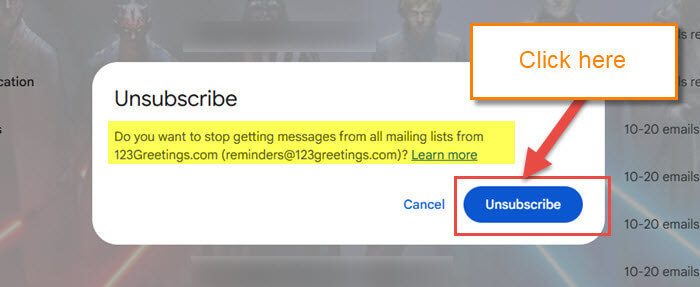
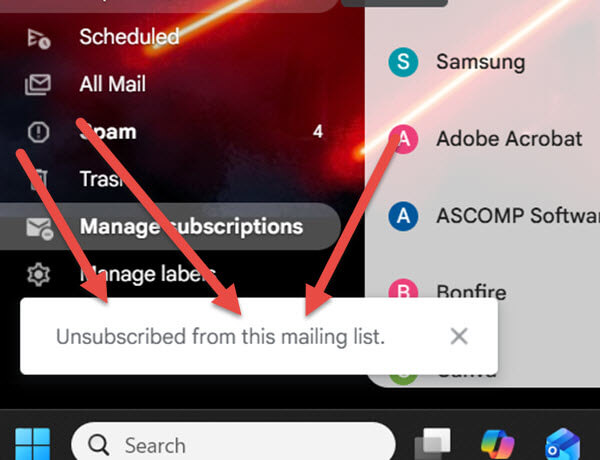
Step 5: Now you will see a confirmation window. Click the blue Unsubscribe button, and then you will see the confirmation message at the bottom left. Done!
Time to move on to the Gmail app and show you that way.
How To Do This On The Gmail App
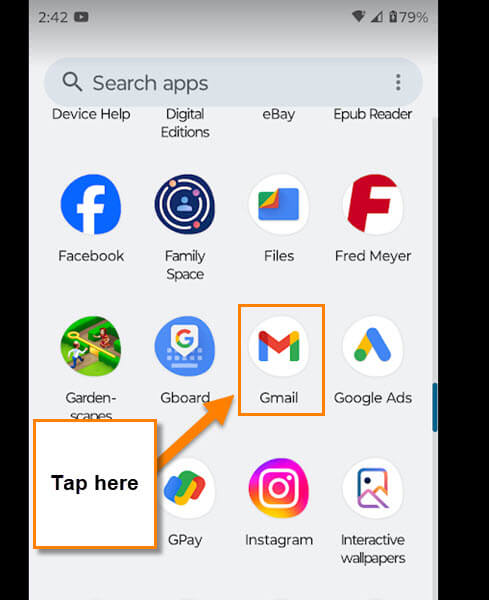
Step 1: Find the Gmail app on your device and tap it.
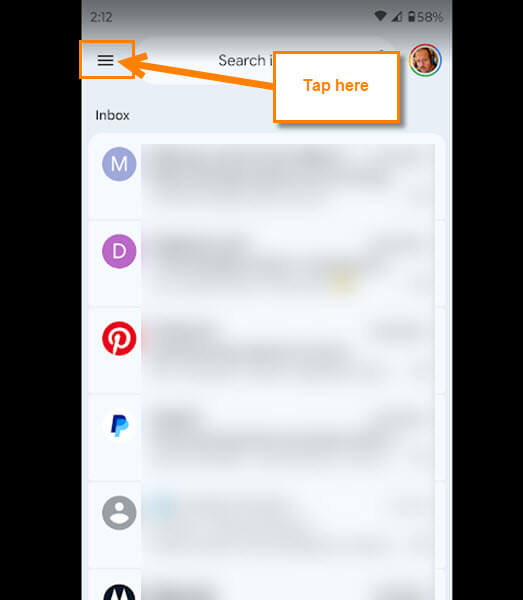
Step 2: Once on your Gmail app and under your account. Look to the top left for the menu lines. Tap it.
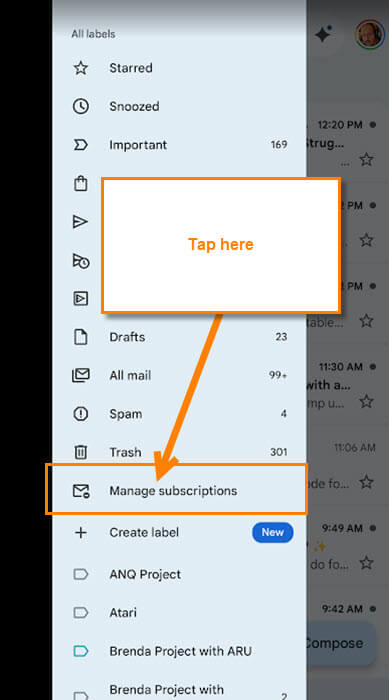
Step 3: A side menu will appear, and you are looking for the Manage Subscriptions link. Tap that.
Step 4: You are now on the Subscriptions screen where all the email subscriptions attached to your Gmail are. Look to the right of the one you want to unsubscribe from. You will see an envelope icon. Tap it.
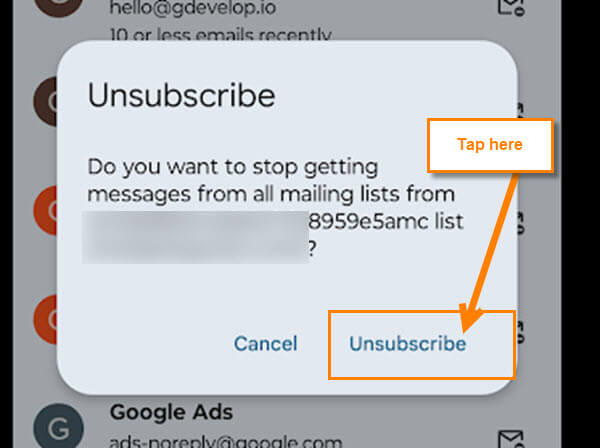
Step 5: This will bring up the Unsubscribe confirmation window. If you want to move forward, tap the Unsubscribe link in this message. DONE!
You now know how to Unsubscribe from those email lists you signed up for. Time to share your new knowledge with the world, or at least your friends :)!
—
