
If you have been following for the last few weeks, you noticed my lessons on ChatGPT. If you missed last week’s lesson, you can find it here:
How To Change Appearance Of ChatGPT
I’m going to continue these lessons and teach you a little more about this AI system. ‘What is the lesson?‘, you might be asking. With ChatGPT, you can connect other websites to it. You might have done this and did not realize you did. Today, I want to show you how you can disconnect that website or app from your ChatGPT account. That is correct, you can remove them from connecting easily, and I’m here to show you how. Before we get into our new lesson, make sure to check out some of these other ones:
- How To Change ChatGPT Personality
- How To Stop ChatGPT Notifications
- How To Stop ChatGPT Using My Data
- How To Create Shortcut On Android
- How To Customize Google Search Widget
Guess it is time to start class!
How To Disconnect App From ChatGPT
I will show you how to do this using the website and then on the app.
How To Disconnect On Website
Step 1: Head over to ChatGPT.com on your Web browser.

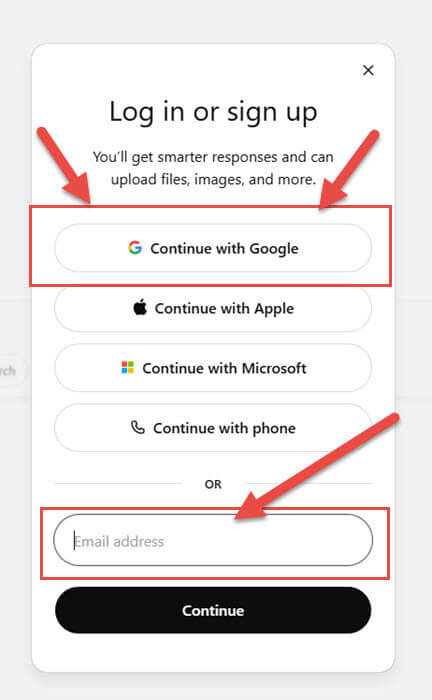
Step 2: Once there, log in to your account. I use Google, so that is the one I will click on.
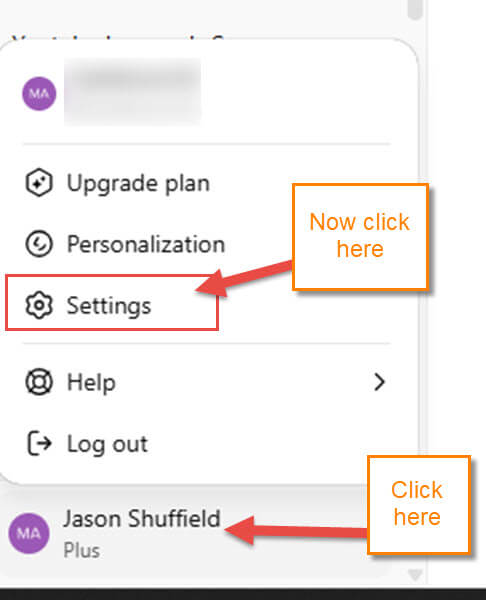
Step 3: Now that we are on our account, look to the bottom right. You will see your profile name, and you will need to click on it. A menu will appear, and you will need to click on Settings.
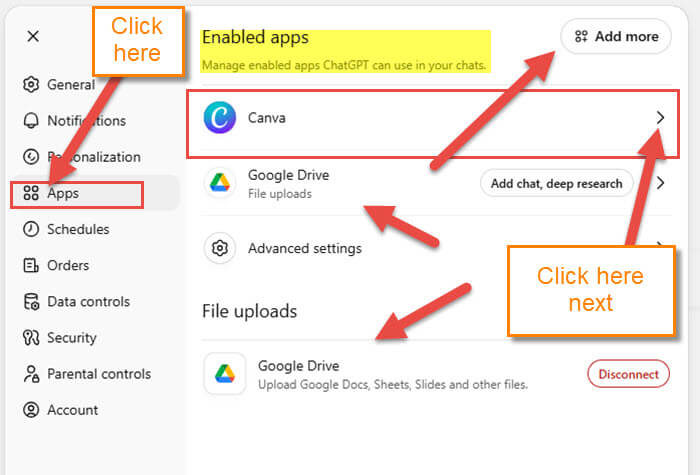
Step 4: A window will appear in the middle of the screen. Look to the left menu in this window and click on Apps. Under the app window, you will see all the apps that are attached to your account. For this article, I will choose Canva. Click the arrow to the right of it.
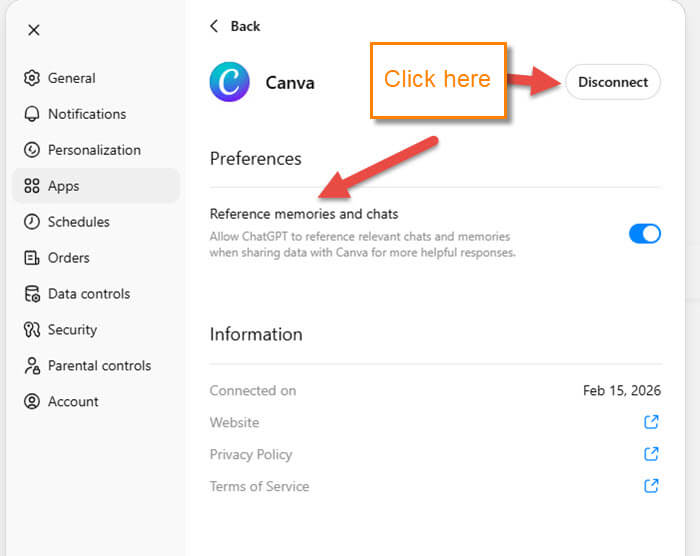
Step 5: This will bring you to the Settings window for that app. To disconnect it, click the Disconnect button to the right of the app name.
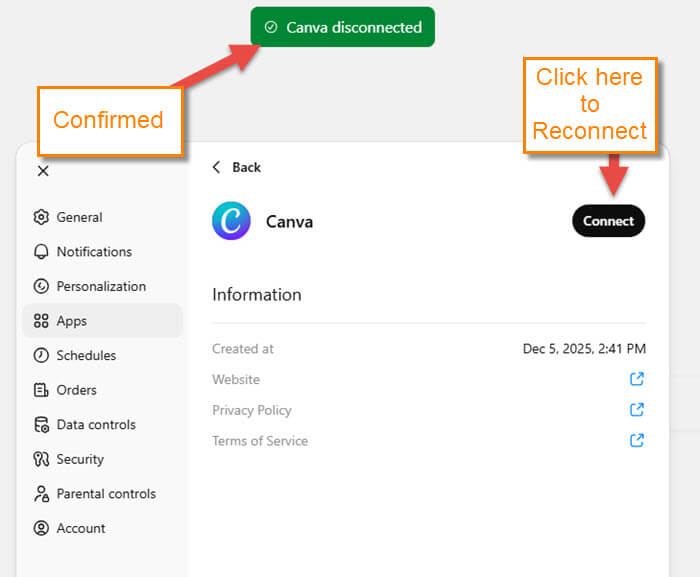
Step 6: You will get a Green Confirmation message at the top. You have now disconnected the app. If you would like to reconnect right away, click the Connect button.
Now, to show you how easy it is to do on the app.
How To Disconnect On App
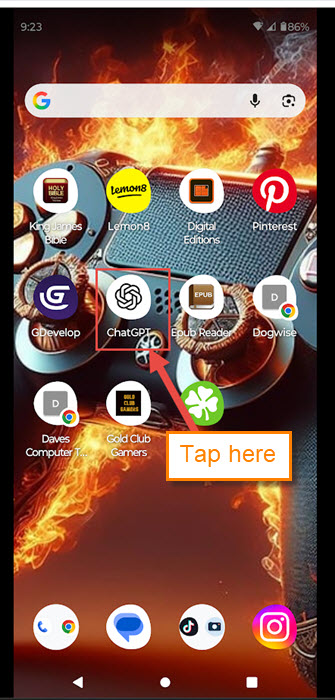
Step 1: Look for your ChatGPT app on your mobile device. Tap it.
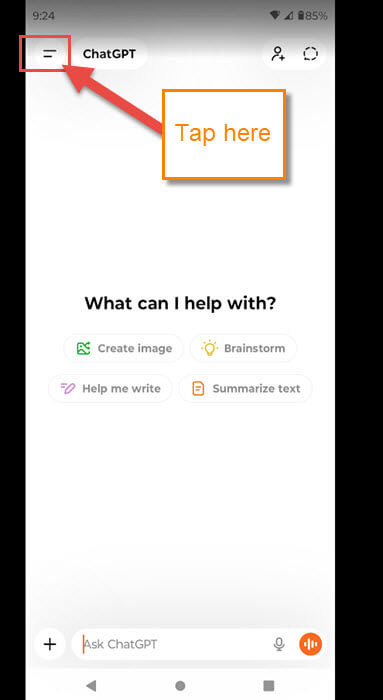
Step 2: Once it is open, look to the top left and tap the 2-line menu link.
Step 3: This will bring up a menu, and on that menu, tap on your profile name at the bottom.
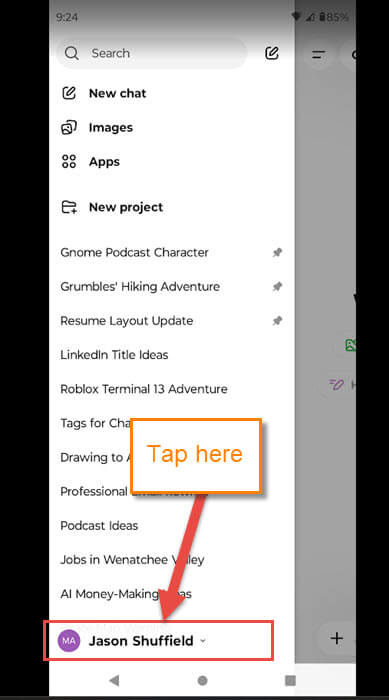
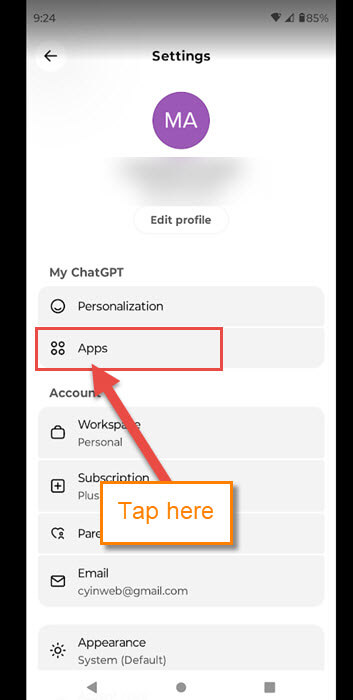
Step 4: That will take you to the Settings menu. On this menu, find the Apps link under the My ChatGPT title. Tap it.
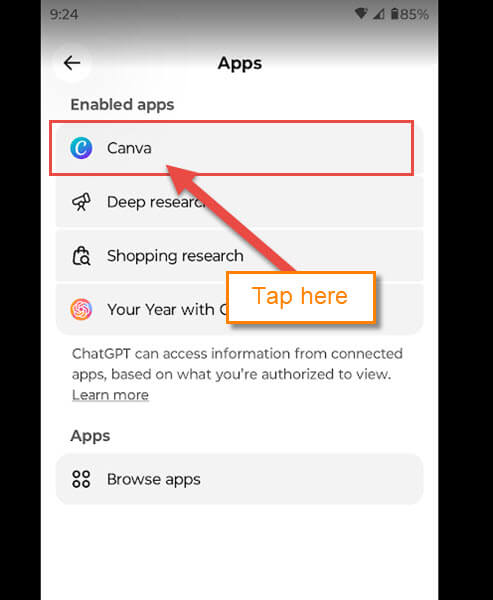
Step 5: As we did on the website, tap on the app you wish to disconnect.
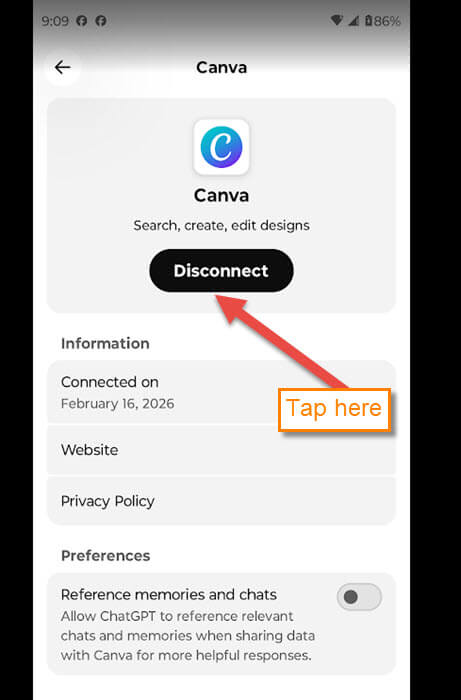
Step 6: The App Settings screen will open, and all you need to do is tap the Disconnect button. DONE!
You now have learned to do this on the website and on the mobile app. Time to share your knowledge with the world.
—
