

If you ever find yourself in a situation where you want to crop or zoom in on a video, as I sometimes do, here is how to do it in OBS. There may be more than one way to do this, including using plugins, but here is my way.
Select the source. I dragged and dropped a video into the program.
I had to zoom out to get the full canvas on the screen. Zoom controls are on the left-hand side. Just keep clicking the plus or minus sign to zoom in or out.
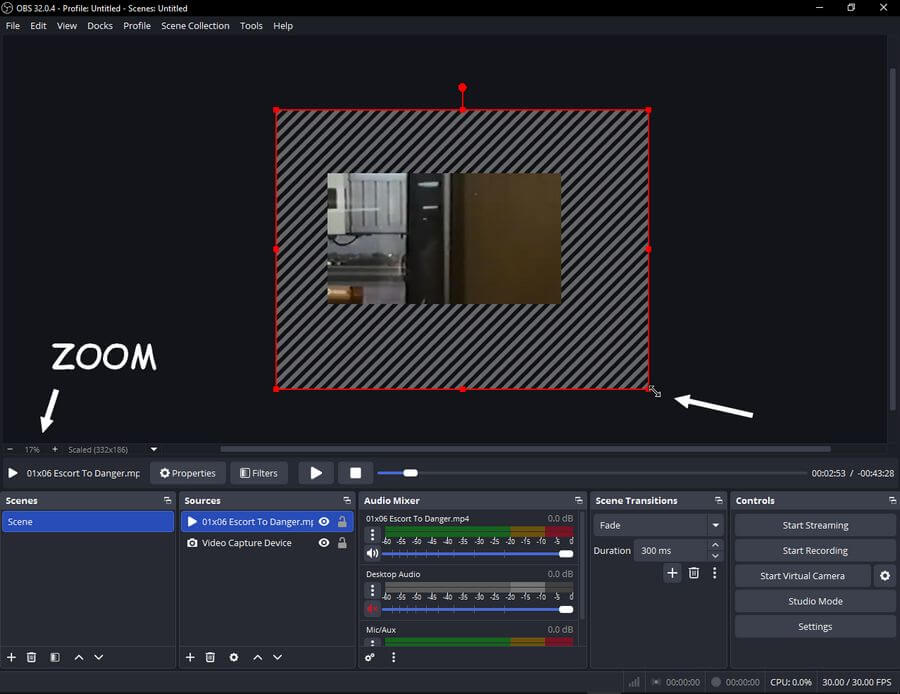
With your video loaded, click down, hold, and drag a red corner of the video to enlarge it. You are making the video bigger than the recording area (the canvas).
In my example, the area inside the greyed lines is the section that will be recorded. You can click inside this section, hold down, and drag it around, even when you are recording, like a panning effect.
When you isolate the section you want to record, hit “Start Recording”.
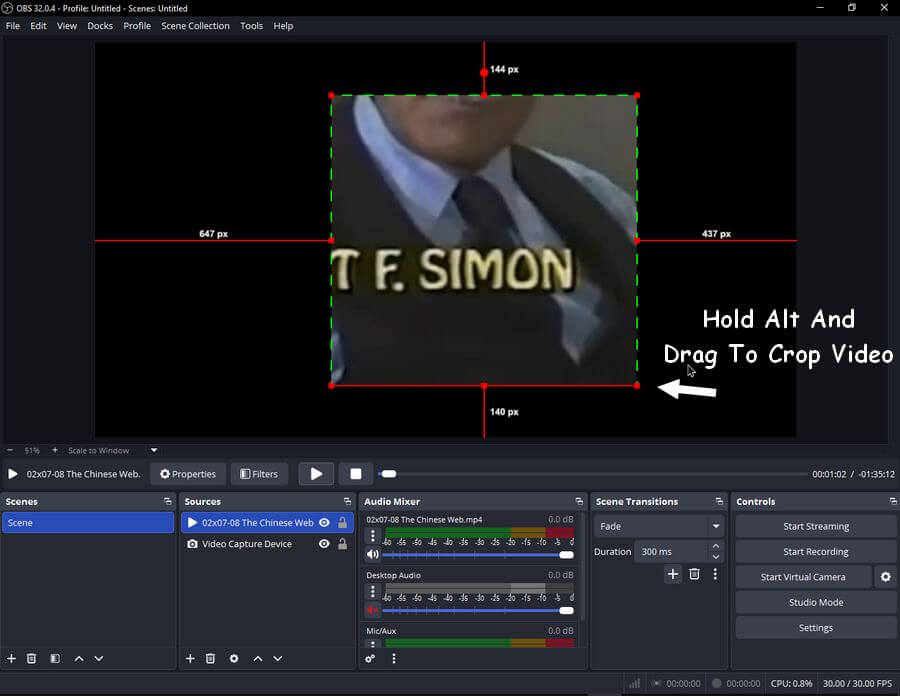
Another simple way is to hold down the “Alt” key while dragging one of the corners of the red box. This will crop the video while resizing it. The lines on the box now turn green. Adjust and record. This way doesn’t seem as flexible as the previous. No panning.
Basic, but it suits my needs. For more OBS articles, click here.
—
