

I discovered that my backup MoviesTV folder on my Acer desktop had two fewer videos than the one on my CyberPC. I need a way to sync up my two folders. “AOMEI Backupper” is the software I’m going to experiment with.
I’m using the Freeware version. Open the program. On the left-hand side panel, click on “Sync”. Then click on “Basic sync”.
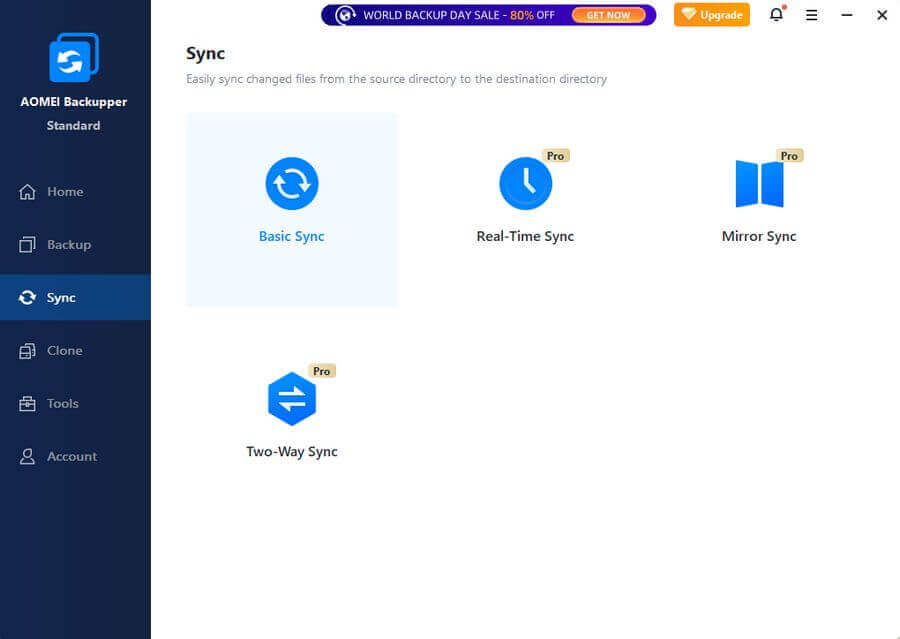
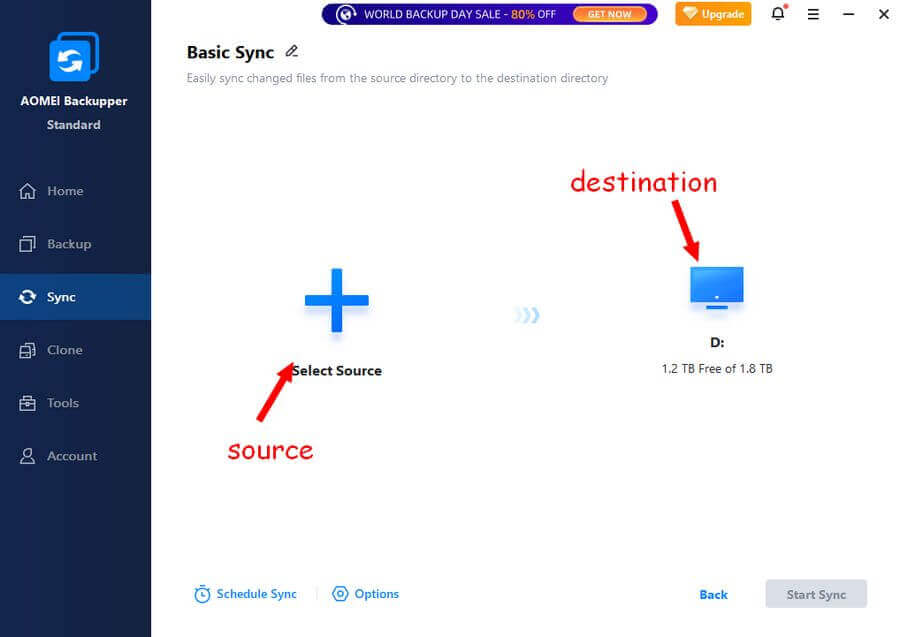
Click “Select Source” (plus sign). That would be my folder “MoviesTV” on my CyberPC. Then click the destination icon (computer monitor) and select your backup drive.
When you click on “Select Source”, you will see the following screen. A Windows-like explorer. Under “This PC”, navigate to the folder(s) to sync. Select your folder. A check mark appears next to your choice. All the sub-folders got checked automatically. Remove the check mark from any that you don’t want synced.
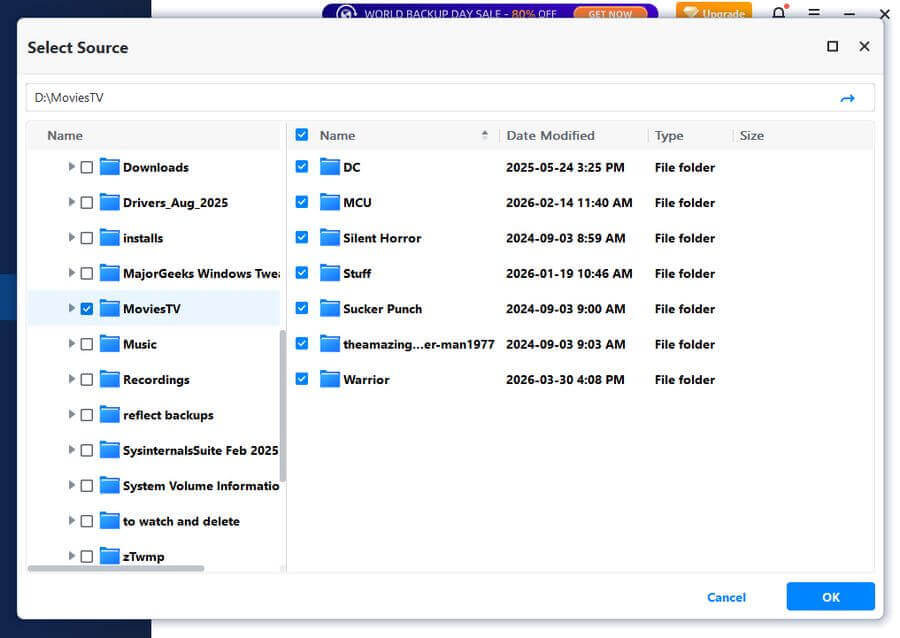
When finished selecting, click OK.
That takes you back to the main window. Click the computer monitor icon and navigate to your destination drive.
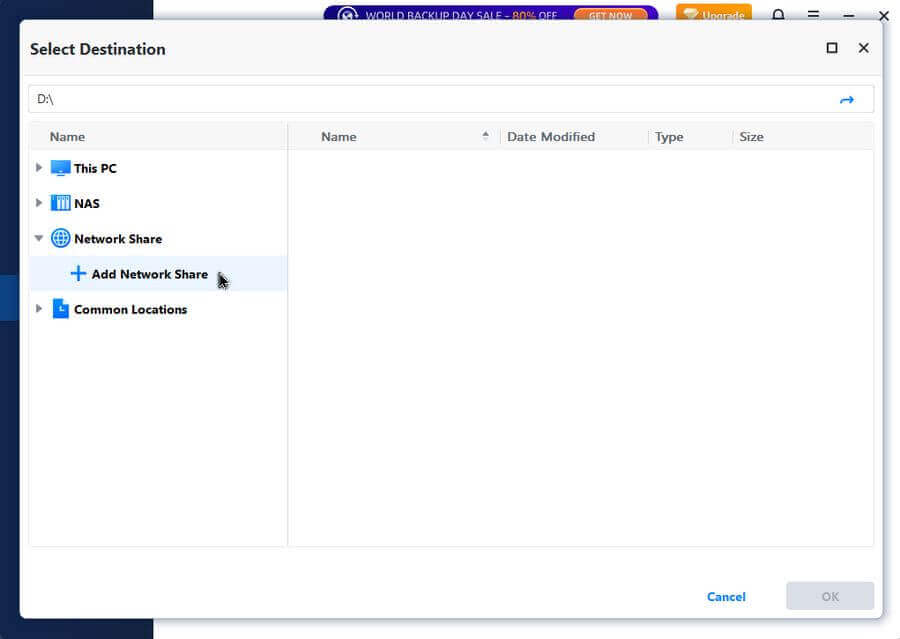
I’m using my network. For my network, I click on “Network Share”. Then “Add Network Share”.
Here is where I made a mistake. I originally selected the same folder on both systems and thought the program would sync up the files between the two. But then I received an “out of space error” being reported.
This program copied the entire folder from my CyberPC to the folder on my ASUS (first attempt). Not what I wanted. I have only two files out of sync.
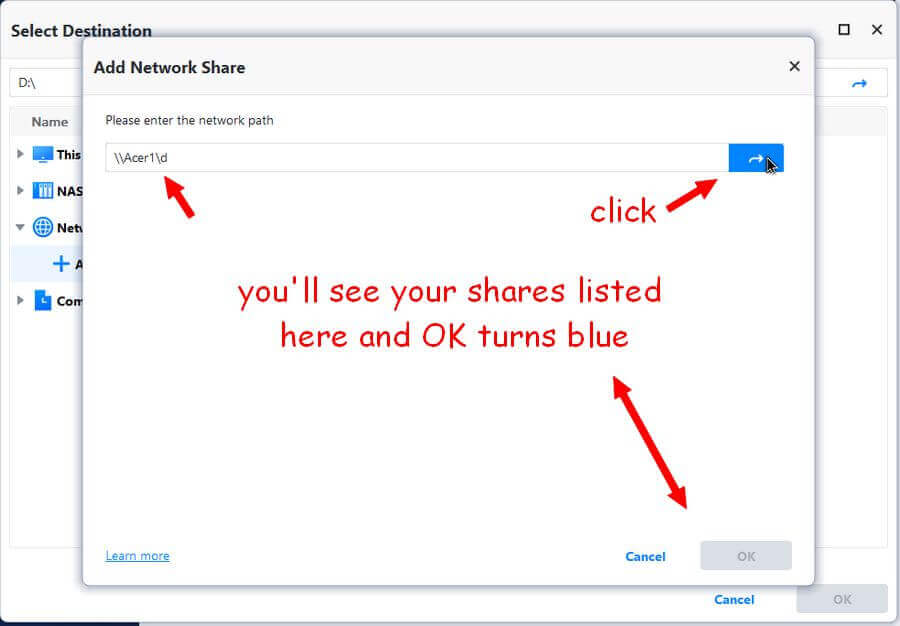
Now I’m testing with my Acer. My destination source is \\Acer1\d.
Enter the path to the network share, then click the little blue arrow at the end of that line. If you get no errors, the OK button turns blue; click OK.
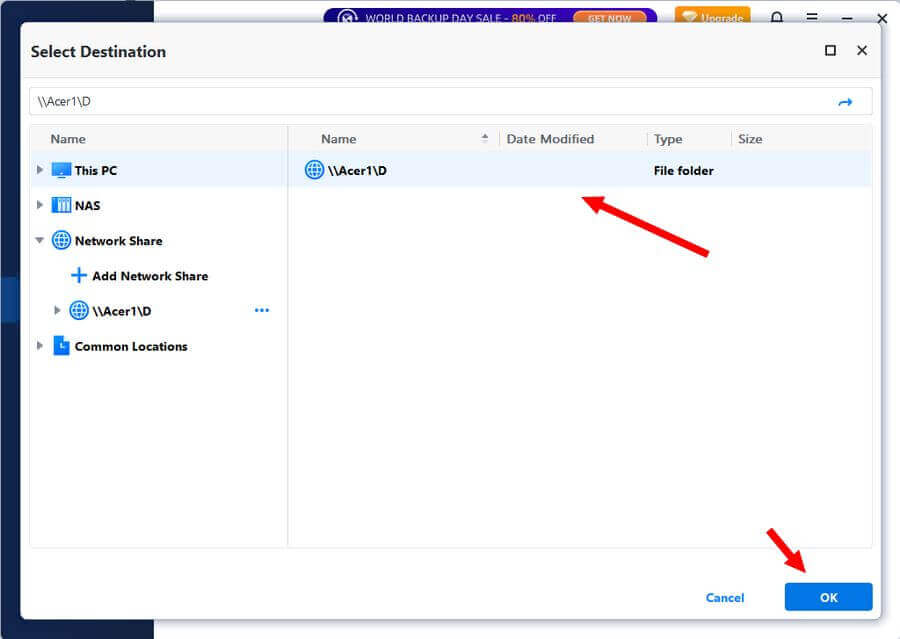
This takes you back to the selection panel. You should now see your network share listed. Click on it and click OK.
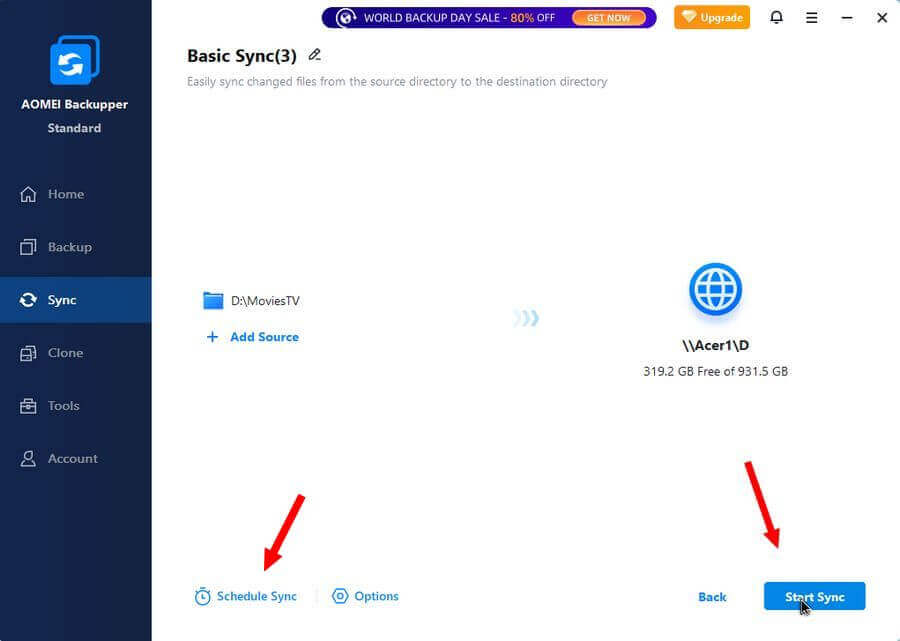
Back on the main screen, before you sync, click “Schedule Sync”.
Note: After a little testing, I discovered the Schedule Sync step isn’t necessary for a one-time transfer. Here only FYI.
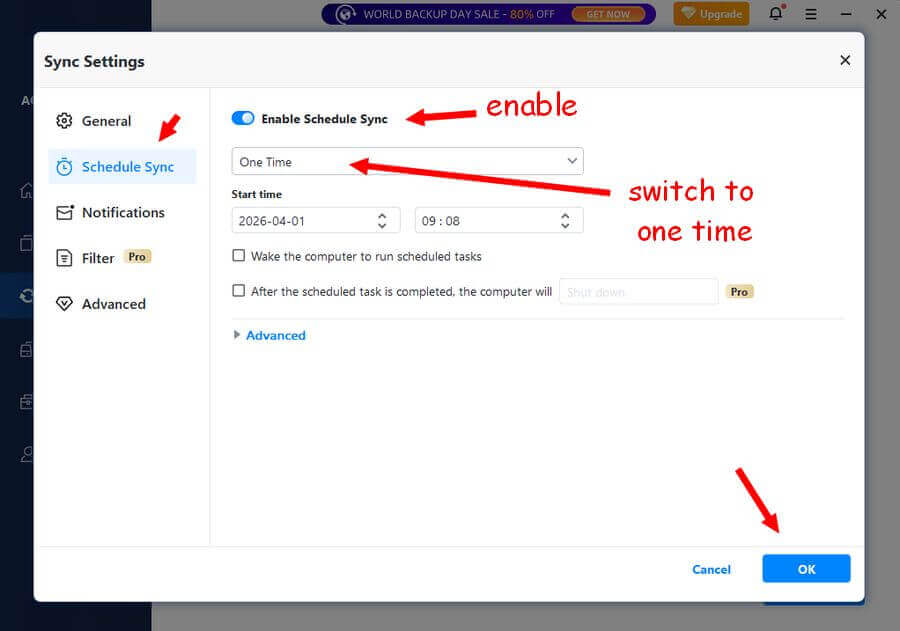
“Enable Schedule Sync”, click the switch, and then select “One Time”. Then OK.
Now you are ready. Click “Start Sync”.
You’ll get a prompt to enter your Username and Password to access your network computer. But only the first time. Enter your info and click OK.
Now it starts. You’ll get the progress timer in the centre window. Just wait.
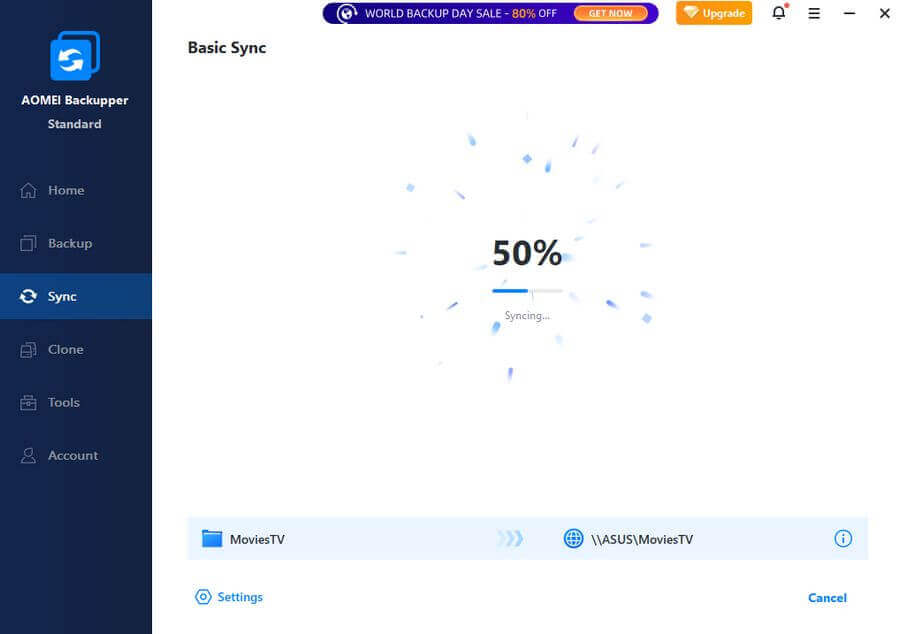
When I did it wrong the first time, it took over an hour. When done right the second time, it took about four minutes. Your times may vary.
Then:
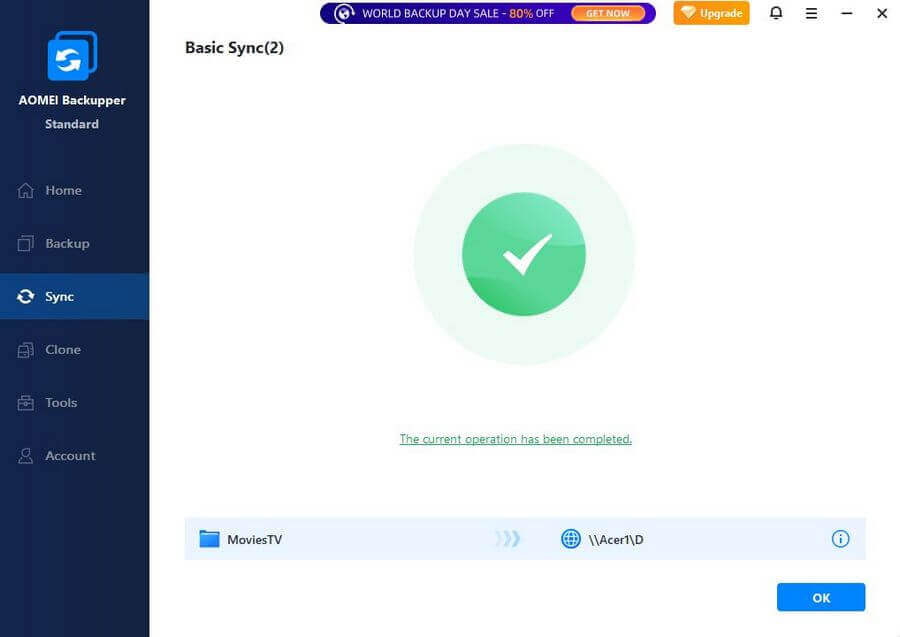
Seems like a lot of work for just two files, but my other option was to scan through a folder of 320 files, then a second folder, and try to spot the difference.
Note: Syncing folders seems to work OK as long as you choose a drive letter and not a folder for the destination.
For more AOMEI Backupper stuff, click here.
—
