

Following my article about BitLocker encrypting the OS drive on my Asus laptop without my consent, I began to delve deeper into what was really going on with my one-year-old Asus TUF Gaming A16 laptop. My findings will surprise you.
Asus Armoury Crate Auto-Installs
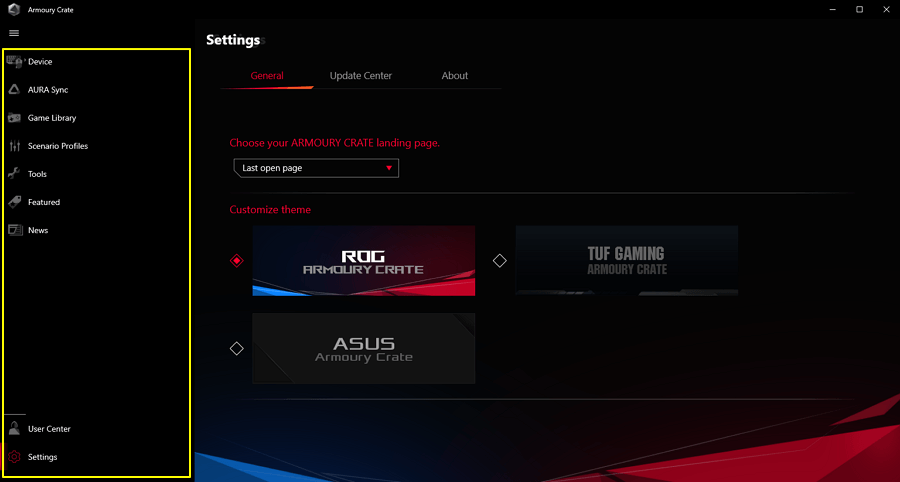
Having solved the BitLocker issue, I was curious about other software that was installed without my intervention, so I looked at Armoury Crate and My Asus, both of which are considered bloatware by many advanced computer users. When I set up my Asus laptop last year, both programs appeared in the taskbar by default, with Armoury Crate allowing me to configure numerous modes and My Asus for checking warranty and driver updates. Both programs offer some very useful tweaks, but are also loaded with features that I’ll never use or are duplicated in other programs – AMD Adrenalin, for example, for tweaking game performance.
How Did Armoury Crate Get Installed?
As with all things computer-related, one thing always leads to another, especially when investigating software issues. In my case, I started with My Asus on my laptop because I had rolled back the AMD graphics driver, prevented both Windows and Adrenalin from downloading drivers, but could not prevent My Asus from overriding these settings and installing updated graphic drivers. This put me back to square one, so, after installing a UEFI/BIOS update, I uninstalled My Asus and rolled back the driver once again. I then discovered that there’s a setting in the UEFI that needs to be toggled OFF to prevent My Asus from reinstalling itself.
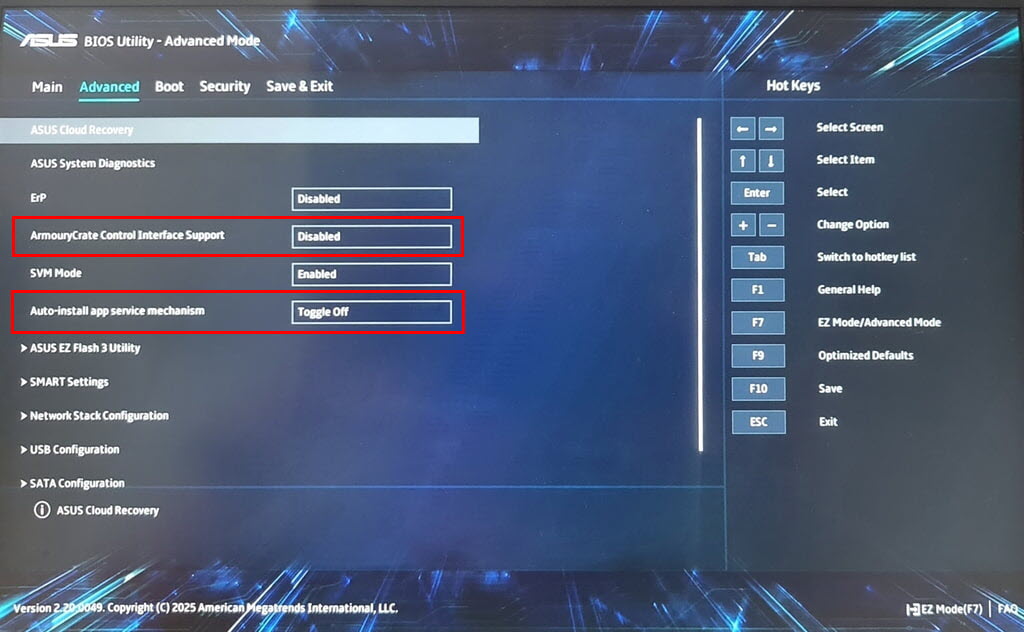
The same goes for Armoury Crate, which, even if you uninstall it (using a specific uninstaller from Asus), will reinstall itself if you don’t disable the option in the BIOS/UEFI, as per the above image. This is the first time I’ve come across software being injected via the BIOS/UEFI, so I then took a look at the UEFI in my ASUS Crosshair Hero VII WiFi for my main gaming PC and discovered a similar setting which I had never noticed before.
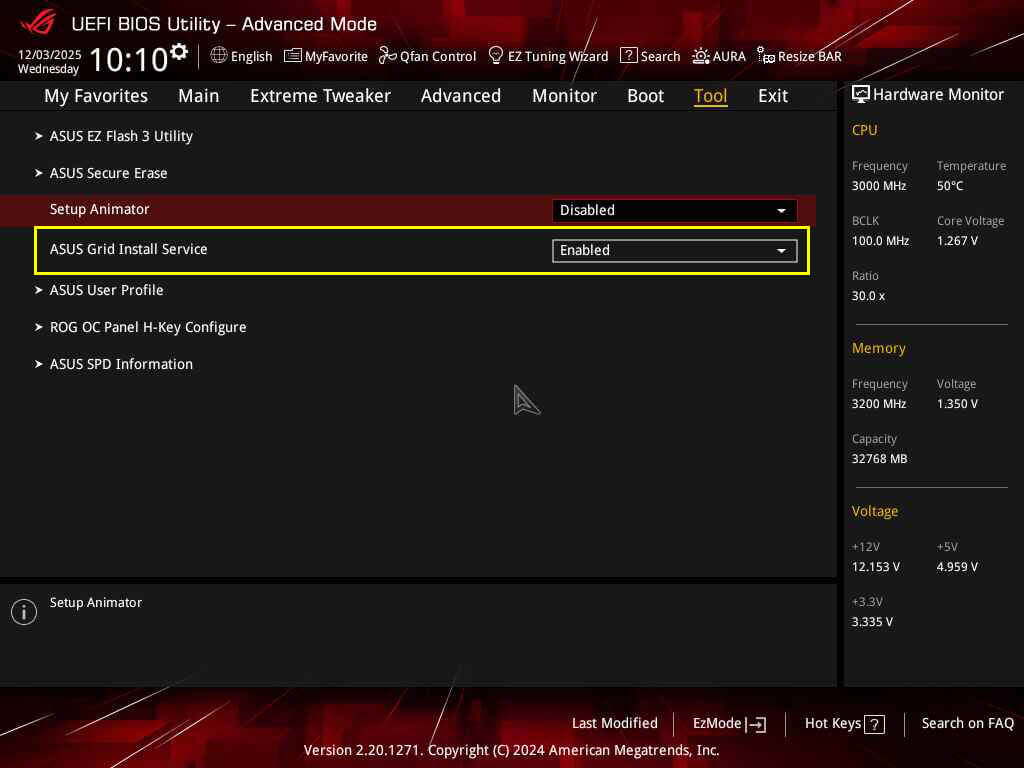
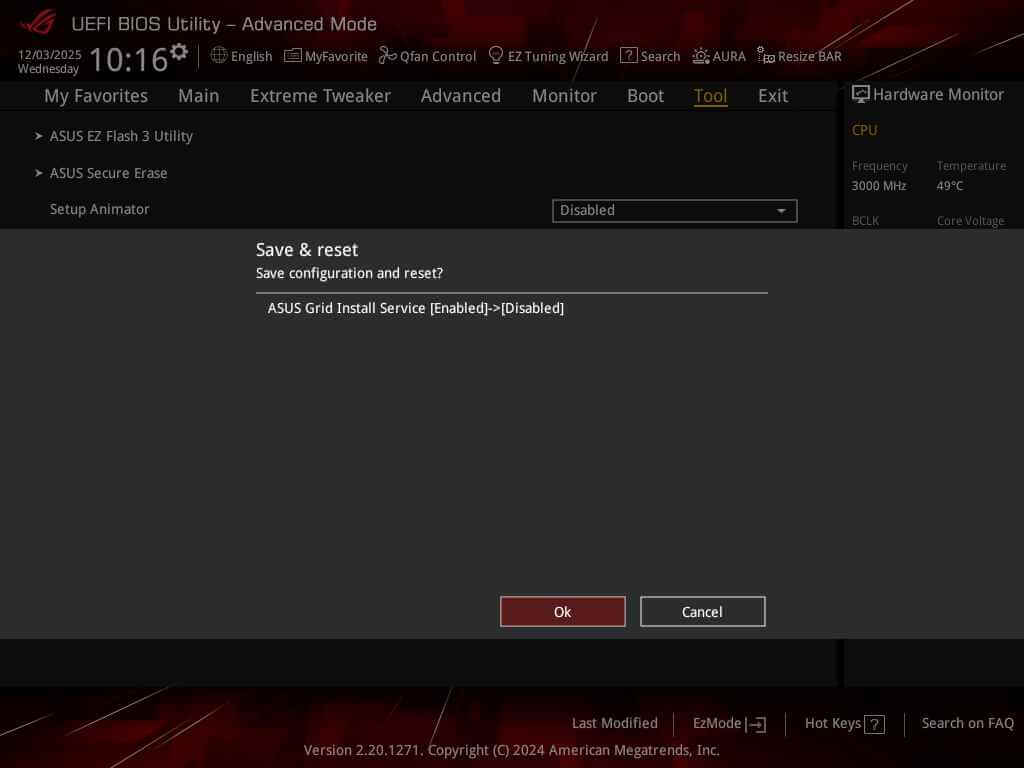
I promptly disabled ASUS Grid Install Service as illustrated in the above image; however, I then discovered that three Asus background services found their way into the Windows/System 32 folder:
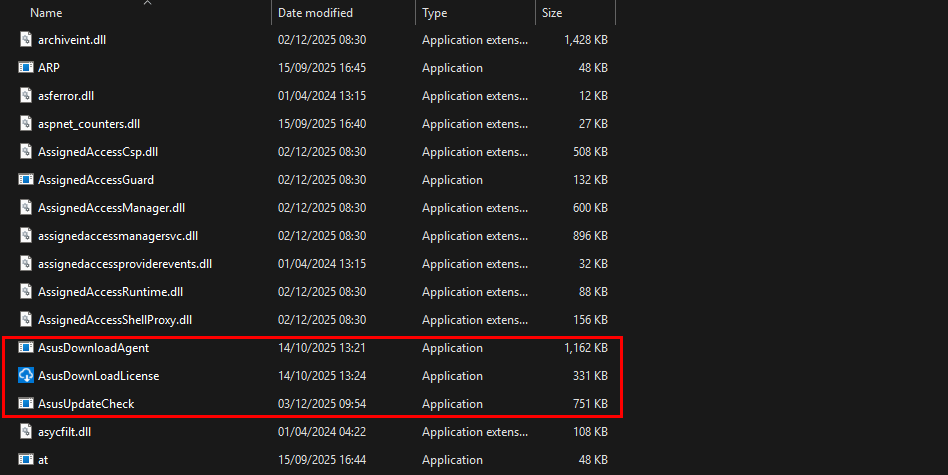
I then checked for Running Services and Start Up Apps in Task Manager, but no Asus programs appeared, and I don’t have any Asus programs installed, either on the laptop or my main PC, so I’ll probably leave them there. This is because many other users have reported that even if you delete them, they reappear on reboot.
Conclusion
Asus has apparently included these UEFI injections to facilitate driver updates, but I’m not convinced. I prefer to manage driver updates manually, especially since rolling back drivers can often resolve conflicts and errors. In fact, after removing Asus Armoury Crate, I installed G-Helper, a free, open-source Asus laptop-only utility without the bloat and weighing in at only 5.6 MB, as opposed to Asus’s offering at almost 5 GB.
—
