

I tried to record a video from my TV box to my computer using PotPlayer.
The video was recorded except for one issue. No sound.
I opened PotPlayer. In the top-left corner, where you see the word “PotPlayer,” I clicked it. In the menu that opens, click “Open” and then “Open Webcam/Other device”.
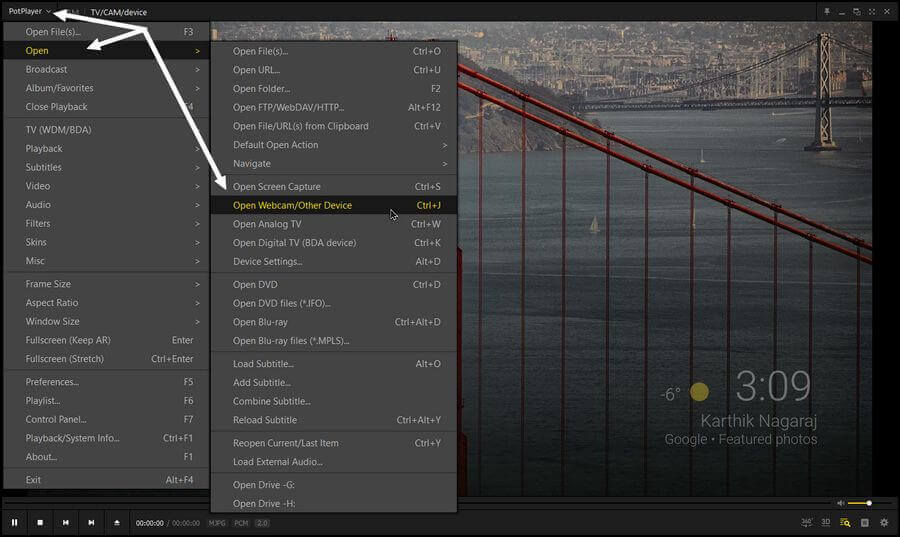
I didn’t have any sound coming through. At first, that didn’t bother me because when I use OBS, I don’t hear any audio either, but it still records audio in the videos.
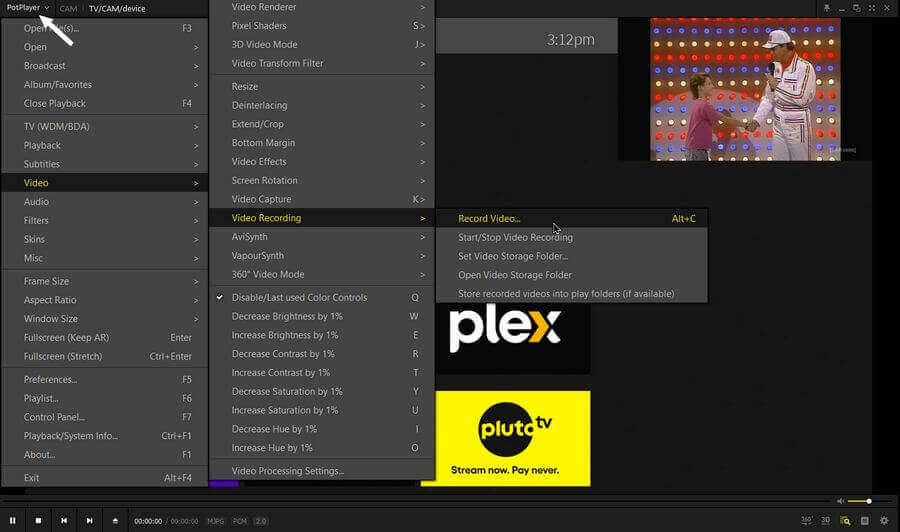
When the stream started playing, I clicked the top menu again and then clicked on “Video”, then “Video Recording”, then “Record Video…” or keys “Alt + C”.
Then, in the box that opens, select “Storage”; this is where you want to save the file. Click the box with three dots to navigate to your saved video folder.
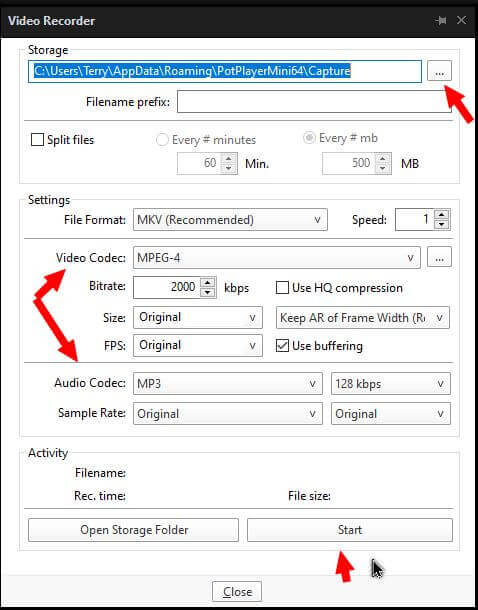
Here you can also set your codecs, both audio and video. You can split the video into smaller chunks if you want; otherwise, click on “Start”.
The Start button turns into a Stop button. You can keep this box open until the recording is done; otherwise, close it and come back to it later. The size of the recording will display just above the Start/Stop box as its recording.
My final result was a video with no sound. After some searching online, I found a working solution.
Go into preferences “F5”, or menu, then “Preferences”.
In the box that opens, click the little plus sign in front of “Device” to expand the Device options. I then clicked on “Webcam.”
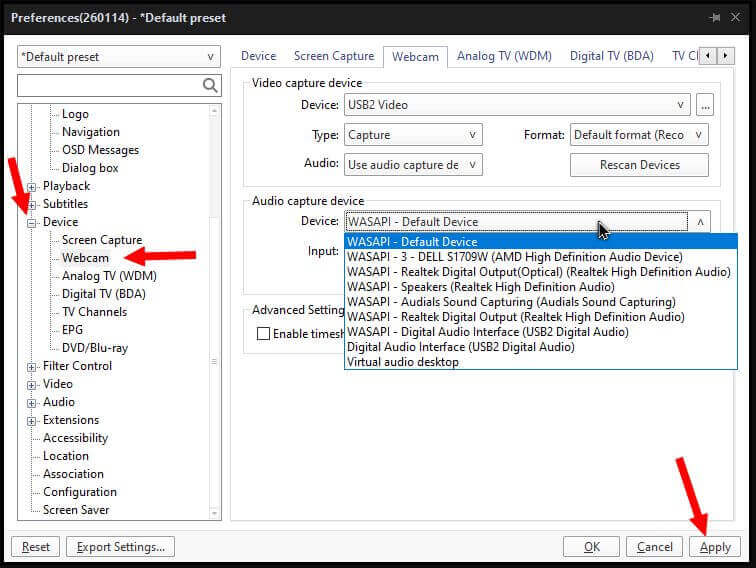
The default audio was listed as “WASAPI – Default Device”. I switched it to “WASAPI – Digital Audio Interface (USB2 Digital Audio)”. Click “Apply” and/or “OK”. And it works.
The “Digital Audio Interface (USB2 Digital Audio)” option also works for me.
As the video was being recorded, the audio seemed a bit choppy, but it sounded Ok on the final video.
For more articles on Recording, click here.
—
