

I’ve been struggling with Windows home networking for longer than I can remember, with most results being hit and miss, which is not how I usually experience computing. It either works or it doesn’t, and when it fails, it’s usually due to a user setting. But lately it could be down to Windows updates, at least according to my research. So many times I’ve thrown my arms in the air with home networking, but this time I decided to go full hooligan mode, so please bear with me. I was inspired to go one step further by fellow author Terry’s articles How To Set Up A Home Network (2022) and How To Fix Network Error In Windows (2019), where he experienced the same connection problems as I have, and illustrated by these quotes:
“One thing I noticed on my system is that it doesn’t stick.”
“And yes, you will have trouble, this is Microsoft after all.
I still have problems with my network. Just a few days ago it completely vanished. My Gateway desktop comes and goes and I still can’t print through one of my laptops.”
 I still have problems with my network. Just a few days ago it completely vanished. My Gateway desktop comes and goes and I still can’t print through one of my laptops.”
Home Networking Three PCs
This should be a very simple task in Windows when the following conditions are met:
- Same version of Windows (not obligatory, but it helps)
- Same workgroup name – Workgroup is the default
- Same network profile – public or private (recommended)
In my example, I’m networking three computers running Windows 11 25H2 (OS Build 26200.8037) with each connected to the router by cable. For the sake of simplicity, I’ve given them short names, and in this schematic, they are A, B, and C.
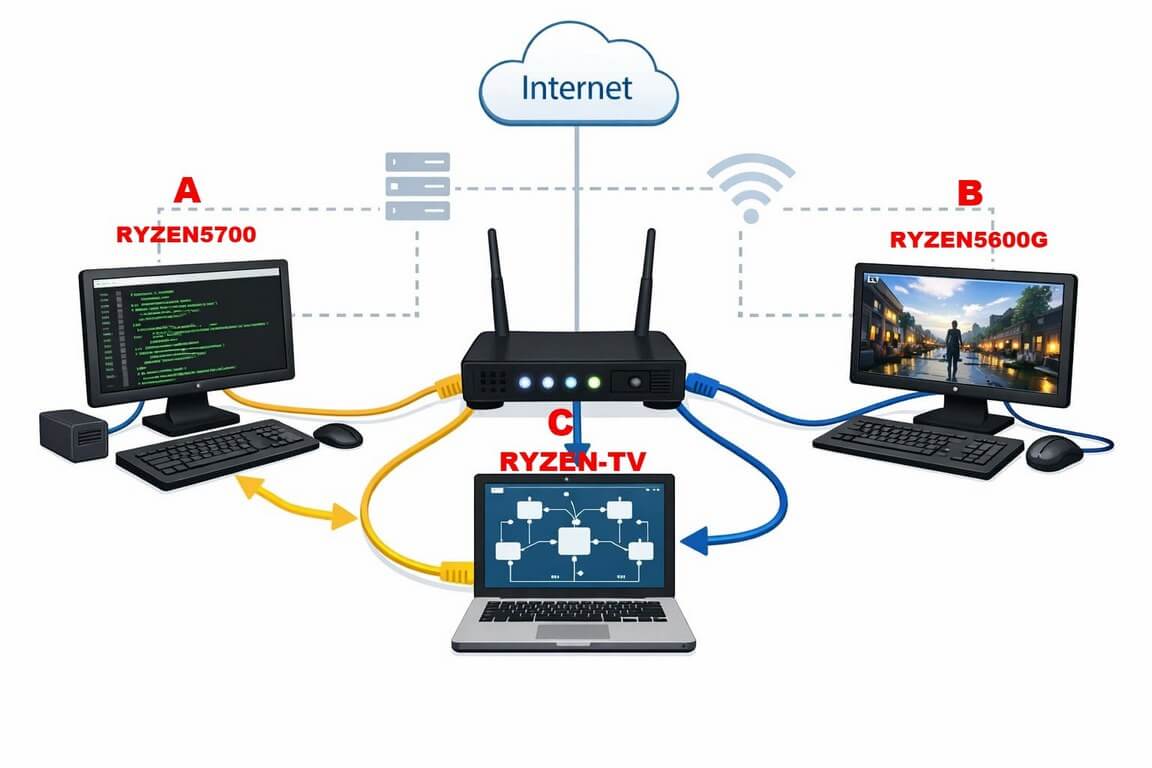
On each computer, I’ve created a shared folder on one of the drives simply called ‘Share’ – it’s not recommended to share an entire drive, and I won’t go into how to share folders here or how to set up a home network because I would simply be repeating what Terry has written in the articles posted above.
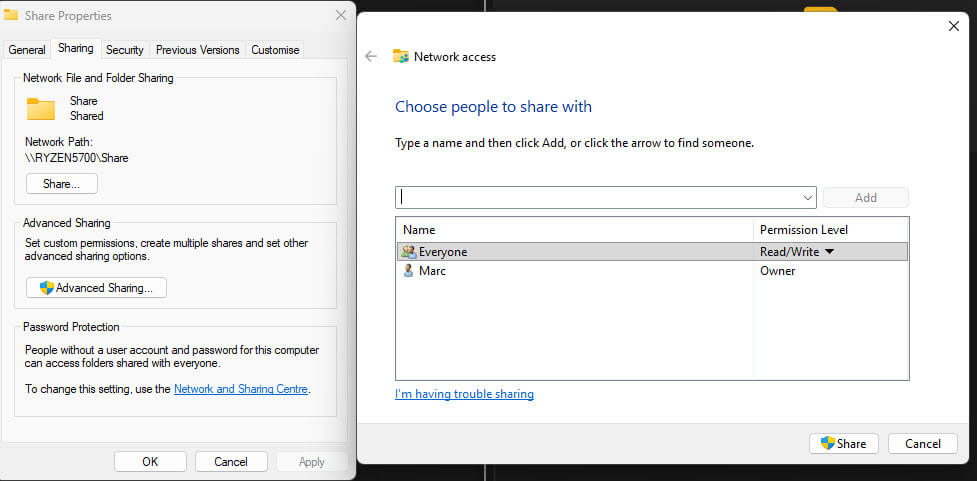
Each of my three computers is in a Private network and the same workgroup, named Workgroup.
Partial Success!
On initial setup, A was able to access C and vice versa, so that’s a result. Once I had finished setting up B, C was able to access B, but not vice versa. In fact, B returned the network error message when trying to access A and C.
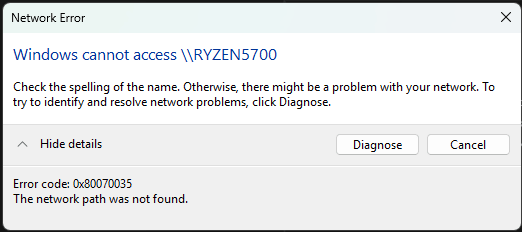
If you hit diagnose, nothing happens, thanks to Microsoft, so you’re better off talking to the cat. To simplify my current home network communication, I’ve updated the schematic as follows:
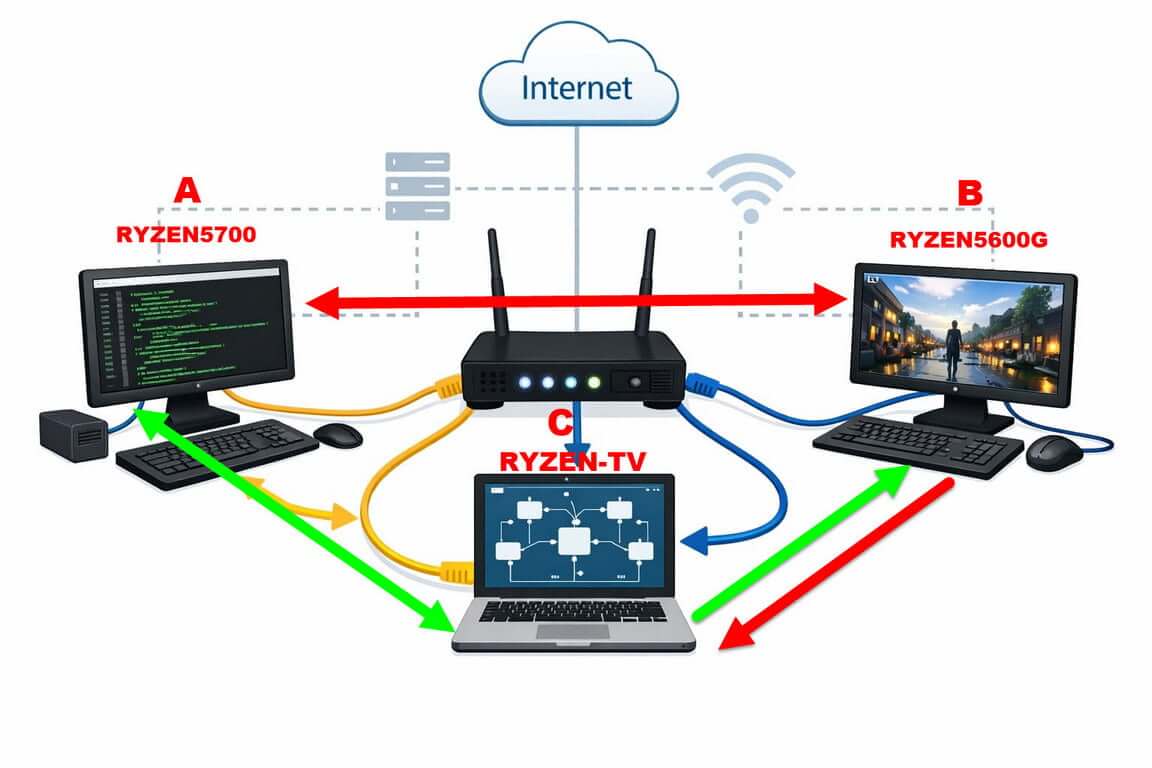
So, A-Ryzen5700 and C-Ryzen-TV have no problems talking to each other, and C-Ryzen-TV can access the shared folder on B-Ryzen5600G, which I found odd since A cannot access B and B cannot access A or C.
Still with me?
Double And Treble Check The Settings
Clearly, my home network has met the requirements because A and C are talking to each other and C is talking to B, but B inexplicably is not returning the favour. Neither can A talk to B, so there must be something amiss, which is where we don our Sherlock Holmes hats.
One would have thought that turning on Network Discovery, File and Print Sharing, and the same workgroup and profile would be enough. But what’s puzzling me is why C can access B but not vice versa, and B will have nothing to do with A, yet flirts with C, but only one way. I followed Terry’s guides to the letter, even delving into Services, Turning Windows Features On and Off, and trying CMD to bring up the IP address of B from A with no luck. But B would have nothing to do with me and threw up the totally useless network error message shown above. Further, when trying to access B from A, I’m not being asked for credentials, which is a kind of hint because, even though I turned off password-protected sharing in Settings, I felt that playing with passwords would eventually have to be tackled.
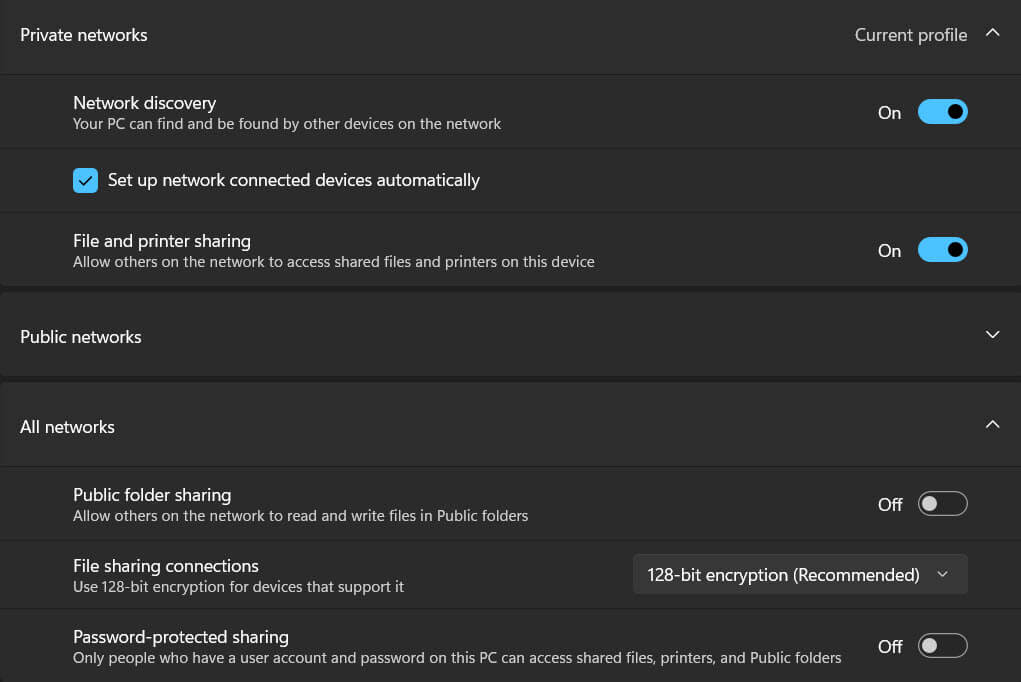
There is a cheat that can be used by editing the Local Group Policy Editor, allowing insecure Guest access/logons. I tried it and was able to log on all the way around as a guest with no password. But that doesn’t solve the problem, and it’s highly insecure. I DO NOT recommend that course of action.
Down The Rabbit Hole
There are thousands of guides available that aim to fix most of these issues, and I found this one most helpful. However, there’s a danger of disappearing down several holes and playing whack-a-mole, which is what happened to me, so I’ll continue this odyssey in Part Two.
—
