

How would you like to have an option in the right-click menu to quickly and easily convert any file, right there in File Explorer? That’s what you get with this terrific freeware with the rather exotic name, File Converter. Thanks to fellow author and friend Marc Thomas, who recommended File Explorer in the first place.
I’m not one who needs to frequently convert files, and in the past, I’ve relied solely on online conversion sites to get the job done. However, after installing File Converter on Marc’s recommendation, I have to admit I’m a convert (pun intended).
File Converter supports most popular audio, video, image, and document formats:
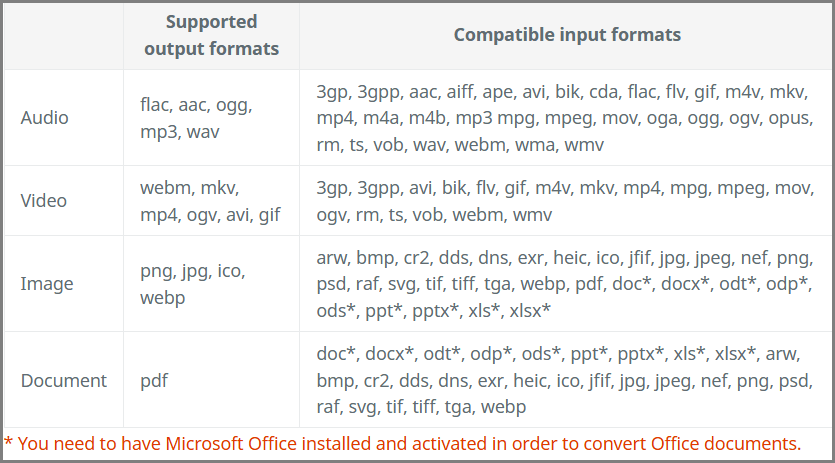
However, the best part is that it takes just one click to instantly convert a file: right-click on the file you want to convert and choose an output format, that’s it!
Under is an example of File Converter’s options in the right-click menu – in this case, options to convert an image:
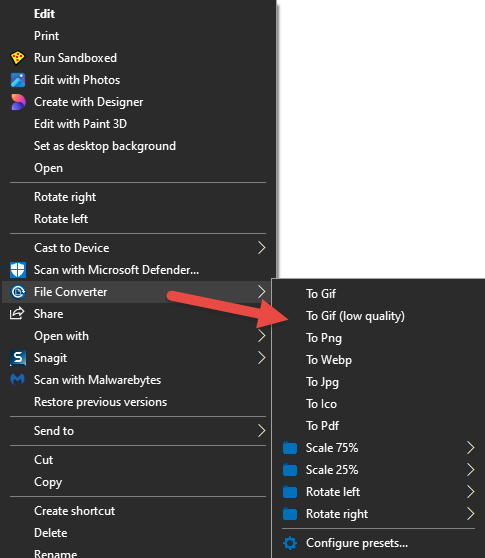
As you can see, File Converter provides other options for dealing with specific file types. Once you select/click your desired option, the converted file is instantly popped alongside the original file in the same folder. This is perfect behavior for file converter software because:
- The original file doesn’t get overwritten, but is retained with the new converted file adjacent
- Because the converted file is written to the same location as the original, you always know where to find it
BOTTOM LINE:
As I mentioned earlier, I don’t need to convert files all that often, but I am well and truly sold on File Converter. If you’re someone who tends to convert files on a regular basis, I can pretty much guarantee you are going to be very pleased with this little freeware gem.
- For more details and direct download, visit: File Converter Home Page
—

thanks for that tip on File Converter it just might come in handy. Like an old pal use to tell me mights on a chickens butt.