

Device drivers are programs that allow the operating system to communicate with hardware devices. When it comes to driver updates, the old saying “if it isn’t broken, it doesn’t need fixing” well and truly applies.
The one possible exception is graphics card drivers, which often include support for newer games/technology, but even then, the preferred option is to download updated drivers directly from the manufacturer.
I’ve always been of the opinion that, provided everything is working fine, device drivers are best left alone. That’s why I don’t allow Windows to automatically update device drivers, apart from the fact that Windows Updates are notoriously iffy.
Prevent Windows From Updating Drivers
Applies to both Windows 10 and Windows 11:
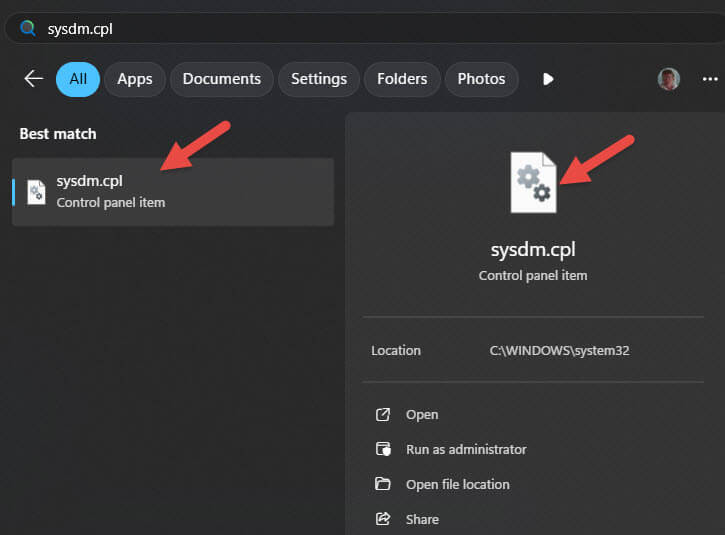
- Open the Start menu and type sysdm.cpl
- Click the corresponding item in the results
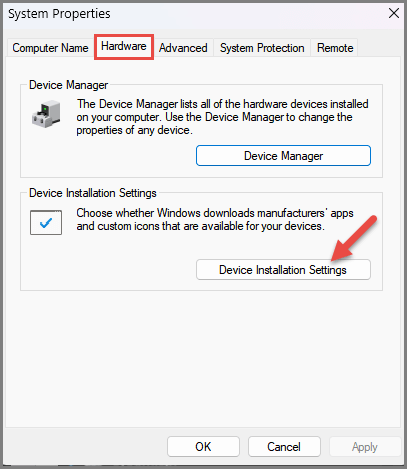
- In the System Properties window, go to (open) the Hardware tab
- Click the Device Installation Settings button
- Enable the “No” option and click Save Changes
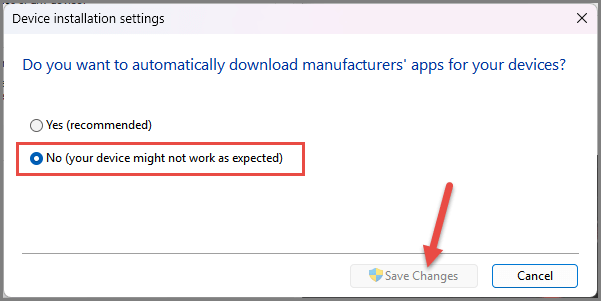
NOTE: Mine was already set to “No” and that’s why the Save Changes button is greyed out. When you change from “Yes” to “No” that button will be active
BOTTOM LINE:
You’ve no doubt read the following advice many times, but it does bear repeating: always get driver updates from the device manufacturer’s website.
—

I user Windows Automatic Update Manager, a free app that lets you decide which updates to install rather than letting windows update automatically install them all. That way when I see that windows update want to install a driver, I don’t install the driver. But now I know that there is an update and I go to the manufacture’s site to get the update.
Hey Charley,
Yep, WAU Manager is a great bit of gear: https://davescomputertips.com/how-to-take-full-control-of-windows-updates/
Hi Jim. On my laptop (Acer), I get driver updates specifically tailored for the Acer laptop. I too use WAU Manager, and receive no driver updates for my desktops. Henry.