

This applies to all mainstream browsers. I don’t have too many websites that I visit on a regular basis, but it’s handy to have one-click shortcuts to those that I do visit regularly pinned to the Taskbar.
Both Edge and Chrome include a simple native method for achieving this, but other browsers, such as Brave and Firefox, require a bit more effort. In all the following examples, I’ll be creating a shortcut to Daves Computer Tips… after all, we only want to include the very best sites.
Pin Websites To Taskbar In Edge
- Visit the website you want to create the shortcut for
- Open the options menu (click the three little dots at the far right of the address bar)
- Click More Tools and then click Pin to taskbar
- A confirmation message will pop up, click Yes

Pin Websites To Taskbar In Chrome
- Visit the website you want to create the shortcut for
- Open the options menu (click the three little dots at the far right of the address bar)
- Click Cast, save and share, then click Create shortcut
- In the message that pops up, click Create
- You’ll now see the shortcut on the desktop
- Right-click the desktop shortcut and click Pin to taskbar
- You can now delete the desktop shortcut if you want

Pin Websites To Taskbar – Other Browsers
I’ve tested this method in Brave and Firefox only, but I see no reason why it wouldn’t work for other browsers. The minor issue with this non-native method is that the shortcut is not clearly identifiable, but we can take steps to rectify that, which I’ll explain as we go along:
- First off, assuming you already have a shortcut on the Taskbar to open the browser, you’ll need to create 2 desktop shortcuts
- If you already have a desktop shortcut for the browser, right-click that shortcut and select Create shortcut (so you’ll now have 2 desktop shortcuts)
- If not, navigate to the browser’s executable, which will be in either C:\Program Files\Browser Name or C:\Program Files (x86)\Browser Name
- Right-click the executable and select Create shortcut
- In the pop-up message, click Yes
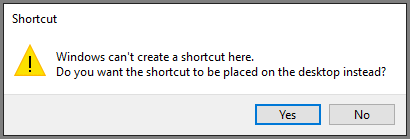
- Right-click the new desktop shortcut and select Create shortcut (so you’ll now have 2 desktop shortcuts)
- We’ll be working with the second shortcut, not the original, so it’s important to note which is which
- Navigate to the website you want to create a shortcut for and copy the URL from the address bar
- Right-click the second desktop shortcut and select Properties
- In the Target field, at the end of the existing target, insert a single space and then paste in the URL you copied earlier
- It should look like this: “C:\Program Files\BraveSoftware\Brave-Browser\Application\brave.exe” https://davescomputertips.com/
- To help identify the new shortcut, click Change icon
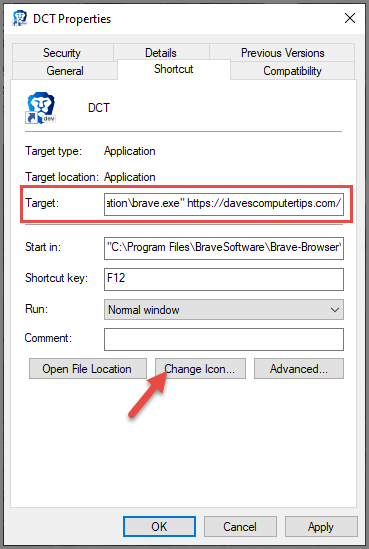
- You’ll see a selection of different colored icons to choose from. Select a color that’s different from the default
- Click Apply, OK
- Now, right-click the desktop shortcut and select Rename
- Change the name to something that identifies the website (in my case, I named it “DCT”)
- Right-click the desktop shortcut again and select Pin to taskbar
- You can now delete the desktop shortcut if you want
The new Taskbar shortcut will display the name you chose with a mouse over:

BOTTOM LINE:
Creating Taskbar shortcuts via the non-native method might sound quite complex, but trust me, it’s a lot more straightforward than it sounds, especially once you’ve created your first shortcut.
—
