

If you were here last week, you would have learned How To Change ChatGPT Personality. If you missed that one, you can find it here:
How To Change ChatGPT Personality
Since I have been teaching on this for the last few weeks, let’s continue our lessons on this AI tool. “What else will I teach you?” Good question. This week, I will be showing you how to change the appearance. That is right, you can change it from Light to Dark and even change the accent color. That is one thing I love to do on any program that allows me, personalize it! Before we start the class, make sure to check out these other lessons I have written for you:
- How To Stop ChatGPT Notifications
- How To Stop ChatGPT Using My Data
- How To Create Shortcut On Android
- How To Customize Google Search Widget
- How To Stop Gemini From Reading Screen
Guess it is time to begin your new training.
How To Change The Appearance Of ChatGPT
This will be shown on the ChatGPT website in Google Chrome.
Step 1: Head on over to ChatGPT.com.

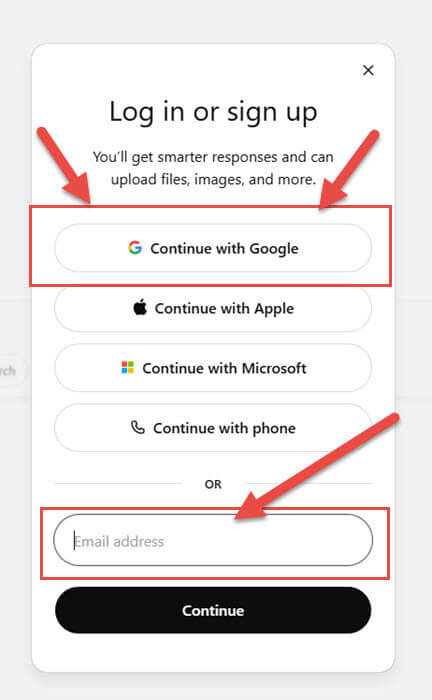
Step 2: Once there, make sure you are logged in to your account. I use Google for mine, so that is the one I will click on.
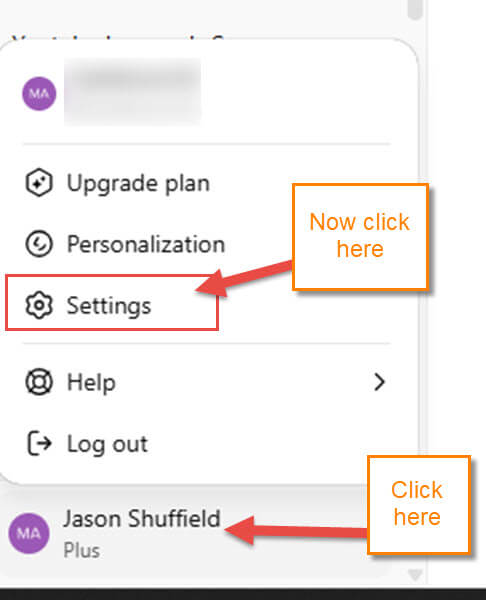
Step 3: After you log in, look to the bottom left and find your Name. Click on it, and a menu will pop up. You will see Settings. Click on that.
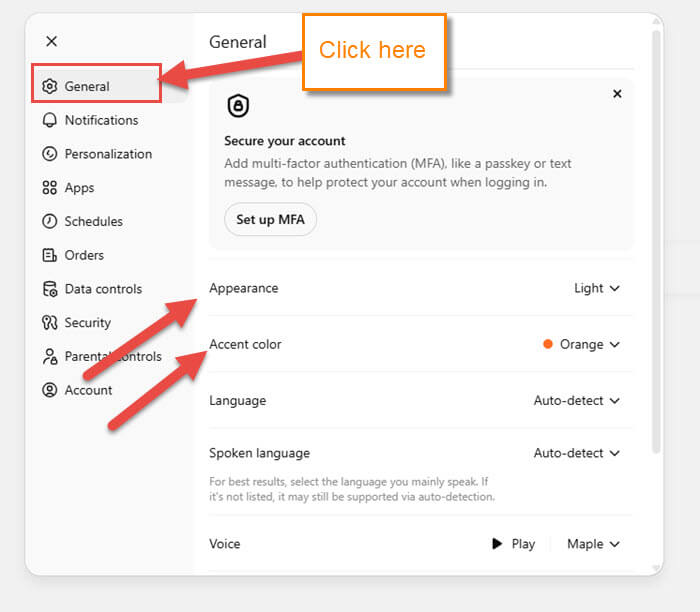
Step 4: On the left menu, make sure you are on the General tab. If not, click on that option. As you can see in the middle, you have many options to work with, but we are only focusing on two:
- Appearance
- Accent Color
Let us start with the Appearance option.
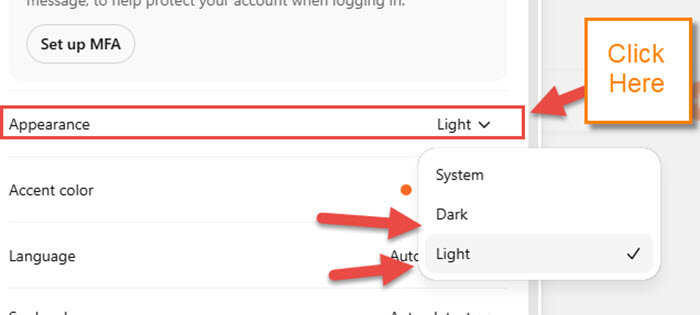
Step 5: Click on the Down arrow to the right of it. This will bring up a menu:
- System (Default)
- Dark
- Light
As with many online systems, you can change things from Light to Dark. With this one, it offers the same options. Click on the one you want. Now, let us move on down to the Accent color option.
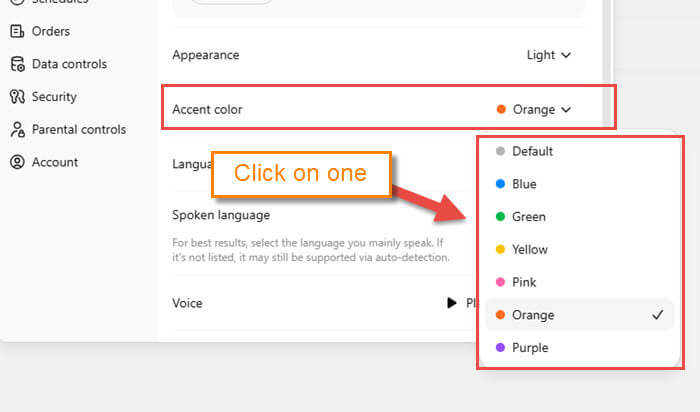
Step 6: As we did with the last one, click on the down arrow to the right of it. This will bring up a menu of all the accent colors you can choose from. I’m going to click on Orange since I like it. You might be wondering where this color appears.
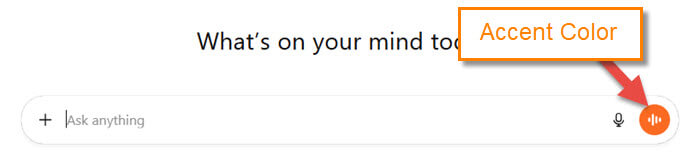
Step 7: Leave that menu, and you will see the accent color on the far right of the Ask anything box. It changes the color of the Use Voice icon. I was hoping it would have changed more than that, but this is what you get. Before we are done, I have a Bonus tip on how to do this on your Mobile phone with the ChatGPT app.
BONUS TIP: How to Change The Appearance Of ChatGPT On App
Step 1: Tap on the app to open it.
Step2: Once on, look to the top left for the two menu lines. Tap it.
Step 3: This will bring up the side menu. Look to the bottom for your name. Tap it.
Step 4: The main Menu screen will appear. You will find the two options, Appearance and Accent, on this screen.
Step 5: Tap on each to get a pop-up menu to choose your favorite options.
Now you know how to do this on both the website and the mobile app. Time to share this knowledge with the world.
—
