

Last week, we had a lesson on Google Photos, which we have been covering for many weeks. If you missed that one, here it is:
How To Create Collage In Google Photos
This week I want to change subjects and talk about Facebook. Many of us (older people) still use this platform to keep in touch with friends and family. So there are many features to teach you about. ‘What can you teach us this time?’ Good question. After I was looking around on FB, I thought that I could teach you how you adjust the display settings. That is right, there are settings on here to help with your Display and even accessibility. That can be from changing from Dark to Light theme or adjusting font size. Before we start the lesson, make sure to check out all these other articles I have written for you:
- How To Create Cinematic Photos On Google
- How To Create Highlight On Google Photos
- How To Remix Photos In Google Photos
- How To Disable Google Photos Suggestions
- How To Create Animation In Google Photos
Time to start class and learn something new.
How To Adjust Facebook Display Settings
This will be shown on the Facebook website using my Windows laptop.
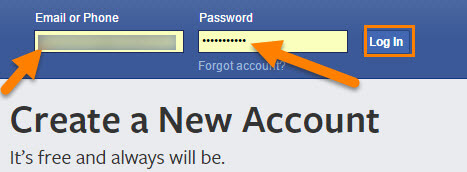
Step 1: Head over to Facebook.com and log in to your account.
Step 2: Once you are logged in, look to the top right. You will see your profile image, and you will need to click on that. A menu will appear, and you need to find the Display & accessibility option. Click it.
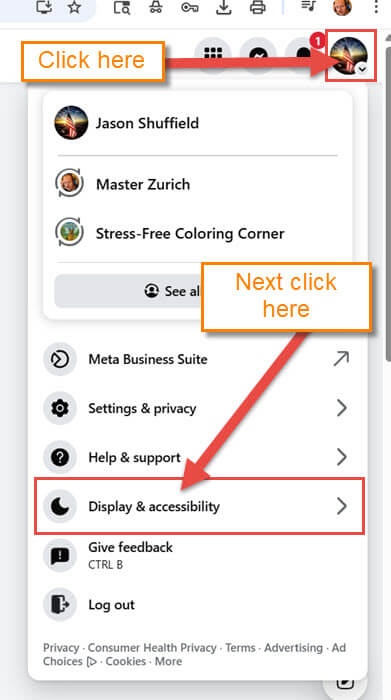
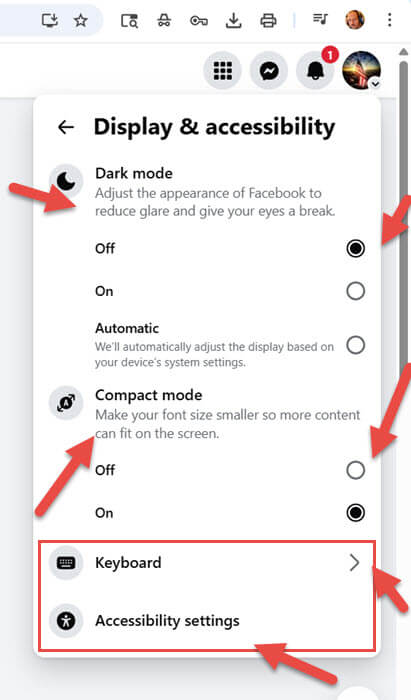
Step 3: Now, this menu will appear, which gives you some choices to work with:
- Dark Mode (Adjust the appearance of Facebook to reduce glare and give your eyes a break) Off, On, or Automatic
- Compact mode (Make your font size smaller so more content can fit on the screen) Off or On
- Keyboard
- Accessibility settings
The top two are easy to figure out. I will touch on the Keyboard one for you. Click it.
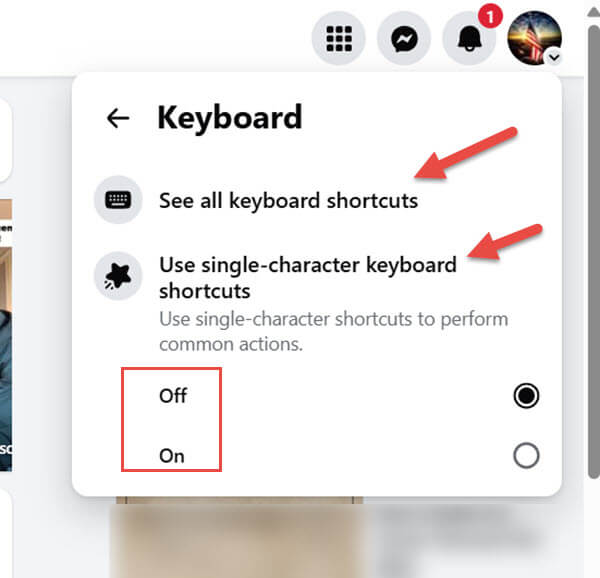
Step 4: Here are the Keyboard Settings they offer:
- See all keyboard shortcuts
- Use single-character keyboard shortcuts (Use single-character shortcuts to perform common actions) On or Off
Click the first option, which will show you a screen of the Facebook keyboard shortcuts. You will need to mess around in there to know what keys do. Turn it on or off. The other one on the Display menu was accessibility. Click on that one now.
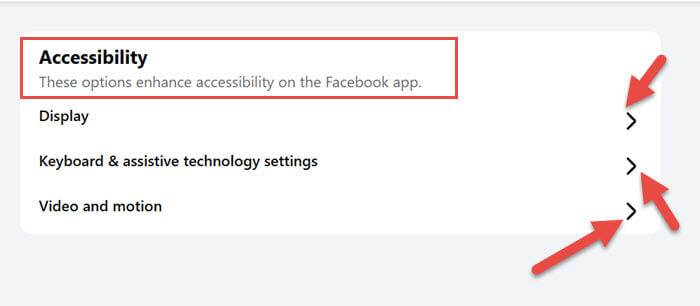
Step 5: Here is the Accessibility screen, which covers these:
- Display
- Keyboard and assistive technology settings
- Video and motion
Since we are talking about the Display, click on that one.
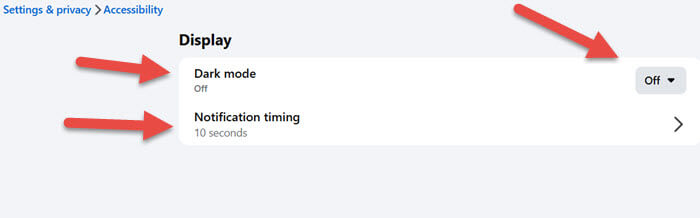
Step 6: On the menu, you are given the option to turn on dark mode. But here it also offers Notification timing. That is where you can adjust the time it takes for system messages to be automatically dismissed. Anywhere from 5 seconds to 50 seconds. The final one I will cover is back on the Accessibility screen. Click on Video and motion.
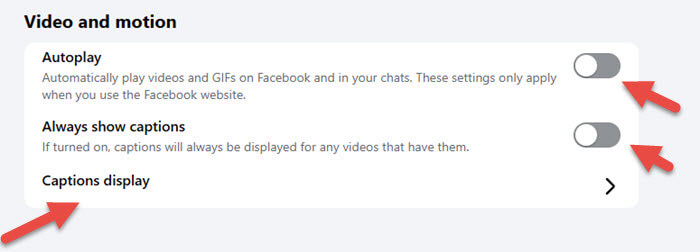
Step 7: On this menu, you will have these options:
- Autoplay (Automatically play videos and GIFs on Facebook and in your chats. These settings only apply when you use the Facebook Website)
- Always show captions (If turned on, captions will always be displayed for any videos that have them)
- Captions Display (This will take you to the screen to adjust Background Color, Background Opacity, Text Color, and Text Size)
That is how you can use the Display setting to improve your time on Facebook.
As I said before, you will need to mess around with these settings to get it the way you want. It is time for you to share your new knowledge with everyone.
—
