

Yesterday I went to a customer’s house to fix a printing problem, which initially had me scratching my head. Her PC had recently been upgraded by her nephew to a Ryzen 5 32GB of RAM, NVMe, and an RTX GPU, which struck me as unusual at first, being a household PC. She then told me that her hobby is photography, so that made sense. Neither her nephew nor her son, who both work in technology and PCs, could get it to print, so this was definitely a challenge!
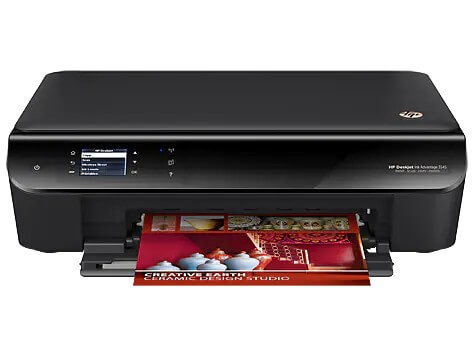
The problem was that I could only get the HP Deskjet Ink Advantage 3545 to print a test page in the printer’s properties, but not actual documents, such as PDF or Word documents. The error, in Spanish, just said that there was an error and to check the printer – very helpful indeed, not. I then downloaded an official HP driver, installed it, but that made no difference. I even changed the USB cable and connected via Wi-Fi, and again, no luck. The printer in question, so I was told, is over 10 years old, so I suspected compatibility issues, but I discarded that, having installed old printers successfully in the past. I might add here that I loathe printer problems and run a mile when asked to repair them, but this had piqued my interest. Or stubbornness, to be exact.
Clear The Print Spool, Dummy!
Naturally, I turned to the Internet for help because surely I couldn’t be the only one with this problem, which I wasn’t. There were hundreds of suggestions, even including formatting your hard drive and reinstalling Windows, ha ha. How in hell could that ever be considered useful, and boy, I have seen that suggestion for the smallest of errors. Anyway, the two most useful solutions were to bring up services.msc and also check the Windows Print Spool folder.
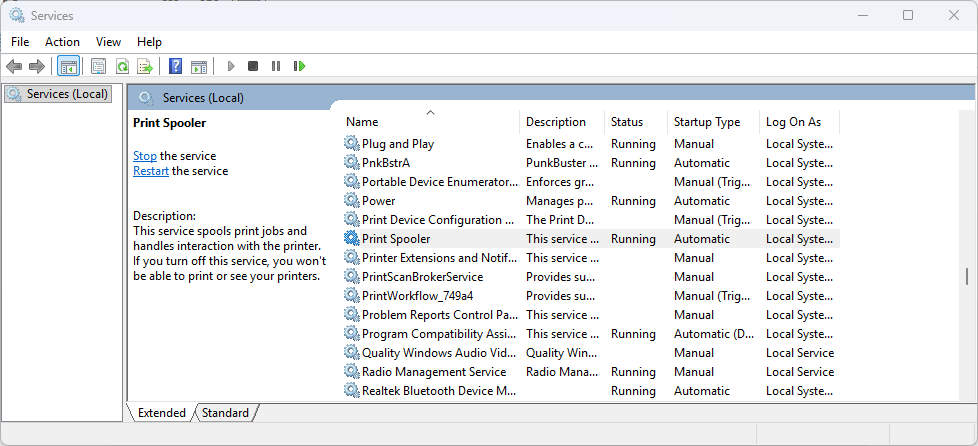
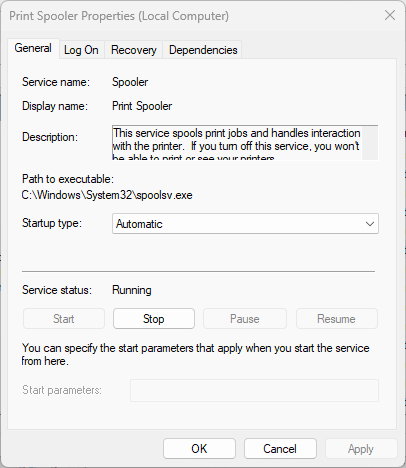
To bring up services.msc, hit Win+r on your keyboard, type services.msc, locate Print Spooler (cola de impresión in Spanish) and check that it’s set to Automatic. Just in case, I stopped the service and then restarted it, but this didn’t fix the problem, even after a Windows restart.
I returned to the lady’s house this morning with spare USB cables and my laptop for more experiments. But before that, I remembered the Windows Print Spool folder from my research. This can be found at C:\Windows>System32>Spool>PRINTERS.
Note: Care should be taken when deleting files and folders from within Windows!

In this case, there were around fifty temporary files (.tmp) in the folder, so I deleted them, which required Administrator Permission, then restarted the PC, and all documents printed perfectly. I’m not suggesting that this will solve all printer issues, but in this case, it worked for me. I was able to notch it up as another lesson learned and get paid for my trouble.
—

Well done Marc.
Of course it would be too much to expect that if a print job was stuck Windows would have the sense to give up and go to the next wouldn’t it ? But no it hangs – waiting forever for confirmation that the problem print job completed successfully.
“Such is life” as the famous Australian Bushranger Ned Kelly said before he “hung” too.
Cheers
Reg
Yes Reg, a decent explanation would be far to much to ask of Windows!
Poor Ned…
Yup; I recently had a printer problem also, and like you, I will usually run other way rather than deal with printer problems. My problem turned out to be related to a recent Windows 11 update. I even deleted the printer and reinstalled it, using new drivers from the printer’s web site. Nada. Then I did another update where the firmware bios was updated, and voila – printer now worked on e-mails, etc. The only thing it would print beforehand was the test page. As Charlie Brown used to say, “Aaaaagh!!”
Which firmware BIOS, Sunny?
I had a similar printer problem some time ago. Solved it by unplugging not just the power, but the cable between printer and computer, Mindblower!