

Do Not Drop Your Mouse!
The other day, I dropped my Corsair Iron Claw wireless gaming mouse, with the end result being that right-click ceased to function. I’m not normally a clumsy person, and at the time, it was sitting on my Asus gaming laptop as I was moving both to the next room. Of course, it could have been much worse – dropping the laptop would have been a disaster.
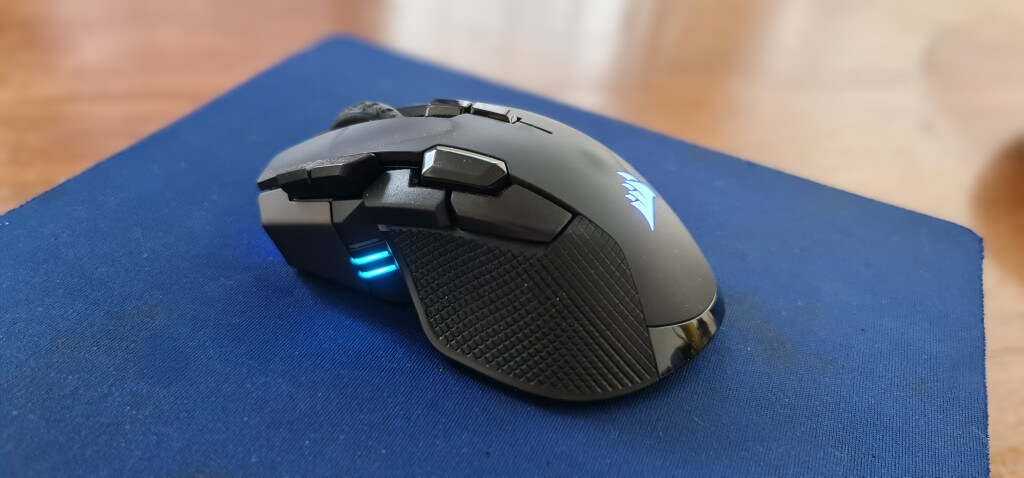
Anyway, I soon realised how often I use right-click when working with Windows, so it became a major inconvenience. I use it to select programs with which to open a file, choose an action from the drop-down dialogue, copy/paste, and many other actions. Many of these functions can be done with a keyboard, such as Ctrl+C for copy and Ctrl+V for paste, for example, so I had to find a way to emulate right-click. First, I went into the Corsair iCue software to reassign right-click, but couldn’t find a way to do it, little realising that the solution had been staring me in the face for years.
Don’t Ignore The Power Of Your Keyboard
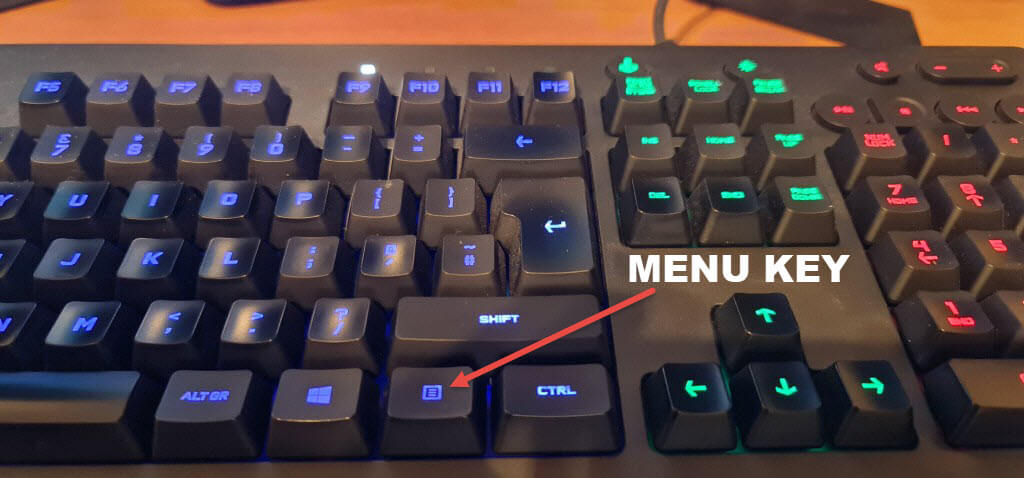
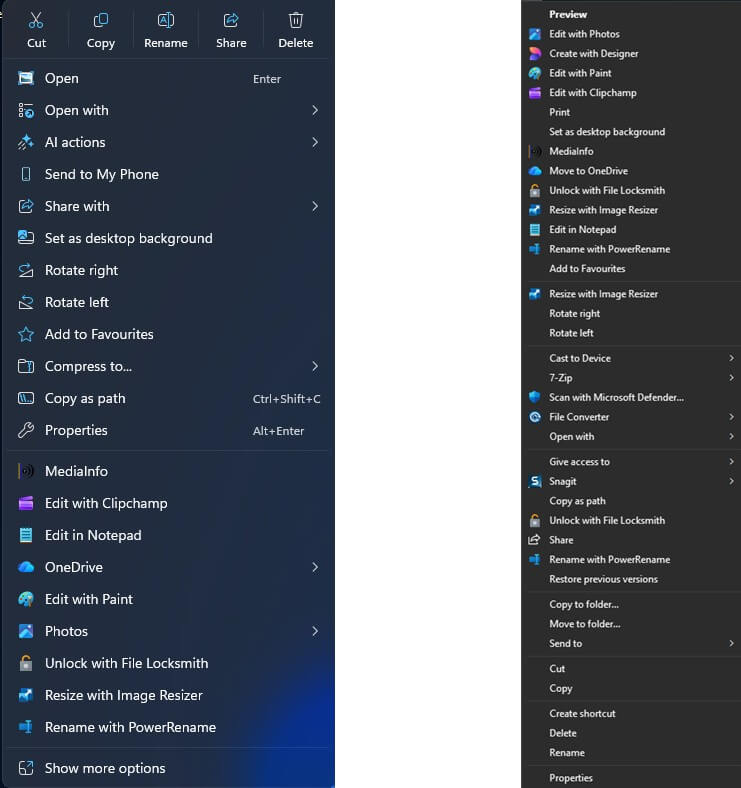
Up until the other day, I hadn’t noticed the menu key on my various keyboards, and it turns out that if you simply highlight an icon on your desktop with a left-click and then hit the menu key, the right-click dialogue appears. Or, in Windows 11, where that dialogue has been shrunk, hit Shift+Menu key and you get the full dialogue.
On my laptop, I need to use the FN+Menu key, and the result is the same. So if you find yourself in a similar situation where your right-click no longer works, try the options I just mentioned.
—

Never knew this! And I love keyboard shortcuts. Many thanks.
Now this one got attention because my little old laptop is just about kaput.
It hasn’t accepted a mouse for a couple of yrs now.
And the touch pad may or not work depending on how it feels on the day.
So I am often left with just the keyboard shortcuts to finish whatever I was doing which these days isn’t much. Usually just adding new photos then doing a backup to keep the portable HDD refreshed.
Right click has always been invaluable but with no mouse it becomes very difficult.
And with no touchpad almost impossible.
So how can I highlight something without the touchpad or mouse? Is it vital that the thing is highlighted?
And then is there a way to bring the right click menu forward so I can use it?
I will eventually get another laptop but this house has no internet so with W11 requiring a connection from the get go, I’m stranded for a while until I bite the bullet and get a starlink service.
My phone doesn’t have enough data allowance for an initial laptop start up.
I would rather just hang with W7 or similar but still need to download stuff when the laptop is new.
Anyway got off track there.
Hope you can answer my question or perhaps it’s impossible.
And when I looked at the pic of the menu I had this image of me spending all morning scouring the list for the thing I needed. When in fact it would have been much easier to just get there the long way round.
(with apologies to Marc for jumping in here)
Hey Clissa,
You can navigate around File Explorer and highlight a location/file/folder using the keyboard’s arrow keys. Then, select a highlighted option by hitting Enter.
For example; say you wanted to delete a file in Documents using keyboard only:
Open File Explorer (Windows + E keys)
Use the arrow keys to move to and highlight the Documents folder, and then press Enter
Use the arrow keys to scroll up and down the contents and highlight the file
When the file you want to delete is highlighted hit the Menu key
Use the arrow keys to highlight the option you want in the right-click menu (Delete) and hit Enter
HTH
Thanks to Jim for helping out here!
Sadly shift+menu does not work in Windows 10!
Haha yes just worked that out!
No worries.
I’m gunna try the E-keys.
Sorry meant to say the F-keys
The ones along the top of the keyboard. They usually work for me since they get little usual use.
Chris,
Shift+Menu is only for Windows 11 (as per the article). For Windows 10 it’s just the Menu key, on its own.
Just need clarification on the name of that key.
Is it also known as the Windows key? If so I already use it.
My laptop doesn’t have a key on the bottom right of the keyboard that might be called a Menu key.
Just the arrows and shift and enter.
The Shift + Right-click works on Taskbar icons in Windows 10.