

You probably seen videos where the logos are displayed in a corner of the video. You can do this with your own videos using VLC, but unfortunately, it doesn’t work the way I thought it did. I’ll explain in the end.
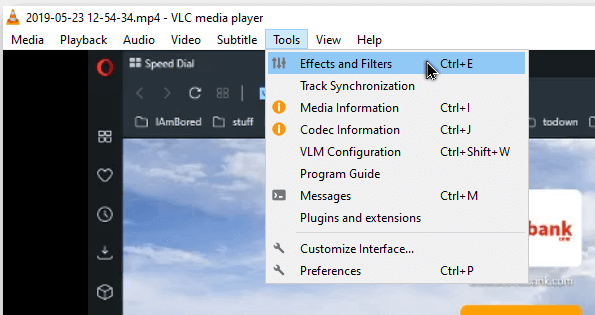
Open up your video in VLC. Then click on “Tools -> Effects and Filters”.
In the box that opens, click on the “Video Effects” tab. Then “Overlay”.
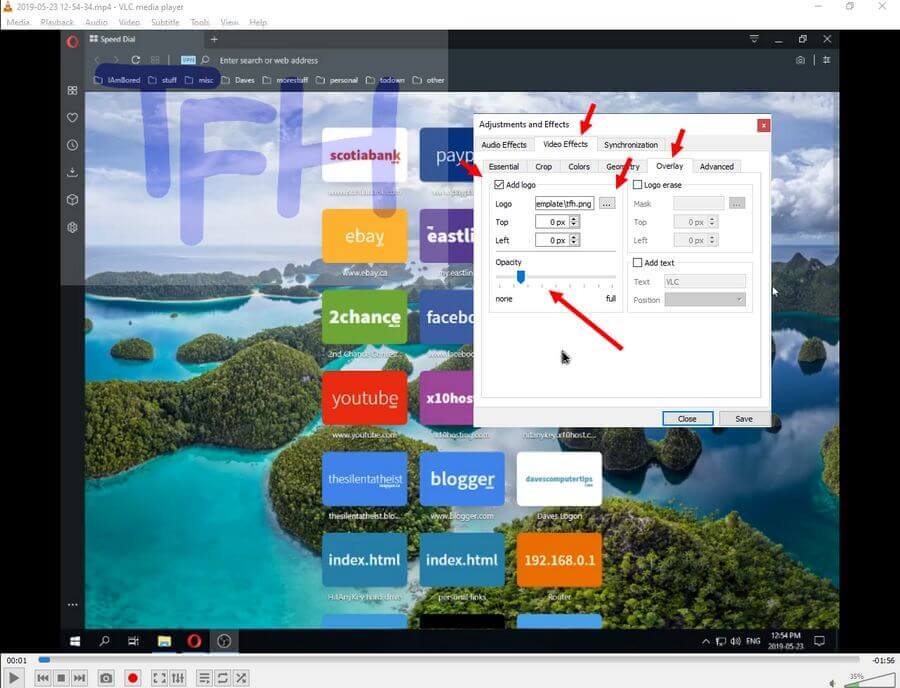
Check the “Add logo” box. Click the grey box with the three dots to select the logo you want embedded.
Note: Make sure your logo is the exact size you want. You cannot adjust the size after. I created a simple logo with my initials.

I could have adjusted the position on the video using the “Top” and “Left” options, but for this example, I kept it at zero.
I did adjust the “Opacity,” so it becomes more transparent. Then I clicked on “Save”.
Nothing seemed to be happening. I expected a pop-up to allow me to save the video with the embedded logo. I waited a few minutes, and still nothing. I closed it and was going to give it a second shot. I opened the video again, but the logo was showing on the video. It worked.
I decided to try it again anyway. The video I used was just a copy of the original, but when I opened the original, the logo was embedded there as well. In fact, it was embedded in every video on my system.
I opened my video in another media player, and the logo was gone. So now I understand what was going on. It was just an “OVERLAY” on the videos I play through VLC.
I tried recording the video by using the record button to see if I could save the overlay on a new video. It doesn’t.
So … the point of this feature???
For more VLC articles, click here.
—
